


How to Remove Intellectual Property from SOLIDWORKS Files
When sharing SOLIDWORKS models with customers, vendors, or external partners, protecting your intellectual property (IP) is critical. Exposing internal features, design intent, or parametric history can put your proprietary designs at risk.
In this blog, we explore effective methods in SOLIDWORKS to remove intellectual property while still allowing recipients to view or use the model safely.
Why Remove Intellectual Property from SOLIDWORKS Files?
- Protect confidential design intent
- Prevent reverse engineering
- Share models safely with vendors or clients
- Reduce file size for easier sharing
- Enable collaboration without exposing sensitive details
Method 1: Using the Defeature Tool in SOLIDWORKS
The Defeature tool allows you to remove detailed features from parts or assemblies and replace them with dumb solids (solids without feature history).
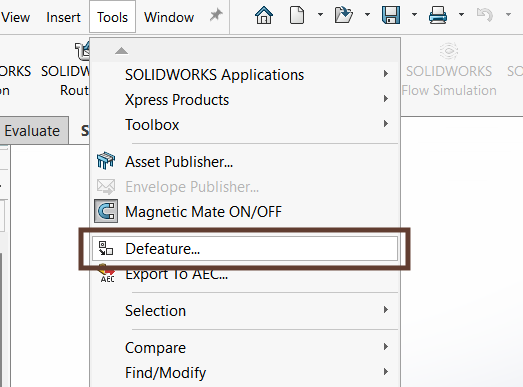
How to Access Defeature
Tools > Defeature
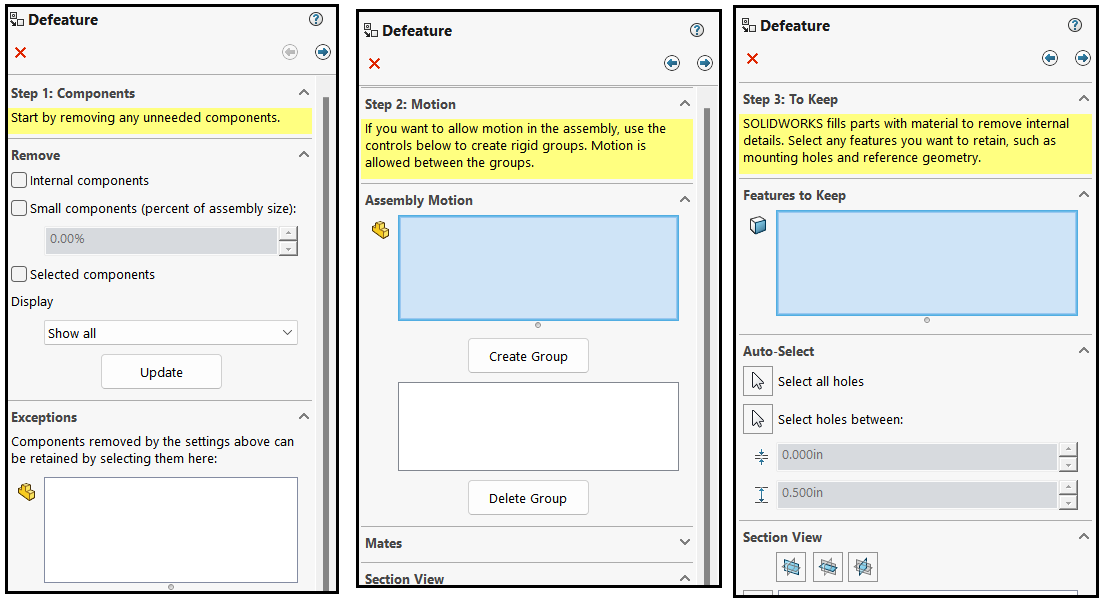
This launches a 3-step Defeature wizard that helps you control what information is retained or removed.
Defeature Options Explained
Defeature – Components / Bodies
- Remove selected components in assemblies
- Remove bodies in multibody parts
Defeature – Motion
- Preserve motion between simplified component groups
- Useful for functional demonstrations
Defeature – To Keep
- Retain essential features such as mounting holes or interfaces
Defeature – To Remove
- Manually remove features not automatically eliminated
Feature Removal Complete
- Save the simplified model as a new part file
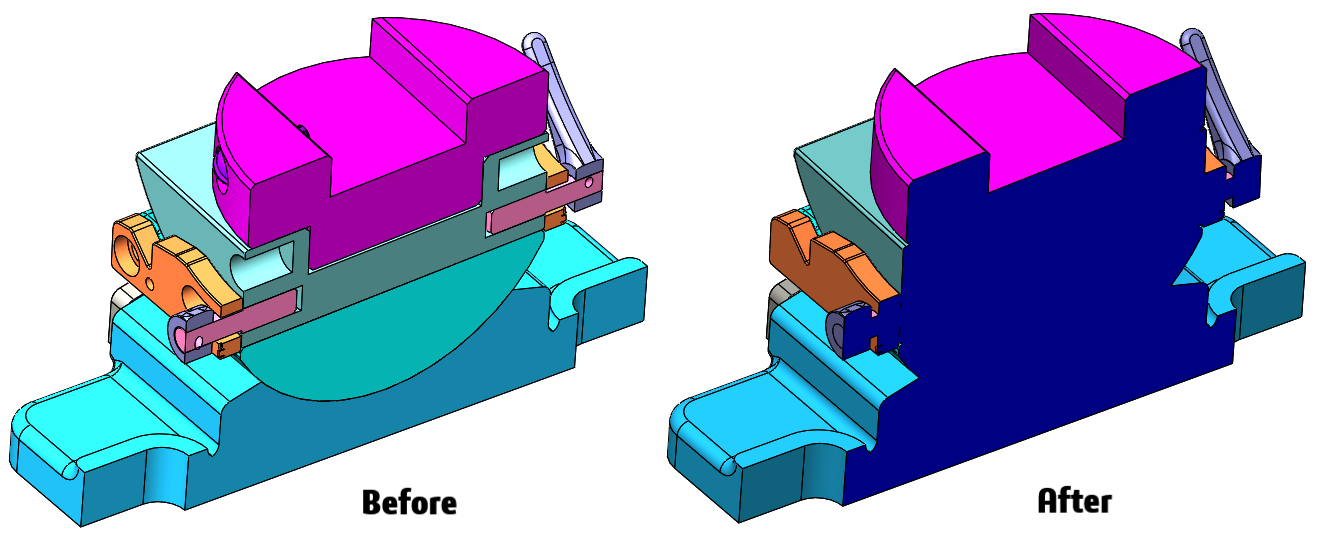
Benefits of Defeature
- Removes internal and small features automatically
- Creates a new simplified model
- Ideal for complex imported parts
- Significantly reduces file size, especially when exporting to STEP files
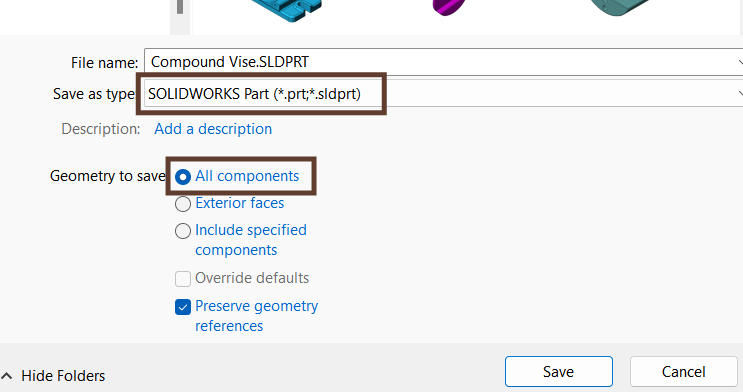
Method 2: Save Assembly as a Part (Exterior Faces Only)
Saving an assembly as a part using Exterior Faces is one of the easiest ways to protect IP.
Steps
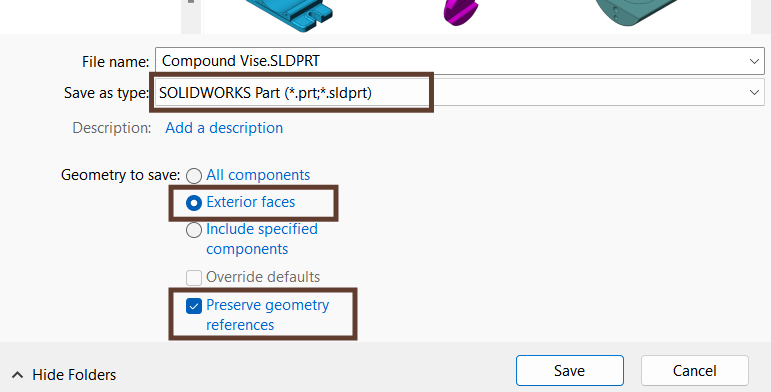
- Go to File > Save As
- Change Save as type to SOLIDWORKS Part (*.sldprt)
- Under Geometry to save, select Exterior Faces
- Enable Preserve geometry references
- Click Save
Result
- Only outer surfaces are saved
- No feature tree is available
- FeatureWorks cannot reconstruct features
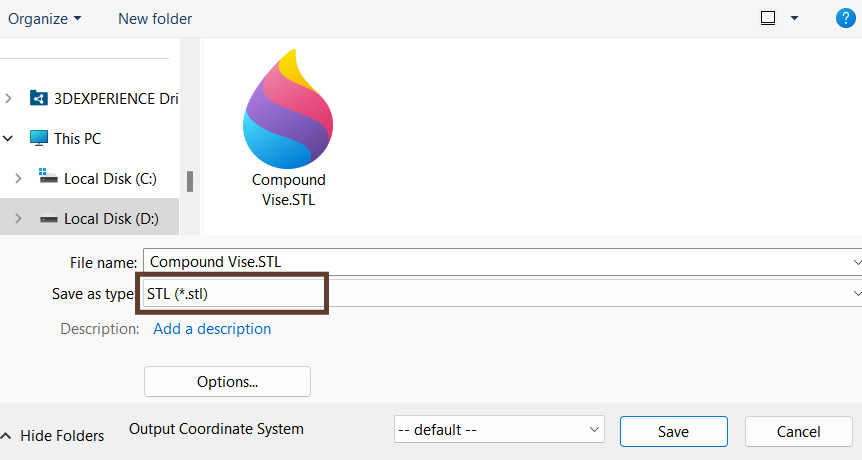
Method 3: Save Assembly as STL
Saving files as STL converts geometry into graphics bodies, making it ideal for IP protection and manufacturing previews.
Use Cases
- 3D Printing
- Sharing reference-only geometry
- Preventing feature reconstruction
Method 4: Publish to eDrawings or 3D PDF
For view-only sharing, SOLIDWORKS supports publishing to eDrawings or 3D PDF formats.
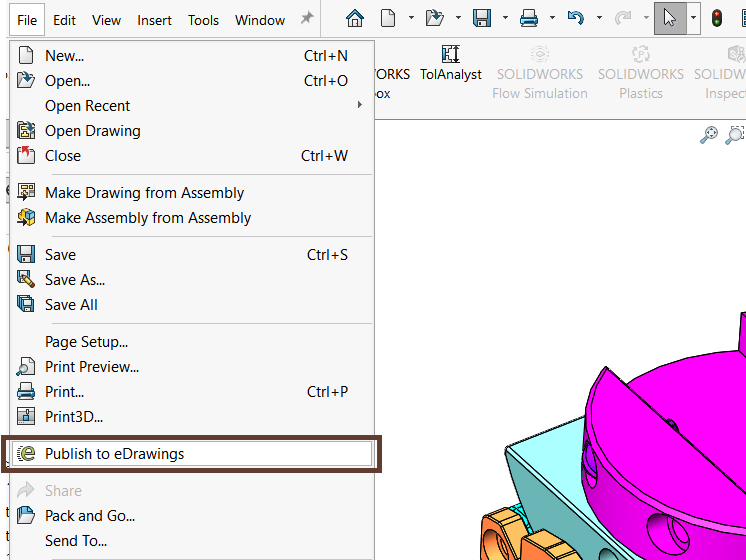
Publish to eDrawings
File > Publish to eDrawings
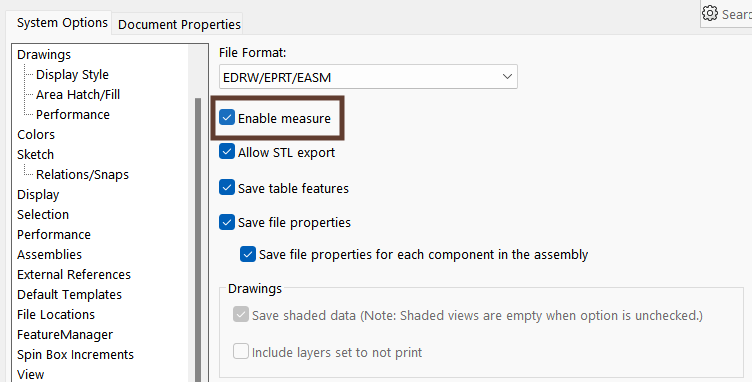
To disable measurement:
- Go to Tools > Options > System Options > Export
- Select EDRW / EPRT / EASM
- Uncheck Allow measure
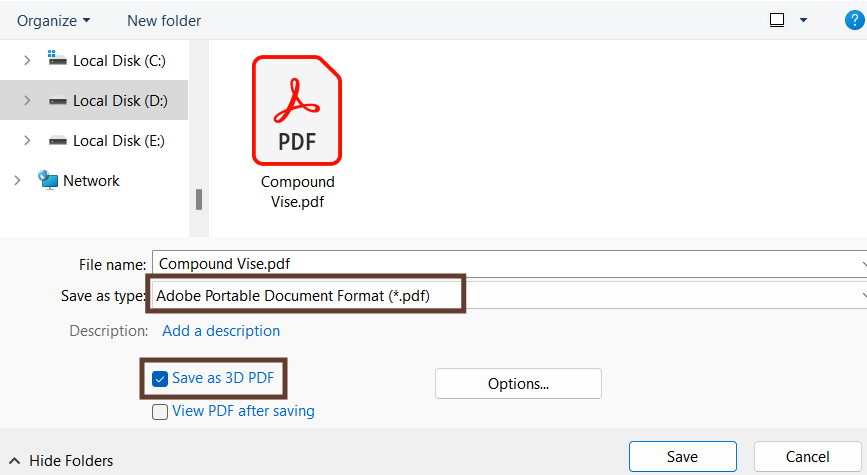
Save as 3D PDF
- Go to File > Save As
- Select Adobe PDF (*.pdf)
- Enable Save as 3D PDF
Benefits
- View-only access
- No feature data exposed
- Ideal for customers and management reviews
Conclusion
Protecting intellectual property in SOLIDWORKS is essential when collaborating externally. Tools like Defeature, Save as Part, STL, eDrawings, and 3D PDF allow you to share models securely without compromising sensitive design information.
Stay tuned for more SOLIDWORKS tips, tricks, and tutorials to improve your design workflows.
Author
Elite Application Engineer & Team Lead – Technical Support
Specialist in SOLIDWORKS CAD, SOLIDWORKS PDM, and 3DEXPERIENCE
Experience: 10+ years | Customers Supported: 100+