

DraftSight
Overview
DraftSight – Professional 2D Drafting & Native DWG Design Solution
DraftSight® is a feature-rich 2D CAD software and a strong alternative to AutoCAD that enables users to create, edit, and modify 2D and 3D DWG files efficiently. It also supports DWG to PDF conversion, making it a versatile tool for documentation and sharing. 3DEXPERIENCE platform for collaborative design.
DraftSight is a powerful 2D design and drafting solution and AutoCAD DWG file editor, used by over 3 million users worldwide, DraftSight is ranked No.1 for AutoCAD 2D DWG file creation in the Architecture, Engineering, and Construction (AEC) sectors and among professionals working with 2D CAD.
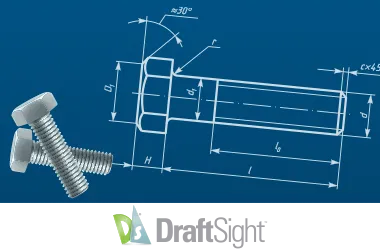
Core Functionalities
2D Drafting & Design
Create detailed 2D drawings with precision using industry-standard drafting tools.
DWG File Editing
Open, create, edit, and modify native DWG files seamlessly
3D DWG Support
Work with and modify 3D DWG files to enhance visualization and support projects
DWG to PDF Conversion
Easily convert DWG drawings into PDF format for sharing and documentation.
AutoCAD Alternative
Provides a cost-effective alternative for professionals seeking full DWG compatibility.
Professional-Grade Tools
Designed for Architecture, Engineering, and Construction professionals requiring reliable 2D CAD solutions.
Features
Essential 2D Drafting for Everyday Design Needs
- Powerful 2D drafting tools for accurate drawing creation and editing.
- Native DWG file support for smooth file sharing and collaboration.
- Advanced productivity tools including batch printing and drawing compare.
- API support for customization and workflow automation.
- Ideal solution for individual professionals and small teams.
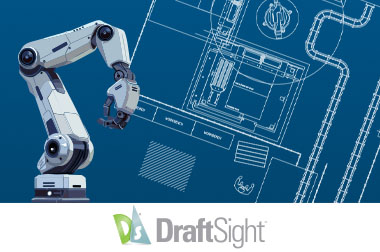
Advanced 2D & 3D Design for Growing Requirements
- Includes all Professional features with enhanced functionality.
- Advanced 3D modeling and editing tools.
- 2D constraints easily control dimensions and maintain design intent.
- Improved interoperability with dynamic block editing.
- A great choice for users requiring both 2D drafting and 3D design.
Scalable CAD Solution for Collaborative Teams
- All Premium features with network license support.
- Centralized license management for multi-user environments.
- Makes collaboration easier between departments and project sites.
- Connects smoothly with 3DEXPERIENCE and SOLIDWORKS solutions.
- Designed for growing organizations with scalable CAD needs.
Complete Enterprise-Grade CAD for Maximum Control
- Complete feature set including advanced 3D and constraints tools.
- Network licensing that allows flexible deployment across large teams.
- Supports customization and automation through LISP and API tools.
- Priority technical support for business continuity.
- Designed for large enterprises requiring performance, control, and scalability.
| Features of ESSENTIAL TOOLS |
|---|
|
Draw Tools (Line, Polyline, Arc, Circle, Ellipse, Table, Hatch, Cloud, Block…) |
|
Modify Tools (Move, Copy, Rotate, Array, Scale, Trim, Chamfer, Split…) |
|
Layer, Block, Group, Print |
|
Drawing Standards and Templates |
|
Polyline Editing |
|
Hatch Layer |
|
Discarding Duplicate Entities |
|
SVG Scalable Icons for HD Displays |
|
Hairline Option for Printout |
|
Layer Preview |
|
Block – Redefine Base Point |
| Professional |
|---|
|
|
|
|
|
|
|
|
|
|
|
|
|
|
|
|
|
|
|
|
|
|
| Premium |
|---|
|
|
|
|
|
|
|
|
|
|
|
|
|
|
|
|
|
|
|
|
|
|
| Enterprise |
|---|
|
|
|
|
|
|
|
|
|
|
|
|
|
|
|
|
|
|
|
|
|
|
| Enterprise Plus |
|---|
|
|
|
|
|
|
|
|
|
|
|
|
|
|
|
|
|
|
|
|
|
|
| Features of PRODUCTIVITY TOOLS |
|---|
|
Mechanical Toolbox |
|
Design Resources Library |
|
Batch Printing |
|
Drawing Compare |
|
Automatic Dimensioning |
|
Automatic Dimensioning Arrangement |
|
Automatic Trim Dimension Extension Lines |
|
Thumbwheel on the Dimension Palette |
|
Right Click to Select Arrow Heads |
|
Split Dimension |
|
Mass Properties Calculations |
|
Auto-Completion Commands |
|
Quick Input Methods |
|
Pack and go |
|
Publish to DWF |
|
Dark Mode |
|
Spline Enhancements |
|
Associative Patterns |
|
PDF Import |
| Professional |
|---|
|
|
|
|
|
|
|
|
|
|
|
|
|
|
|
|
|
|
|
|
|
|
|
|
|
|
|
|
|
|
|
|
|
|
|
|
|
|
| Premium |
|---|
|
|
|
|
|
|
|
|
|
|
|
|
|
|
|
|
|
|
|
|
|
|
|
|
|
|
|
|
|
|
|
|
|
|
|
|
|
|
| Enterprise |
|---|
|
|
|
|
|
|
|
|
|
|
|
|
|
|
|
|
|
|
|
|
|
|
|
|
|
|
|
|
|
|
|
|
|
|
|
|
|
|
| Enterprise Plus |
|---|
|
|
|
|
|
|
|
|
|
|
|
|
|
|
|
|
|
|
|
|
|
|
|
|
|
|
|
|
|
|
|
|
|
|
|
|
|
|
| Features |
|---|
|
3D Tools |
|
2D Constraints |
| Professional |
|---|
|
|
|
|
| Premium |
|---|
|
|
|
|
| Expertise |
|---|
|
|
|
|
| Expertise Plus |
|---|
|
|
|
|
| Features ofINTEROPERABILITY TOOLS |
|---|
|
AutoCAD Dynamic Blocks Viewing with Full Configurability |
|
LISP Automation (Auto LISP, Visual LISP support) |
|
3DExperience Integration |
|
3DExperience Marketplace Integration |
|
HomeByMe Integration |
|
3D Content Central Integration |
|
SOLIDWORKS PDM, Electrical Connectors |
|
Sheet Set Manager |
|
AutoCAD Dynamic Blocks Editing with Full Configurability |
|
Create & Edit Custom Blocks |
| Professional |
|---|
|
|
|
|
|
|
|
|
|
|
|
|
|
|
|
|
|
|
|
|
| Premium |
|---|
|
|
|
|
|
|
|
|
|
|
|
|
|
|
|
|
|
|
|
|
| Expertise |
|---|
|
|
|
|
|
|
|
|
|
|
|
|
|
|
|
|
|
|
|
|
| Enterprise Plus |
|---|
|
|
|
|
|
|
|
|
|
|
|
|
|
|
|
|
|
|
|
|
| Features |
|---|
|
Community Forum Support |
|
Technical Support |
|
Network License Option |
| Professional |
|---|
|
|
|
|
|
|
| Premium |
|---|
|
|
|
|
|
|
| Expertise |
|---|
|
|
|
|
|
|
| Expertise Plus |
|---|
|
|
|
|
|
|
Choosing the right SOLIDWORKS package depends on your design needs, team size, and project complexity.
From Standard to Premium, we help you identify the ideal solution that maximizes performance while staying within budget.
-
Want to buy
DraftSight?
Services & Training
We help you solve engineering challenges, together.
Whether you’re looking to outsource expertise or upskill your team, we work as a seamless extension of your organization to deliver measurable results.
Engineering Services
We help turn complex ideas into manufacturable products through robust design, analysis, and engineering support—focused on accuracy, efficiency, and real-world performance.
SOLIDWORKS Training
Develop practical SOLIDWORKS skills with flexible training programs designed for engineers, designers, and teams—covering essentials through advanced workflows.
FAQ
2D CADs are mainly used to create detailing and drafting whereas SOLIDWORKS helps in designing and developing in 3D which helps in better visual understanding. It also helps to create drafting and detailed manufacturing drawings.
Yes, SOLIDWORKS Supports the import of Other 3D CAD Files such as Autodesk Inventor, Pro/ENGINEER and Creo Parametric, Solid Edge, Unigraphics. It also supports the import of Neutral Files such as IGES/IGS, STEP, Parasolid, etc.
SOLIDWORKS Files
-
SOLIDWORKS Files (*.sldprt; *.sldasm)
-
SOLIDWORKS Assembly (*.asm; *.sldasm)
-
SOLIDWORKS Drawing (*.drw; *.slddrw)
-
SOLIDWORKS Part (*.prt; *.sldprt)
-
SOLIDWORKS SLDXML (*.sldxml)
Other Supported Formats
-
3D Manufacturing Format (*.3mf)
-
ACIS (*.sat; *.sab; *.asat; *.asab)
-
Add-Ins (*.dll)
-
Adobe Illustrator Files (*.ai)
-
Adobe Photoshop Files (*.psd)
-
Autodesk AutoCAD Files (*.dwg; *.dxf)
-
Autodesk Inventor Files (*.ipt; *.iam)
-
CADKEY (*.prt; *.ckd)
-
CATIA Graphics (*.cgr)
-
CATIA V5 (*.catpart; *.catproduct)
Interoperability & Exchange Formats
-
IDF (*.emn; *.brd; *.bdf; *.idb)
-
IFC 2x3 (*.ifc)
-
IGES (*.igs; *.iges)
-
JT (*.jt)
-
Library Feature Part (*.lfp; *.sldlfp)
-
Mesh Files (*.stl; *.obj; *.off; *.ply; *.ply2)
-
Parasolid (*.x_t; *.x_b; *.xmt_txt; *.xmt_bin)
-
PTC Creo Files (*.prt; *.asm; *.xpr)
-
Rhino (*.3dm)
-
Solid Edge Files (*.par; *.psm; *.asm)
-
STEP AP203 / AP214 / AP242 (*.step; *.stp)
-
Template Files (*.prtdot; *.asmdot; *.drwdot)
-
Unigraphics / NX (*.prt)
-
VDAFS (*.vda)
-
VRML (*.wrl)
Starting from SOLIDWORKS 2017, 3D Interconnect replaces SOLIDWORKS’ current translation capabilities with new technology and workflows for working with third-party native CAD data.
You can:
a. Insert proprietary CAD data directly into a SOLIDWORKS assembly without converting it to a SOLIDWORKS file.
b. Open the proprietary 3D CAD format in the SOLIDWORKS software with its associative link to the original part.
c. Update changes in the SOLIDWORKS file if you update the proprietary CAD data in its authoring application by maintaining all downstream features created in SOLIDWORKS.
d. Break the link of the inserted part file with the original part file. With the technology, you can work with other 3D CAD in the same native format without the need for translation to SOLIDWORKS Files.
Yes, SOLIDWORKS Drawings can be exported to DXF/DWG formats to open in 2D CAD software such as Draftsight, AutoCAD, etc.
No, It is not necessary to install SOLIDWORKS unless you want to make changes to the models.
For anyone who needs to view and interrogate 3D design data. Whether you are involved in the commercial manufacture, purchasing, a maker, or a student, eDrawings helps you to communicate, share and collaborate with 3D data with an easily shareable lightweight file in its own viewer.
Yes, SOLIDWORKS allows to import of 2D CAD Files such as DXF and DWG files and 3D Models can be created using the 2D views from DXF/DWG files as a reference inside the SOLIDWORKS environment.
The FeatureWorks software in SOLIDWORKS recognizes features on an imported solid body in a SOLIDWORKS part document. Recognized features are the same as features that you create using the SOLIDWORKS software. You can edit the definition of recognized features to change their parameters. For features that are based on sketches, after you recognize the features, you can edit the sketches from the SOLIDWORKS FeatureManager design tree to change the geometry of the features. However, it should be noted that not all features are recognized by Feature Works. Some geometry may not be recognized due to complexity.
SOLIDWORKS Comes with an Inbuilt material library that includes Steel, Iron, Aluminium, Copper, Titanium, Zinc, Plastics, non – Metals such as Air, Water, Rubber, Wood, etc.
All the materials include mechanical properties such as Elastic Modulus, Tensile Strength, Mass Density, Yield Strength, Thermal Conductivity, etc.
SOLIDWORKS is an easy-to-use intuitive user interface software. Along with part, assembly, and 2D drawing functionality, specialized tools are included sheet metal, weldments, surfacing, molds, product configuration, etc.
Yes, SOLIDWORKS has a portfolio of Simulation solutions that are integrated directly inside the SOLIDWORKS 3D Modeling environment. SOLIDWORKS Simulation is an easy-to-use portfolio of structural analysis tools that use Finite Element Analysis (FEA) to predict a product’s real-world physical behavior by virtually testing CAD models. The portfolio provides linear, non-linear static, and dynamic analysis capabilities which can be purchased as per requirements and integrated with SOLIDWORKS.