
SOLIDWORKS Manage
Overview
Enterprise Project Control with SOLIDWORKS Distributed Data Management
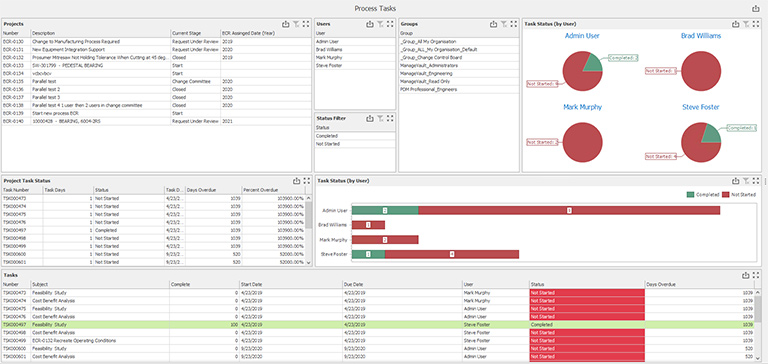
SOLIDWORKS Distributed Data Management is a solution that assists organizations in managing processes related to projects in the enterprise using SOLIDWORKS Manage. It allows project managers to plan, execute, and control projects in an organized manner.
The solution also assists in managing the time taken to complete tasks, balancing the workload of staff, and tracking performance using dashboards and reports.
Core Functionalities
Project Planning
Enables efficient planning and execution of new projects.Allows comparison between planned schedules and current project status to identify lead and lag.
Automated Processes & Workflows
Automates tasks and activities through workflows.Reduces manual errors.Ensures every process step is defined, monitored, and optimized
Tracking
Tracking provides visual project monitoring through tools such as Gantt Charts and time-sheets, enabling teams to effectively track project progress while keeping control over project costs and timelines.
Scheduling & Time Management
Scheduling & Time Management enables the referencing of task-related files in tasks and facilitates the recording of working time.
Resource Allocation
Resource Allocation enables the right people to be assigned to the right jobs at the right time. It facilitates full resource utilization using load charts.
Communication & Collaboration
Communication & Collaboration enables the posting of comments and interacting with external parties. It retains action history for decision support and facilitates automatic email and desktop notifications.
Documentation & File Management
Documentation & File Management enables the reporting of project progress in detail. It also facilitates the creation of documents using predefined templates.
Real Insights
Real Insights offer 360° real-time views of project performance. This is achieved through dashboards and reporting.
Features
- Provides strategic technology for creating and executing cross-enterprise business tasks and processes with complete project planning, execution and control.
- Efficient Planning & Execution of new projects with comparison of Planned Schedule vs Current Status to identify Lead & Lag.
- Automated processes and workflows that reduce manual errors and ensure every step is explicitly defined, monitored and optimized for productivity.
- Visual project tracking using Gantt Charts and Time-sheets, with monitoring of Project Costs and Timeline.
- Scheduling and Time Management with task-based reference files, working time recording, shared team calendar and meeting schedules.
- Scheduling and Time Management with task-based reference files, working time recording, shared team calendar and meeting schedules.
- Resource Allocation ensuring right people in the right job at the right time, with complete utilization using Load Chart.
- Resource Allocation ensuring right people in the right job at the right time, with complete utilization using Load Chart.
- Communication and Collaboration through comments, stakeholder communication, action history, and automatic email & desktop notifications.
- Documentation & Real Insight with detailed progress reports, predefined document templates, and 360-degree real-time insights through dashboards.
| Features |
|---|
|
SOLIDWORKS 3D CAD |
|
Part and Assembly Modelling |
|
Design Reuse and Automation |
|
Interference Check |
|
Collaborate and Share CAD Data |
|
Advanced CAD File Import/Export – 3D Interconnect |
|
First Pass Analysis Tools – Simulation Xpress |
|
Productivity Tools |
|
SOLIDWORKS CAM Standard* |
|
Design for Manufacturing |
|
Xtended Reality (XR) Exporter |
|
SOLIDWORKS Visualize Standard* |
|
CAD Libraries (SOLIDWORKS Toolbox) |
|
Design for Cost & Estimation (SOLIDWORKS Costing) |
|
ECAD/MCAD Collaboration (CircuitWorks™) |
|
CAD Standards Checking |
|
Automated Tolerance Stack-Up Analysis (TolAnalyst) |
|
SOLIDWORKS File Management |
|
Reverse Engineering (ScanTo3D) |
|
eDrawings® Professional |
|
Time – Based Motion Analysis |
|
Linear Static Analysis for Part and Assemblies |
|
Routing of Pipes and Tubes |
|
Routing of Rectangular and Other Sections |
|
Advanced Surface Flattening |
|
Assembly Level Cost Roll Up |
|
Electrical Routing |
| Standard |
|---|
|
|
|
|
|
|
|
|
|
|
|
|
|
|
|
|
|
|
|
|
|
|
|
|
|
|
|
|
|
|
|
|
|
|
|
|
|
|
|
|
|
|
|
|
|
|
|
|
|
|
|
|
|
|
| Professional |
|---|
|
|
|
|
|
|
|
|
|
|
|
|
|
|
|
|
|
|
|
|
|
|
|
|
|
|
|
|
|
|
|
|
|
|
|
|
|
|
|
|
|
|
|
|
|
|
|
|
|
|
|
|
|
|
| Premium |
|---|
|
|
|
|
|
|
|
|
|
|
|
|
|
|
|
|
|
|
|
|
|
|
|
|
|
|
|
|
|
|
|
|
|
|
|
|
|
|
|
|
|
|
|
|
|
|
|
|
|
|
|
|
|
|
Choosing the right SOLIDWORKS package depends on your design needs, team size, and project complexity.
From Standard to Premium, we help you identify the ideal solution that maximizes performance while staying within budget.
-
Want to buy
SOLIDWORKS Manage?
| Features |
|---|
|
SOLIDWORKS 3D CAD |
|
Part and Assembly Modelling |
|
Design Reuse and Automation |
|
Interference Check |
|
Collaborate and Share CAD Data |
|
Advanced CAD File Import/Export – 3D Interconnect |
|
First Pass Analysis Tools – Simulation Xpress |
|
Productivity Tools |
|
SOLIDWORKS CAM Standard* |
|
Design for Manufacturing |
|
Xtended Reality (XR) Exporter |
|
SOLIDWORKS Visualize Standard* |
|
CAD Libraries (SOLIDWORKS Toolbox) |
|
Design for Cost & Estimation (SOLIDWORKS Costing) |
|
ECAD/MCAD Collaboration (CircuitWorks™) |
|
CAD Standards Checking |
|
Automated Tolerance Stack-Up Analysis (TolAnalyst) |
|
SOLIDWORKS File Management |
|
Reverse Engineering (ScanTo3D) |
|
eDrawings® Professional |
|
Time – Based Motion Analysis |
|
Linear Static Analysis for Part and Assemblies |
|
Routing of Pipes and Tubes |
|
Routing of Rectangular and Other Sections |
|
Advanced Surface Flattening |
|
Assembly Level Cost Roll Up |
|
Electrical Routing |
| Standard |
|---|
|
|
|
|
|
|
|
|
|
|
|
|
|
|
|
|
|
|
|
|
|
|
|
|
|
|
|
|
|
|
|
|
|
|
|
|
|
|
|
|
|
|
|
|
|
|
|
|
|
|
|
|
|
|
| Professional |
|---|
|
|
|
|
|
|
|
|
|
|
|
|
|
|
|
|
|
|
|
|
|
|
|
|
|
|
|
|
|
|
|
|
|
|
|
|
|
|
|
|
|
|
|
|
|
|
|
|
|
|
|
|
|
|
| Premium |
|---|
|
|
|
|
|
|
|
|
|
|
|
|
|
|
|
|
|
|
|
|
|
|
|
|
|
|
|
|
|
|
|
|
|
|
|
|
|
|
|
|
|
|
|
|
|
|
|
|
|
|
|
|
|
|
Services & Training
We help you solve engineering challenges, together.
Whether you’re looking to outsource expertise or upskill your team, we work as a seamless extension of your organization to deliver measurable results.
Engineering Services
We help turn complex ideas into manufacturable products through robust design, analysis, and engineering support—focused on accuracy, efficiency, and real-world performance.
SOLIDWORKS Training
Develop practical SOLIDWORKS skills with flexible training programs designed for engineers, designers, and teams—covering essentials through advanced workflows.
FAQ
2D CADs are mainly used to create detailing and drafting whereas SOLIDWORKS helps in designing and developing in 3D which helps in better visual understanding. It also helps to create drafting and detailed manufacturing drawings.
Yes, SOLIDWORKS Supports the import of Other 3D CAD Files such as Autodesk Inventor, Pro/ENGINEER and Creo Parametric, Solid Edge, Unigraphics. It also supports the import of Neutral Files such as IGES/IGS, STEP, Parasolid, etc.
SOLIDWORKS Files
SOLIDWORKS Files (*.sldprt; *.sldasm)
SOLIDWORKS Assembly (*.asm; *.sldasm)
SOLIDWORKS Drawing (*.drw; *.slddrw)
SOLIDWORKS Part (*.prt; *.sldprt)
SOLIDWORKS SLDXML (*.sldxml)
Other Supported Formats
3D Manufacturing Format (*.3mf)
ACIS (*.sat; *.sab; *.asat; *.asab)
Add-Ins (*.dll)
Adobe Illustrator Files (*.ai)
Adobe Photoshop Files (*.psd)
Autodesk AutoCAD Files (*.dwg; *.dxf)
Autodesk Inventor Files (*.ipt; *.iam)
CADKEY (*.prt; *.ckd)
CATIA Graphics (*.cgr)
CATIA V5 (*.catpart; *.catproduct)
Interoperability & Exchange Formats
IDF (*.emn; *.brd; *.bdf; *.idb)
IFC 2x3 (*.ifc)
IGES (*.igs; *.iges)
JT (*.jt)
Library Feature Part (*.lfp; *.sldlfp)
Mesh Files (*.stl; *.obj; *.off; *.ply; *.ply2)
Parasolid (*.x_t; *.x_b; *.xmt_txt; *.xmt_bin)
PTC Creo Files (*.prt; *.asm; *.xpr)
Rhino (*.3dm)
Solid Edge Files (*.par; *.psm; *.asm)
STEP AP203 / AP214 / AP242 (*.step; *.stp)
Template Files (*.prtdot; *.asmdot; *.drwdot)
Unigraphics / NX (*.prt)
VDAFS (*.vda)
VRML (*.wrl)
Starting from SOLIDWORKS 2017, 3D Interconnect replaces SOLIDWORKS’ current translation capabilities with new technology and workflows for working with third-party native CAD data.
You can:
a. Insert proprietary CAD data directly into a SOLIDWORKS assembly without converting it to a SOLIDWORKS file.
b. Open the proprietary 3D CAD format in the SOLIDWORKS software with its associative link to the original part.
c. Update changes in the SOLIDWORKS file if you update the proprietary CAD data in its authoring application by maintaining all downstream features created in SOLIDWORKS.
d. Break the link of the inserted part file with the original part file. With the technology, you can work with other 3D CAD in the same native format without the need for translation to SOLIDWORKS Files.
Yes, SOLIDWORKS Drawings can be exported to DXF/DWG formats to open in 2D CAD software such as Draftsight, AutoCAD, etc.
No, It is not necessary to install SOLIDWORKS unless you want to make changes to the models.
For anyone who needs to view and interrogate 3D design data. Whether you are involved in the commercial manufacture, purchasing, a maker, or a student, eDrawings helps you to communicate, share and collaborate with 3D data with an easily shareable lightweight file in its own viewer.
Yes, SOLIDWORKS allows to import of 2D CAD Files such as DXF and DWG files and 3D Models can be created using the 2D views from DXF/DWG files as a reference inside the SOLIDWORKS environment.
The FeatureWorks software in SOLIDWORKS recognizes features on an imported solid body in a SOLIDWORKS part document. Recognized features are the same as features that you create using the SOLIDWORKS software. You can edit the definition of recognized features to change their parameters. For features that are based on sketches, after you recognize the features, you can edit the sketches from the SOLIDWORKS FeatureManager design tree to change the geometry of the features. However, it should be noted that not all features are recognized by Feature Works. Some geometry may not be recognized due to complexity.
SOLIDWORKS Comes with an Inbuilt material library that includes Steel, Iron, Aluminium, Copper, Titanium, Zinc, Plastics, non – Metals such as Air, Water, Rubber, Wood, etc.
All the materials include mechanical properties such as Elastic Modulus, Tensile Strength, Mass Density, Yield Strength, Thermal Conductivity, etc.
SOLIDWORKS is an easy-to-use intuitive user interface software. Along with part, assembly, and 2D drawing functionality, specialized tools are included sheet metal, weldments, surfacing, molds, product configuration, etc.
Yes, SOLIDWORKS has a portfolio of Simulation solutions that are integrated directly inside the SOLIDWORKS 3D Modeling environment. SOLIDWORKS Simulation is an easy-to-use portfolio of structural analysis tools that use Finite Element Analysis (FEA) to predict a product’s real-world physical behavior by virtually testing CAD models. The portfolio provides linear, non-linear static, and dynamic analysis capabilities which can be purchased as per requirements and integrated with SOLIDWORKS.