


In SOLIDWORKS, working with large assemblies that contain multiple subassemblies often makes component selection complex and time-consuming. Selecting parts through the FeatureManager Design Tree can reduce productivity, as it frequently highlights entire subassemblies instead of the required individual components. This limitation makes it difficult to isolate specific parts for editing, material application, or assembly modifications.
This blog focuses on the challenges of selecting components in large and complex SOLIDWORKS assemblies and explains how using Advanced Select options can streamline the selection process. By applying advanced search and selection tools, users can quickly identify and select all required parts within an assembly, including components located inside nested subassemblies. These advanced techniques improve workflow efficiency, accuracy, and overall performance when managing high-part-count SOLIDWORKS assemblies.
Advanced Select in SOLIDWORKS
The Advanced Select feature in SOLIDWORKS enables users to efficiently select components based on specific properties, making it ideal for managing large and complex assemblies. Instead of manually selecting parts one by one, users can leverage built-in selection options to quickly filter components that meet defined criteria.
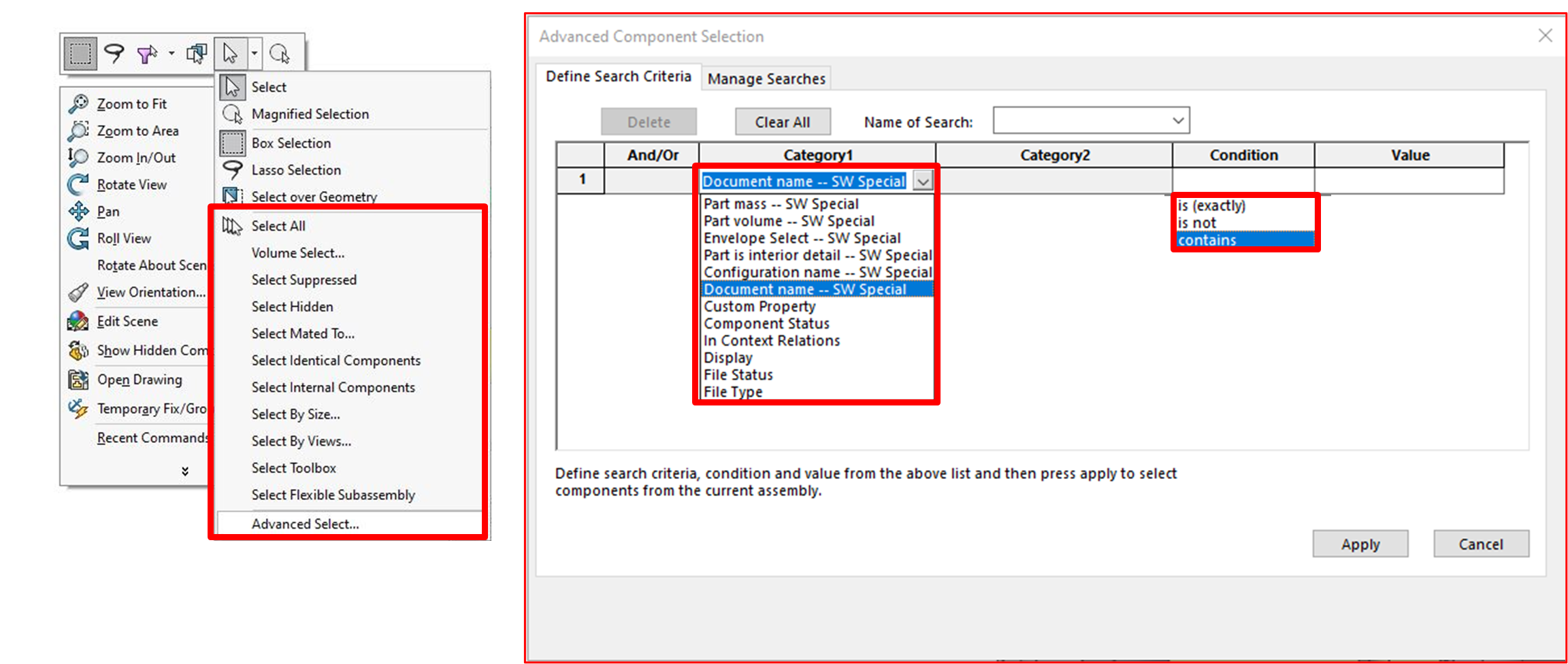
In SOLIDWORKS Advanced Select, Category 2 is used to further refine the options chosen in Category 1, allowing users to create highly specific and targeted selection criteria. Category 2 can be defined for parameters such as custom properties, in-context relations, and file status. Once a Category 1 option is selected, Category 2 displays the relevant parameters that can be used for filtering components within an assembly.
SOLIDWORKS provides a wide range of filtering conditions to support precise selection, including =, <, ≤, >, ≥, ≠, contains, is (exactly), is not, is inside, and is outside. This flexibility enables users to build refined selection rules that improve accuracy and reduce manual selection effort, especially in large and complex assemblies.
Efficient component selection is critical in SOLIDWORKS assemblies, particularly when applying properties such as materials at the assembly level. A common requirement is to select all part files while excluding subassemblies, ensuring that materials are applied only to individual components and not to higher-level assembly structures.
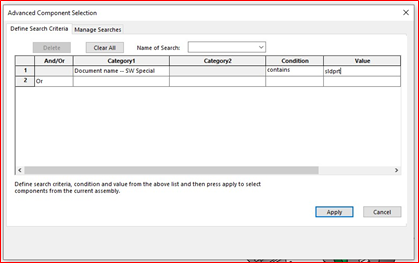
This can be achieved using the Advanced Select tool by defining a custom search criterion. By selecting Document Name – SW Special as the category, setting the condition to contains, and entering the value “.sldprt”, SOLIDWORKS automatically selects all part documents within the assembly. This method precisely targets part files while leaving subassemblies untouched, making it an efficient and reliable approach for bulk material application and assembly management in SOLIDWORKS.
SOLIDWORKS also allows users to save custom search criteria as predefined selection filters, making advanced selection even more efficient. Once a custom search is saved, it can be added to the Favorites list, enabling quick access directly from the right-click menu. This eliminates the need to recreate selection rules repeatedly and ensures consistent selection behavior across projects.
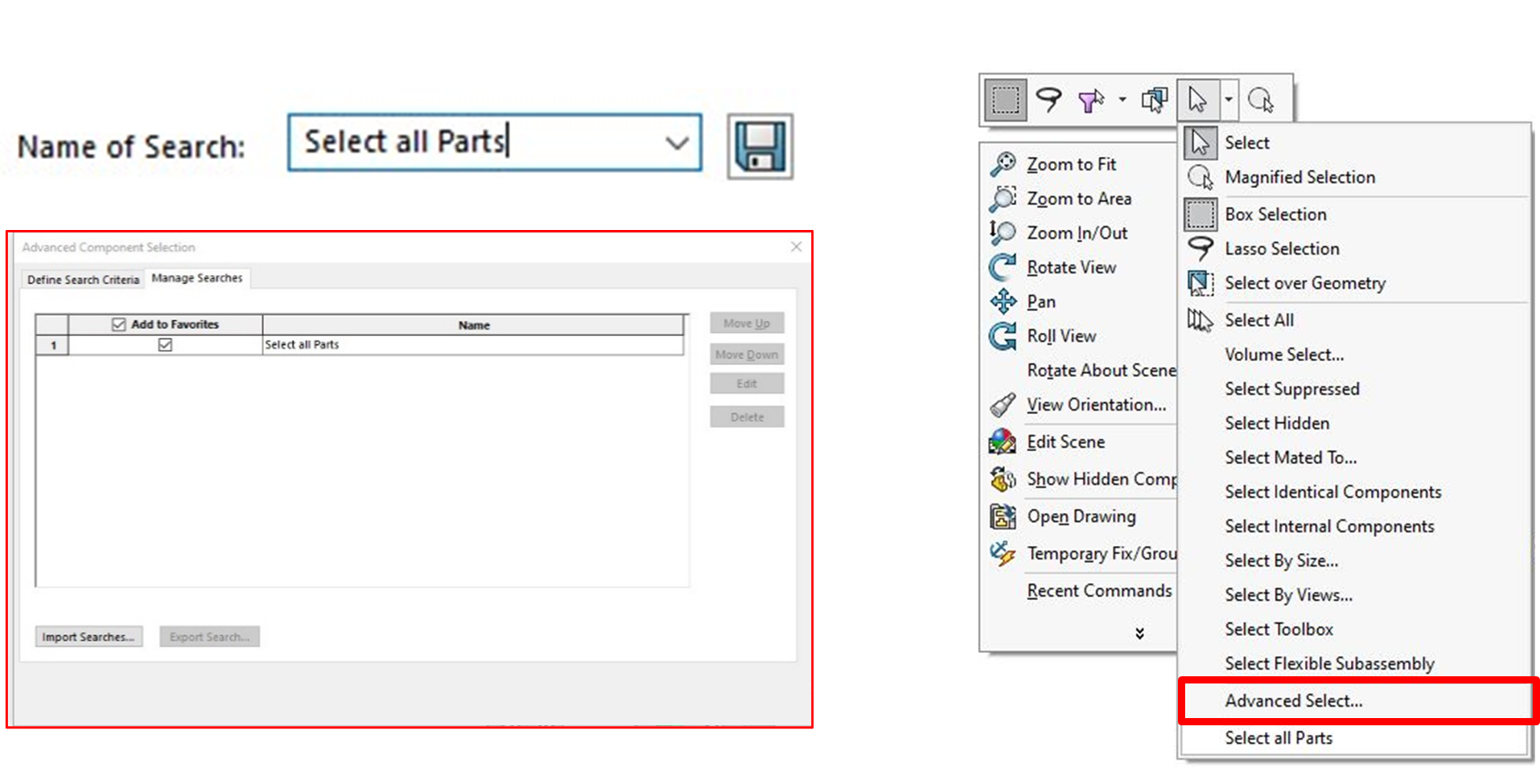
Advanced selection techniques in SOLIDWORKS are highly adaptable and can be customized to suit a wide range of design requirements. Whether working with large assemblies or complex models, these tools improve selection accuracy and reduce manual effort, resulting in a faster and more reliable modeling workflow.
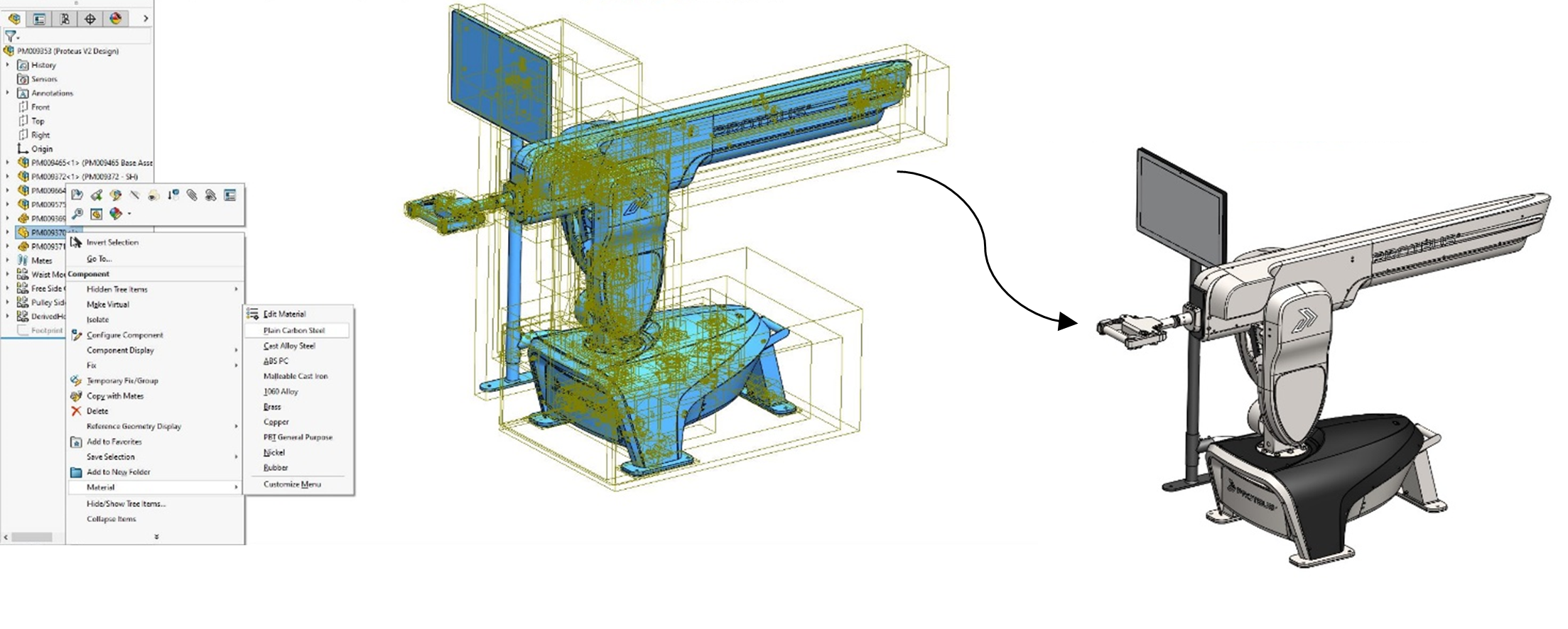
Another widely used advanced selection capability is the ability to select internal components for suppression in large assemblies. Suppressing internal or non-critical components helps improve overall assembly performance and reduces system load during design, visualization, and simulation.
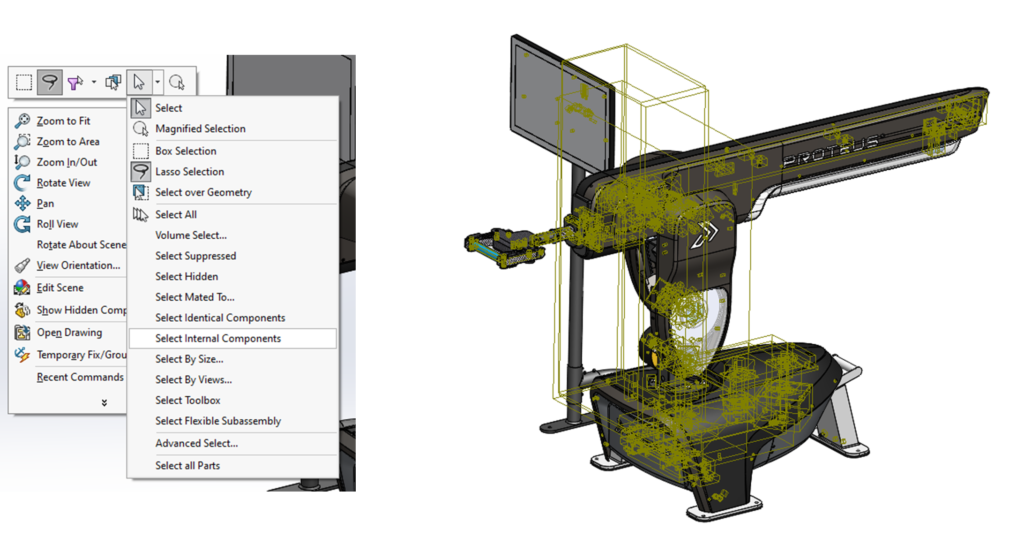
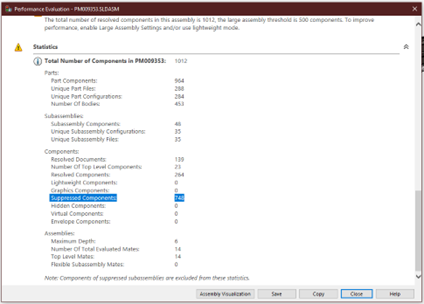
Manually selecting hundreds of internal components for suppression can be extremely time-consuming. By using SOLIDWORKS Advanced Select options, users can suppress a large number of components in a single action. For example, in performance evaluations, it is possible to suppress hundreds of internal components—such as 748 parts—with just one click, leading to significant time savings and improved assembly performance.
Thank you for taking the time to read this. I hope the information shared was useful and valuable.

Nandhakumaran is an Application Engineer at EGS India, a SOLIDWORKS Value-Added Reseller, with strong expertise in Dassault Systèmes solutions across multiple industries. Holding more than 20 certifications in SOLIDWORKS and Dassault Systèmes software, he is committed to helping customers maximize the value and efficiency of their engineering tools.

