


Introduction
SOLIDWORKS Custom Properties in Part Templates help engineers standardize model information, automate drawings, and reduce repetitive manual work. By defining custom properties once in a part template, you ensure that every new part follows the same data structure—ideal for ISO standards, BOM accuracy, and PDM integration.
This step-by-step guide explains how to create, edit, and reuse SOLIDWORKS custom properties in part templates for faster and error-free design workflows.
What Are SOLIDWORKS Custom Properties?
SOLIDWORKS Custom Properties are metadata fields that store essential part information and automatically link it to drawings and BOMs.
Commonly used properties include:
Drawn By
Material
Weight
Part Number
Revision
Description
These properties improve consistency and eliminate repeated data entry across multiple files.
Why Use Custom Properties in SOLIDWORKS Part Templates?
Using custom properties in templates provides several advantages:
Consistent part information across projects
Automatic population of drawing title blocks
Faster BOM creation
Reduced manual errors
Better compatibility with PDM systems
Compliance with ISO and company standards
Step-by-Step: SOLIDWORKS Custom Properties Setup
Step 1: Create or Open a Part Template
Click New from the Standard Toolbar
Or go to File > New
Select Part or an existing custom part template
This file will be used to define reusable properties.
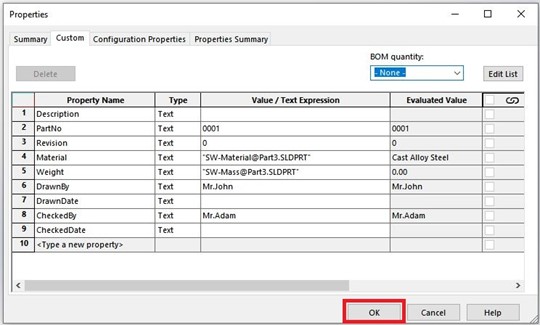
Step 2: Open File Properties
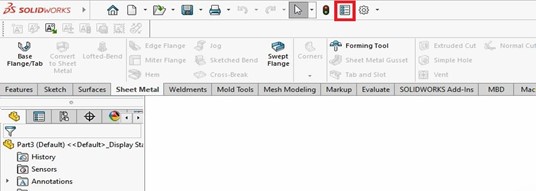
Go to File > Properties
Or click the File Properties icon
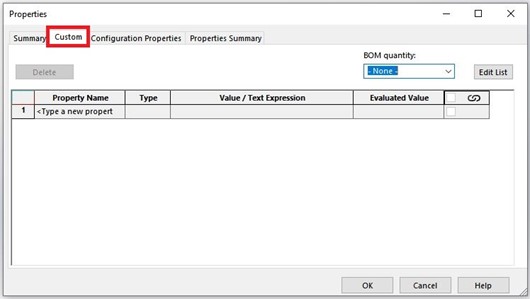
You will see two tabs:
Custom – for general properties
Configuration Specific – for configuration-level data
Step 3: Add Custom Properties
In the Custom tab:
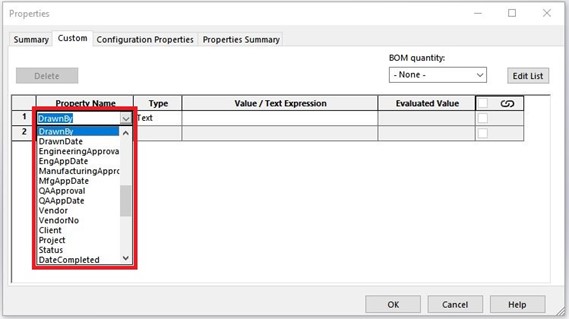
Property Name
Select from the dropdown (e.g., Drawn By)
Type
Choose Text, Number, or Date
Value / Text Expression
Enter the required value (e.g., designer name)
Evaluated Value
Displays the final resolved value
Click OK to save the property.
Auto-Populating Properties in SOLIDWORKS
Some properties can update automatically based on the model:
Material
Mass
Weight
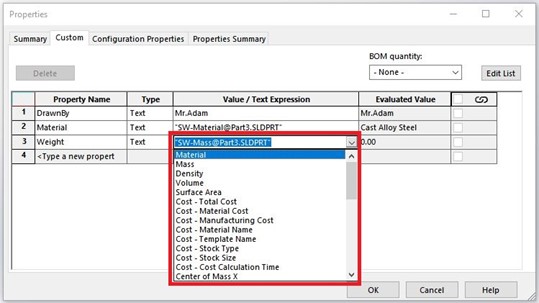
Use the Value / Text Expression dropdown to link these properties so they update whenever the model changes.
ISO-Standard Custom Properties Example
Many ISO-standard companies commonly use:
Drawn By
Checked By
Approved By
Material
Weight
Revision
Adding these properties ensures professional and standardized documentation.
Editing the Custom Properties List
Method 1: Edit List Option
Click Edit List in the File Properties window
Add, delete, or reorder property names
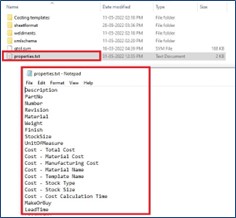
Method 2: Edit Using Notepad
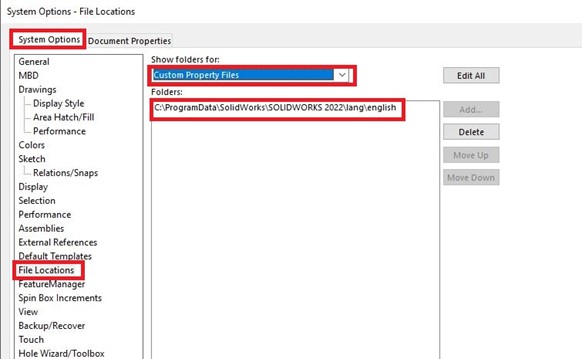
Go to Tools > Options
Select System Options > File Locations
Choose Custom Property Files
- Open
properties.txtusing Notepad Modify the list and save
This method is useful for company-wide standardization.
Save the File as a Part Template
Once properties are added:
Go to File > Save As
Select Part Template (*.prtdot)
Save it in your templates folder
All new parts created using this template will automatically include the predefined custom properties.
Benefits of Using SOLIDWORKS Custom Properties in Templates
Faster part creation
Automated drawing title blocks
Accurate BOM data
Reduced design rework
Standardized engineering documentation
Conclusion
Using SOLIDWORKS Custom Properties in Part Templates is a best practice for improving productivity and maintaining data consistency. Once set up, templates save time, reduce errors, and support professional engineering standards across all projects.
About the Author
 Sakthivel A is an Application Engineer at EGS Computers India Pvt Ltd, with over 3 years of experience delivering customized SOLIDWORKS solutions and supporting customers across various industries.

