


What Is SOLIDWORKS File Management and Why Are File Utilities Important?
File management is the process of efficiently handling, organizing, and accessing files to ensure smooth and productive work. While managing regular files is usually straightforward, CAD file management—especially in SOLIDWORKS—can be challenging and often does not align with common working habits.
The goal of this SOLIDWORKS File Management Series is to help users learn effective and practical methods for organizing SOLIDWORKS CAD files in a way that improves workflow efficiency, prevents reference errors, and enhances overall productivity.
Let’s begin by understanding how SOLIDWORKS files differ from other file types.
SOLIDWORKS CAD Files vs Other Files: What Is the Difference?
To clearly understand SOLIDWORKS file behavior, let’s compare it with a commonly used file type—Microsoft Excel.
Excel Files: Single-Point Database Structure
An Excel file follows a single-point database structure, meaning:
- All information is stored within one file
- No dependency on external files
- Files can be easily renamed, moved, or copied without affecting functionality
How Are SOLIDWORKS Files Structured?
SOLIDWORKS CAD files are more complex and are built using three core components:
- Header
- Instruction Set
- Database
- Header
The header contains essential file information such as:
- File name
- File type
- File format
- Custom properties
- Instruction Set
The instruction set defines how the model is created. It includes:
- Features
- Sketches
- Design relationships
In simple terms, this is the binary representation of the FeatureManager Design Tree.
- Database
The database stores the topological definition of the solid body, which represents the actual geometry of the model.
This structure represents the basic makeup of SOLIDWORKS files, though it may vary depending on file format.
Why Is File Management Critical in SOLIDWORKS?
Unlike Excel files, SOLIDWORKS files rely on references to other parts, assemblies, or drawings.
If these referenced files are renamed or moved using standard Windows File Explorer, the links may break—leading to missing file errors.
To avoid this and to manage files safely, SOLIDWORKS provides a dedicated tool known as SOLIDWORKS File Utilities.
What Are SOLIDWORKS File Utilities?
SOLIDWORKS File Utilities are tools designed specifically to manage, organize, and update file references without opening SOLIDWORKS.
Important Note:
- Until SOLIDWORKS 2019 SP 5.0, SOLIDWORKS Explorer was a separate application
- From SOLIDWORKS 2020 onward, it is integrated into Windows File Explorer and renamed SOLIDWORKS File Utilities
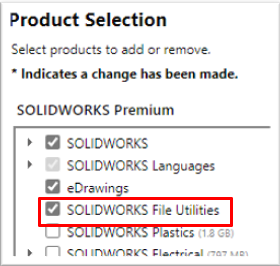
These utilities can be enabled during:
- SOLIDWORKS installation
- Modifying an existing SOLIDWORKS installation
Where Can You Find SOLIDWORKS File Utilities?
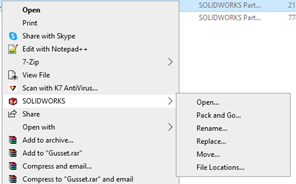
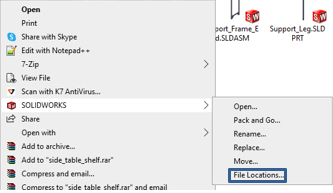
You can access SOLIDWORKS File Utilities by:
- Right-clicking on any SOLIDWORKS file in Windows File Explorer
- Selecting the SOLIDWORKS option from the context menu
What Options Are Available in SOLIDWORKS File Utilities?
SOLIDWORKS File Utilities provide several useful options, including:
- Open
- Pack and Go
- Rename
- Replace
- Move
- File Location
Each option is designed to maintain proper file references.
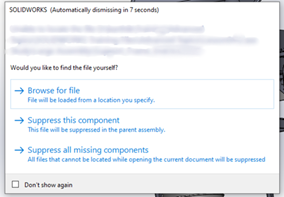
Using SOLIDWORKS File Utilities
- Right-click the SOLIDWORKS file
- Select SOLIDWORKS → Move
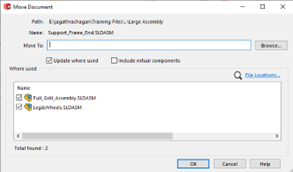
- Choose the new location using the Browse option
Best Practice
Enable “Update Where Used”
This option displays all assemblies where the component is used and allows you to update the references automatically.
Result:
The assembly opens without any errors
How Do Pack & Go and Replace Work?
Pack & Go
The Pack & Go option allows you to:
- Collect all referenced files
- Copy or compress them into a folder or ZIP file
- Maintain correct references
All of this can be done without opening SOLIDWORKS, using the same Pack & Go interface.
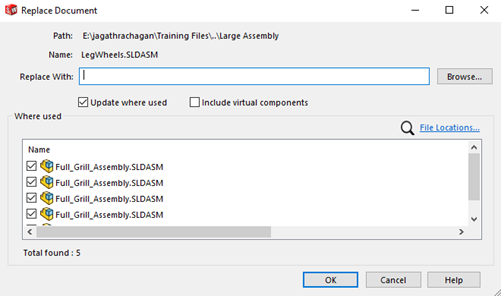
Replace
The Replace option allows you to:
- Replace a component in an assembly
- Browse and select the new component
- Enable Update Where Used
- Click OK
The component is replaced safely without opening SOLIDWORKS.
What Is the File Location Option Used For?
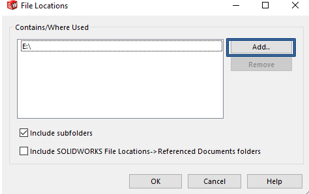
The File Location option helps identify:
- The assemblies where a specific component is used
- The saved file path of that component
Key points:
- It does not remap references
- It searches only in user-defined locations
Recommendation
Enable “Include Subfolders” to extend the search into all subfolders within the selected directory.
Conclusion
Thanks for taking the time to read!
We hope this guide helps you improve your SOLIDWORKS file management workflow and avoid common reference issues.
In the upcoming parts of this File Management Series, we will explore advanced techniques and best practices for managing SOLIDWORKS data more efficiently.
About the Author
Jagathrachagan A is an Application Engineer with a background in Mechanical Engineering. He specializes in solving customer queries and technical challenges by providing training, expert guidance, and practical solutions to help users effectively overcome complex design challenges using SOLIDWORKS.

