How to Download SOLIDWORKS Setup Files
SOLIDWORKS Setup Files Downloading Procedure
Pre-requisites for Download:
- Active 3DEXPERIENCE login ID
- High Speed Internet
SOLIDWORKS Installation Manager Downloading Procedure:
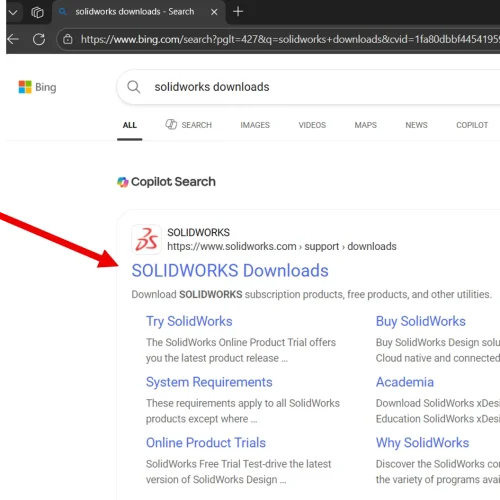
- To download SOLIDWORKS, first search ” SOLIDWORKS download ” in your browser.
2. Click on ” SOLIDWORKS Downloads ” link to open the website.
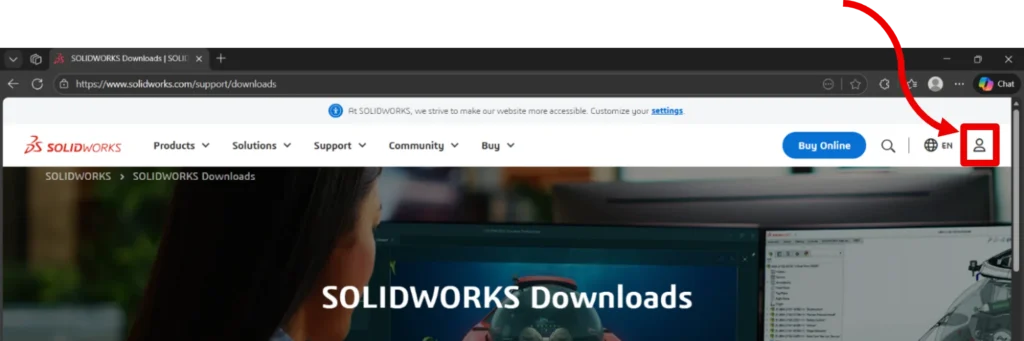
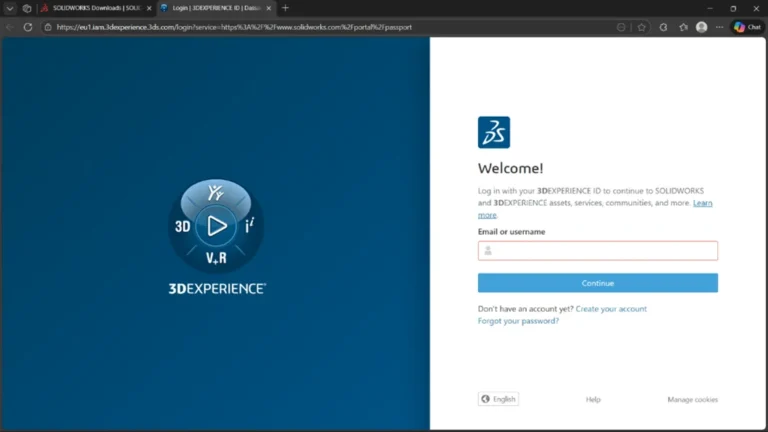
3. You are taken to the Downloads page. Click on the icon to Login with your 3DEXPEREINCE Id
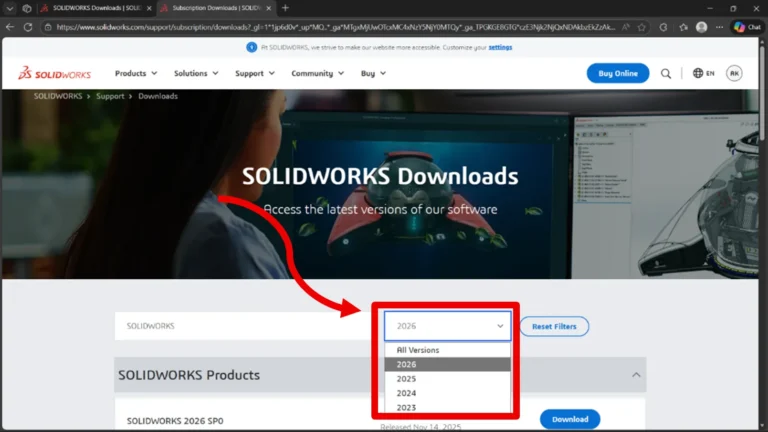
4. After logging in, select the Required Version from the drop down present.
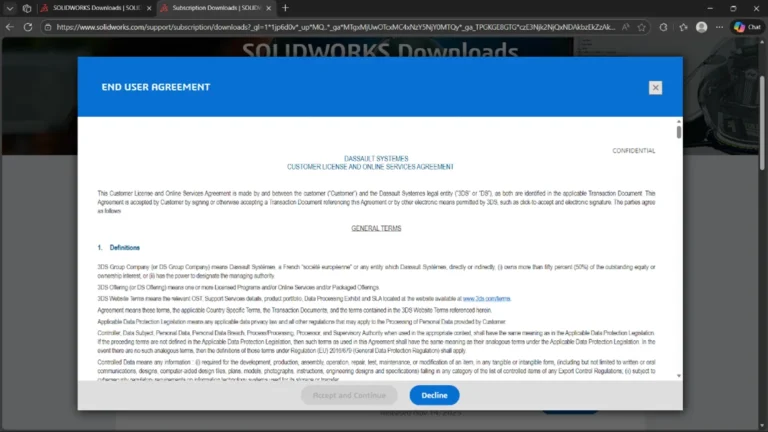
5. Make sure the product name is “SOLIDWORKS 20** SP*” . Click on the “Download ” button next to the SOLIDWORKS product to be installed, and a Terms & Conditions dialogue box appears.
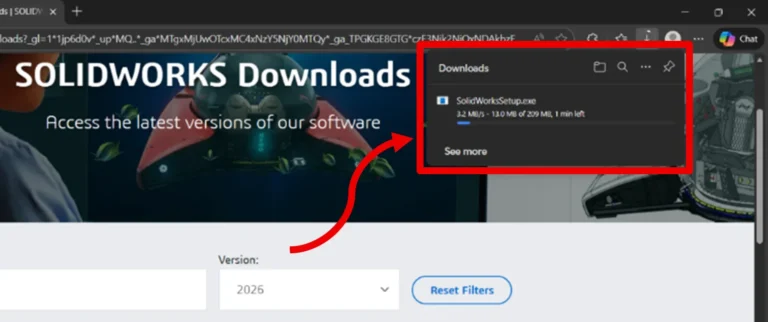
6. Scroll down on the End User Agreement and agree to start the download.
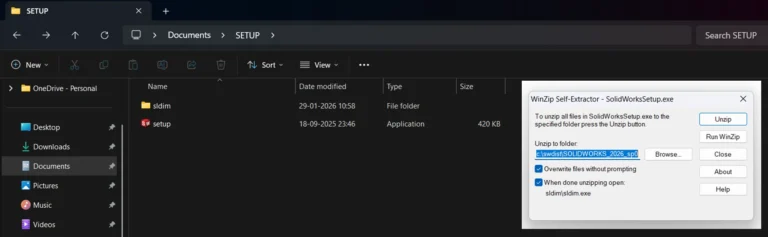
7. Unzip the downloaded files to extract the installation manager
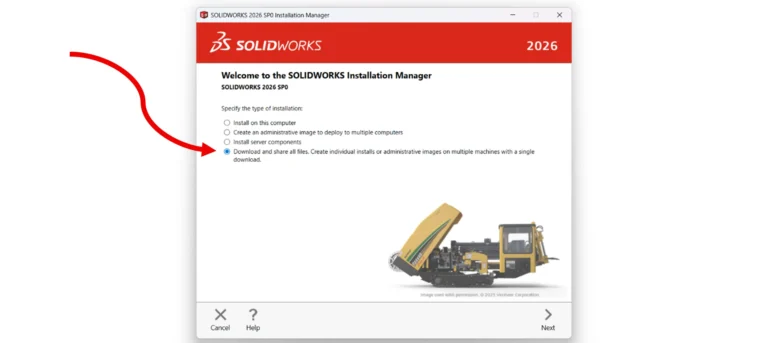
8. Right click on “ Setup.exe “ and run as administrator. The installation manager opens, select “ Download and share files “ option to download the required Setup files.
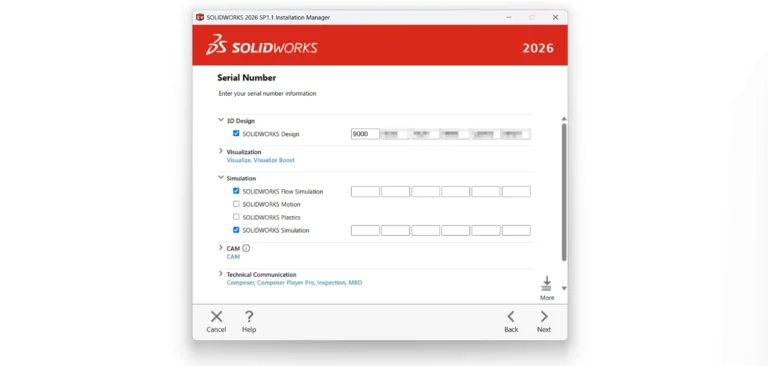
9. You are now required to Enter the Serial Number for the respective products. Expand the product types to enter the serial keys. The serial key is a 24 digit Alpha-Numeric code specific to each product
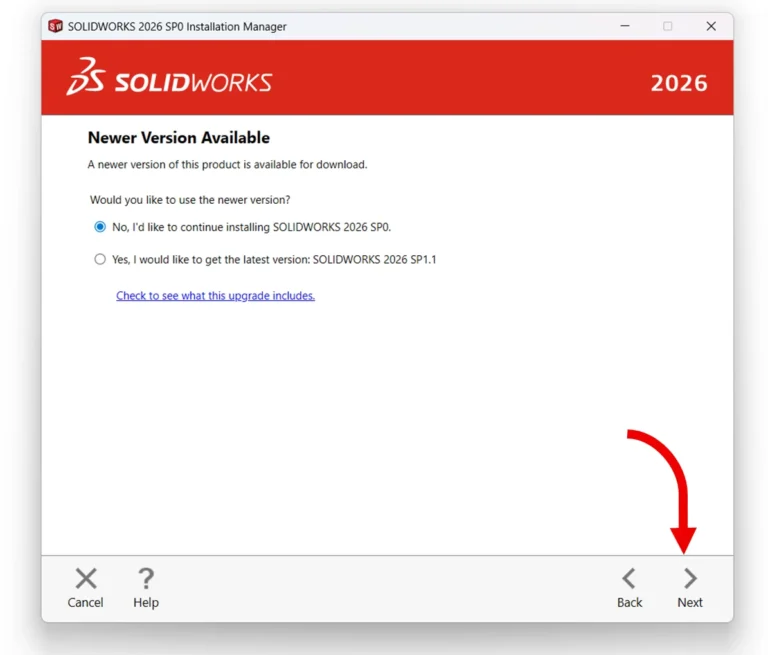
10. Click Next, if there are any newer versions available, you are prompted to choose between downloading the new version or continue with the previous setup
11. On clicking next, you are brought to the summary, where the details for the download are mentioned.
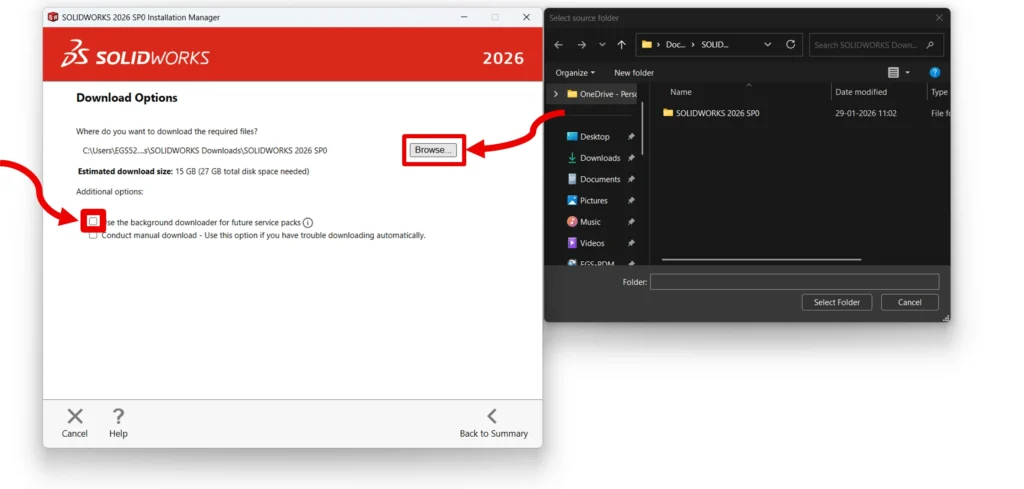
12. Click on the “ Change “ button to Ensure the download location is as desired, with the “ Use Background downloader “ option disabled.
13. Agree to terms and Click Download now to download the setup file.
14. The files needed for setting up SOLIDWORKS is now being Downloaded. Once completed, message shows that ” All Installation files were downloaded successfully. “, click Close