


Why Is Interference Detection Important in SOLIDWORKS Assemblies?
Introduction
Interference Detection in SOLIDWORKS is an essential assembly analysis feature that helps identify overlapping or conflicting components within an assembly. It allows designers and engineers to verify proper fit, detect collisions, and ensure components are positioned correctly before manufacturing or assembly. By identifying issues early in the design stage, Interference Detection helps reduce errors, rework, and production costs while improving overall design accuracy.
Step 1:
Open your assembly in SOLIDWORKS.
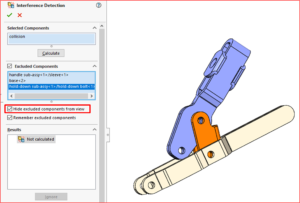
Go to the Evaluate tab and click Interference Detection.
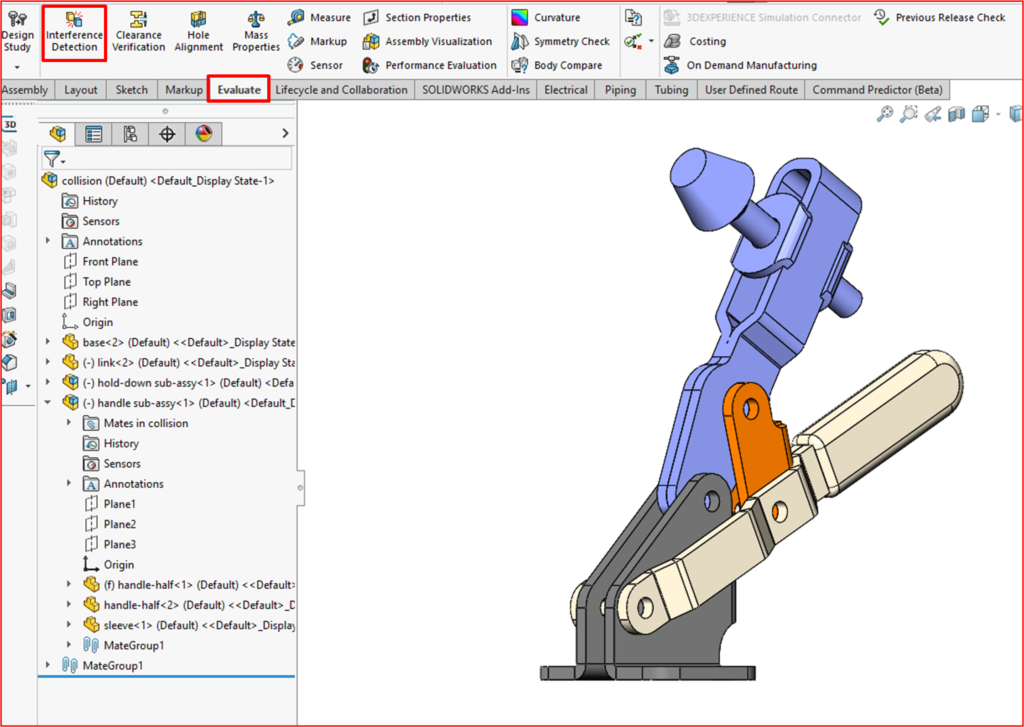
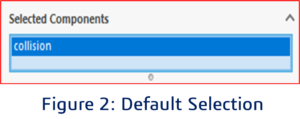
Under Selection Components, the top-level assembly is selected by default.
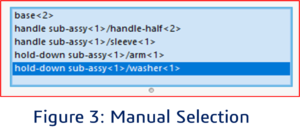
You can also manually select specific components or subassemblies for analysis.
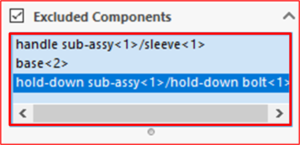
After selecting the components, use the Options group to fine-tune the interference detection settings:
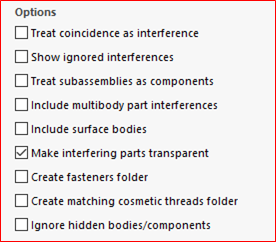
Treat coincidence as interference: Considers coincident faces, edges, or bodies as interferences.
Show ignored interferences: Displays previously ignored interferences in the Results list.
Treat subassemblies as components: Analyzes subassemblies as single units and ignores internal interferences.
Include multibody part interferences: Detects interferences between individual bodies within multibody parts.
Include surface bodies: Identifies interferences involving surface bodies without calculating interference volume.
Make interfering parts transparent: Makes interfering components transparent for better visualization.
Create fasteners folder: Groups fastener-related interferences (nuts, bolts, etc.) into a separate Fasteners folder.
Ignore hidden bodies/components: Excludes interferences involving hidden components or hidden bodies in multibody parts.
Step 4:
After confirming all option settings, click Calculate to run the interference check.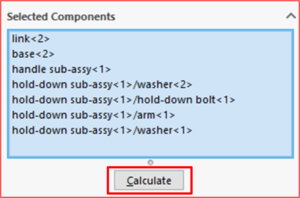
Results:
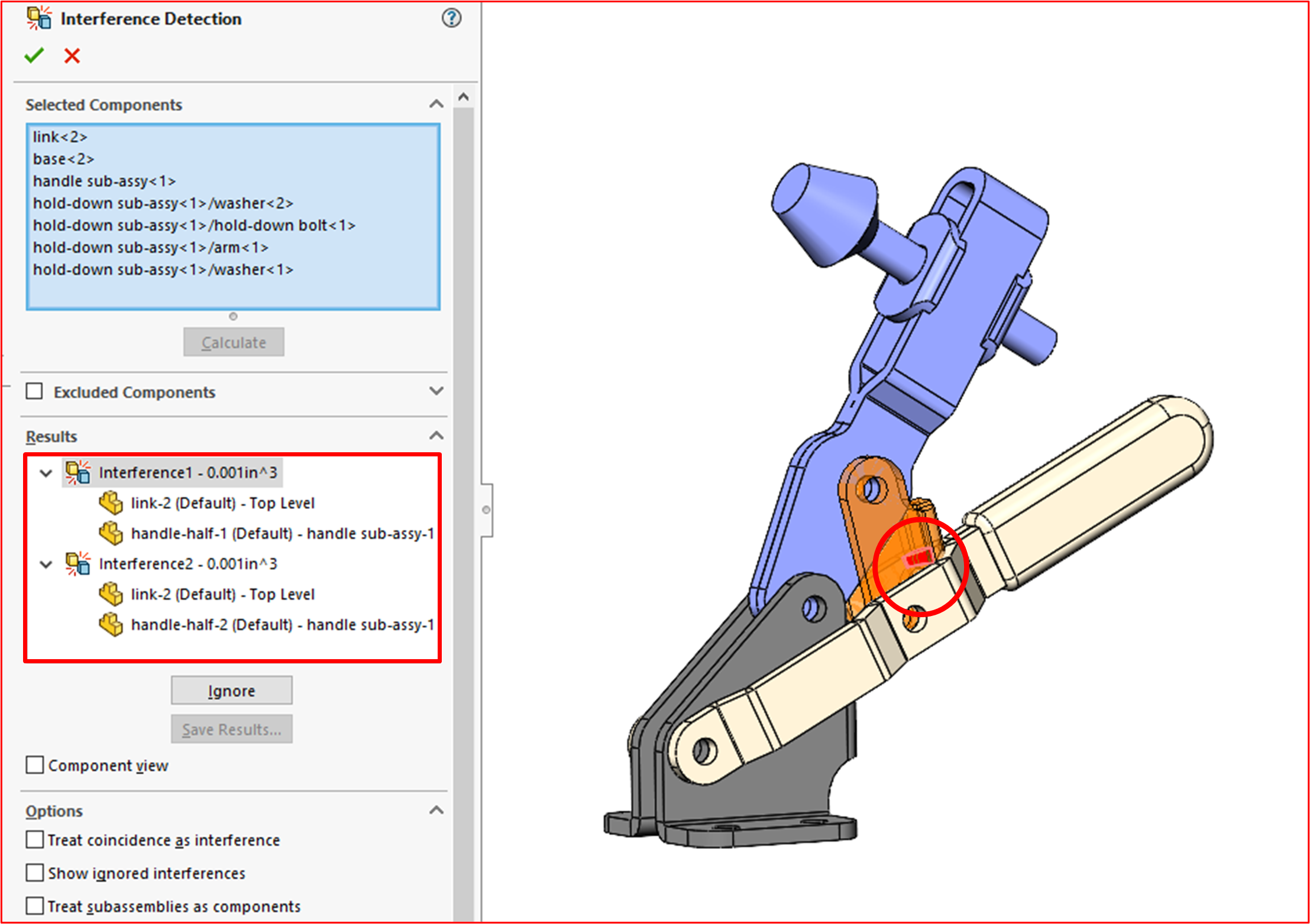
Displays all detected interferences in the assembly
Shows the interference volume for each detected conflict
Selecting an interference from the Results list highlights the affected area in red within the graphics area for easy identification.
Step 5:
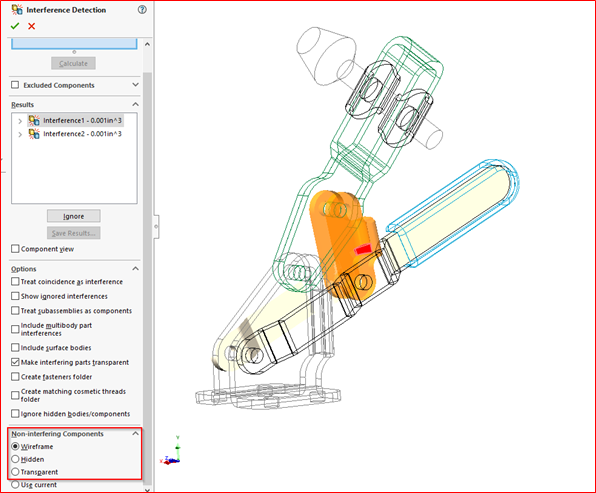
These options allow control over the display state of non-interfering components in the assembly.
Conclusion:
Interference Detection in SOLIDWORKS is a crucial assembly validation tool that helps identify and analyze component clashes before manufacturing. By carefully selecting components, adjusting detection options, and reviewing the results, designers can quickly detect interferences, visualize problem areas, and take corrective action early in the design process. This ensures proper part fit, improves assembly accuracy, reduces costly rework, and enhances overall product quality.

