

Step 1: Close all Windows Applications, including Windows Explorer.
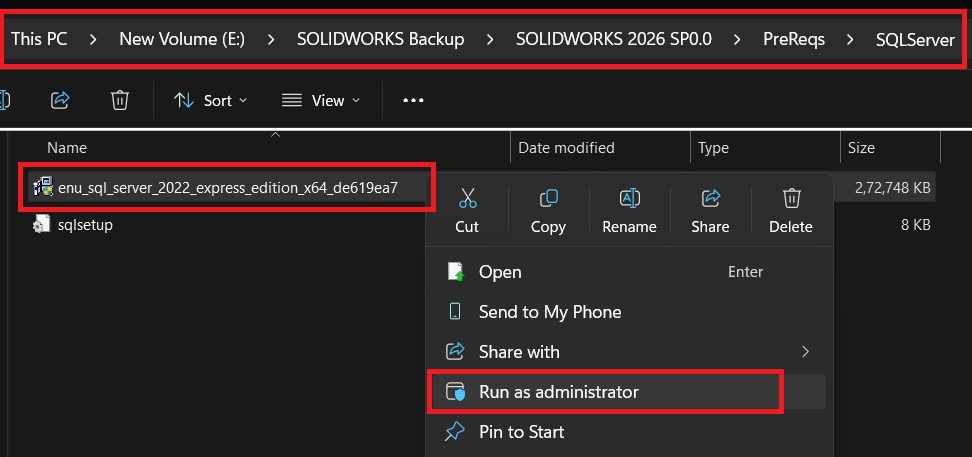
Step 2 : Run the SQL Server 2022 Express from the SOLIDWORKS Setup file as shown below.
Step 3 : Right Click > Run as Administrator the SQL_Server_2022.
Step 4: On the left, choose Installation > New SQL Server stand-alone installation or add features to an existing installation
Read and accept the license agreement and click next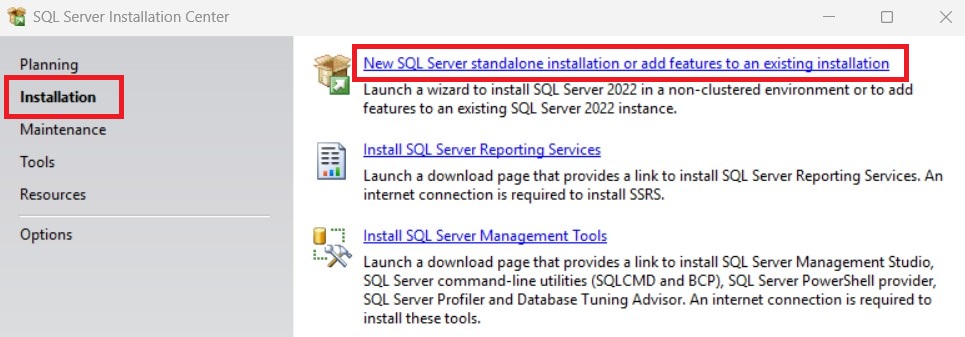 Step5: Installer will run a check and give us the report.
- i) If no problem were shows in report, Click Next
ii)Any of the problem report means, check and solve it before proceed.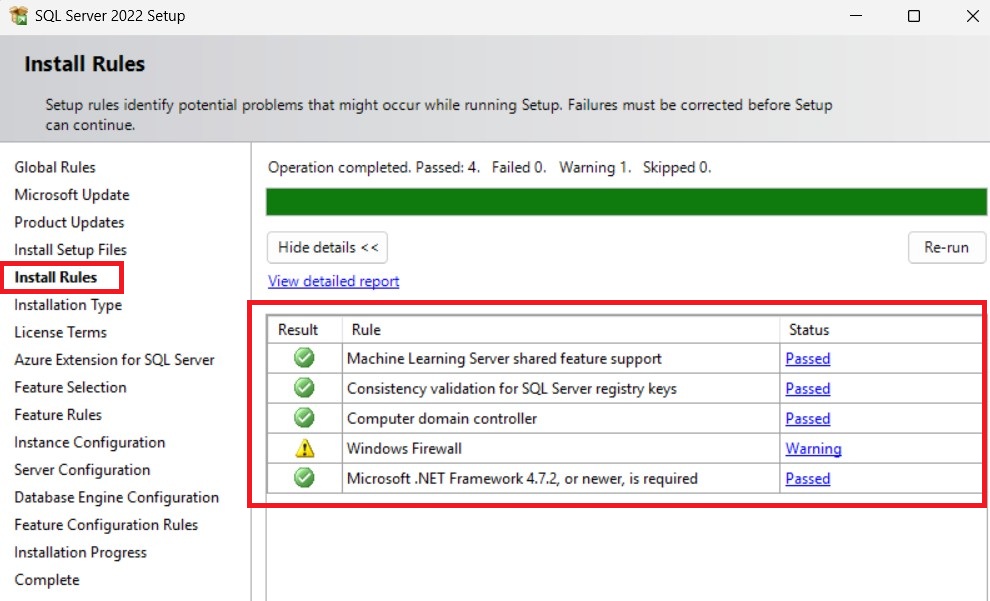 Step 6: In Azure Extension for SQL uncheck it and click Next
Step 7: Under Feature selection select the Database Engine Services & SQL Server Replication
Verify the Installation Directory, and click Next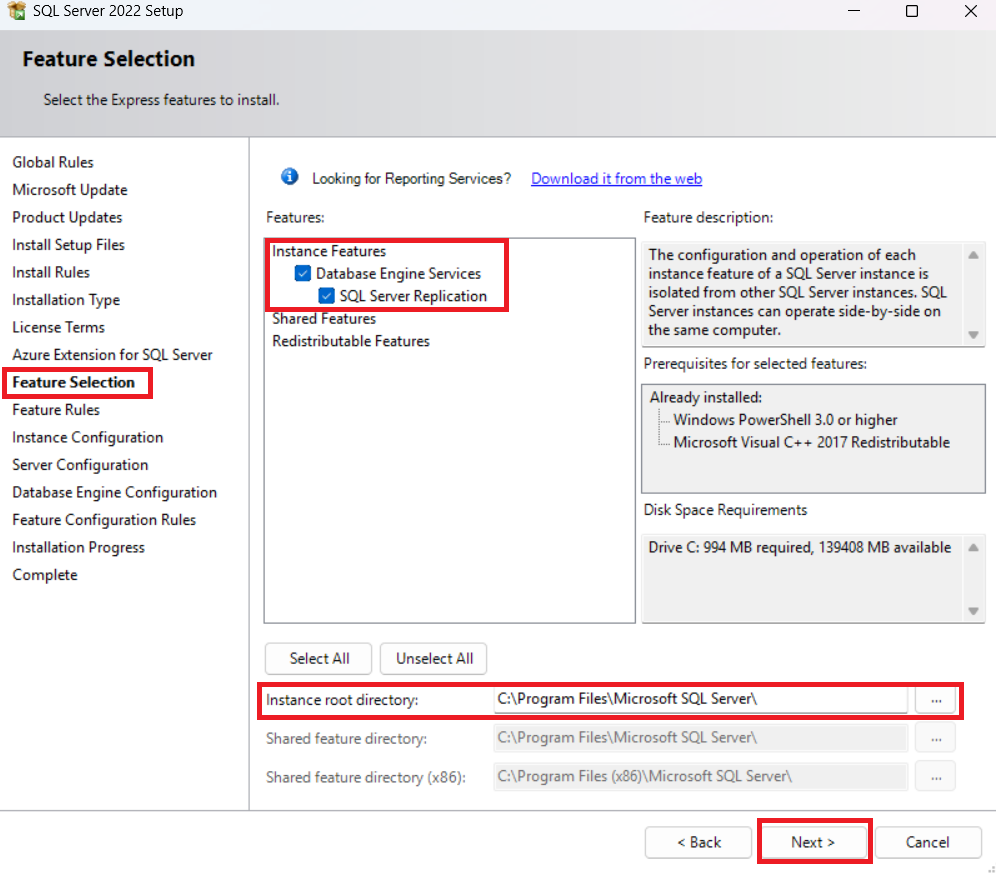
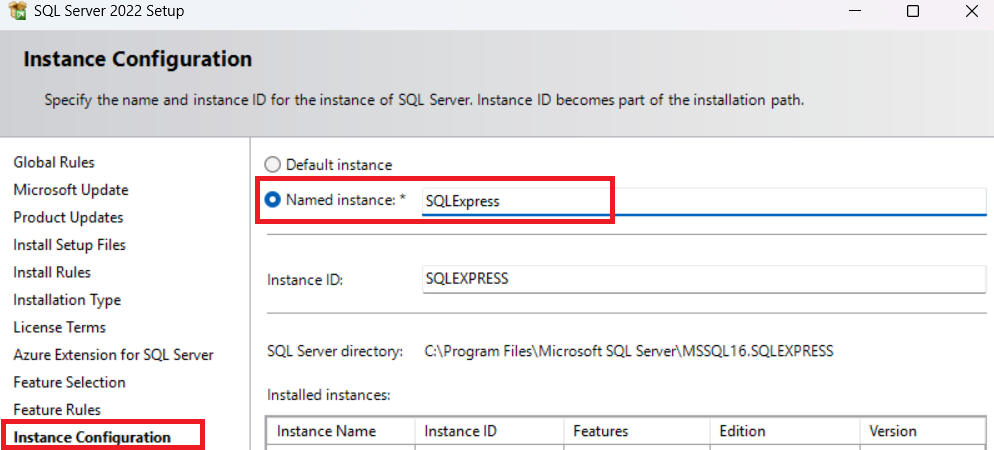
Step 8.Name the Instance as shown in the below image, if required change the Name of the instances.
Step 9: Under Server Configuration the Service Account has been set to Automatic as startup condition.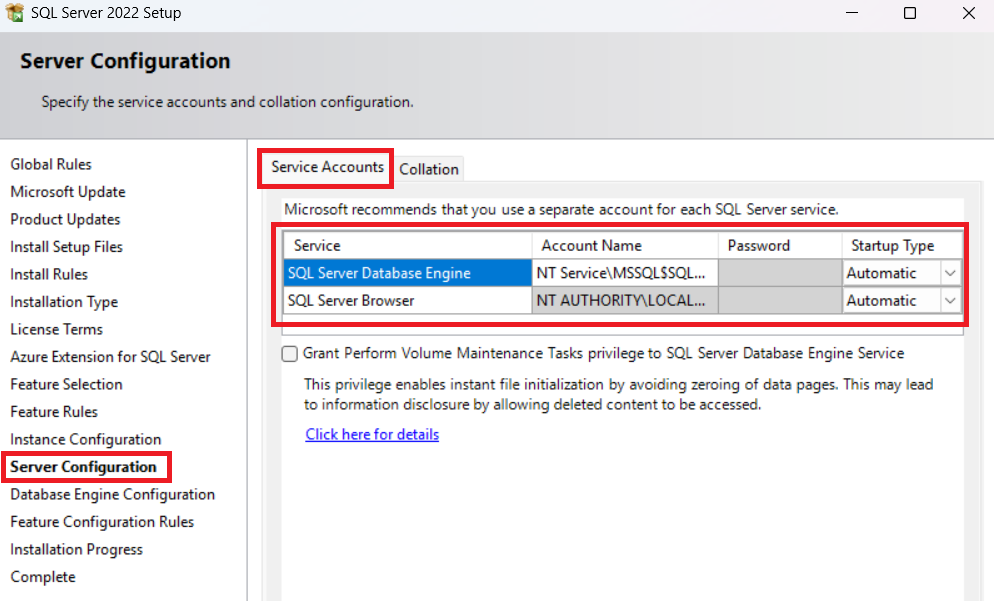
Step 10: For Database Engine Configuration:
a).Server Configuration Tab:
- Select Mixed Mode (SQL Server Authentication and Windows Authentication).
- Type a strong password for the SQL Database System Admin account. Do not leave the password blank!You’ll need to fill it in twice.
- To see the password requirements, click Help.
- Remember to save this password somewhere safe. You will need it to connect SQL to PDM later.
- Under Specify SQL Server administrators, click Add.
- In the Select Users/Computers/Groupsdialog, enter the name of the local administrator of the system, or the local or domain Administrators group. These are users you want to have access to SQL should you ever lose the SA password. When done, click Next.
b).On the Data Directories tab, it is optional to set the remaining paths.
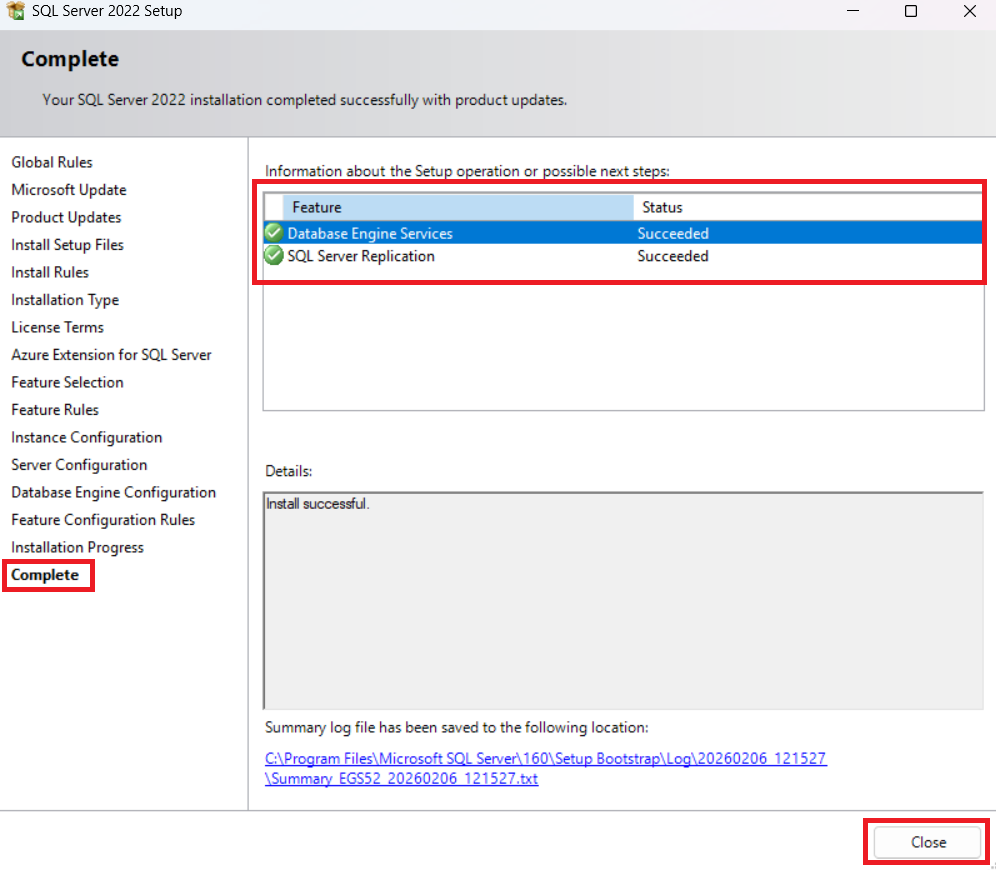
Step 11: Click Install to begin the installation. This will take some time. When the success notice pops up, click Next and then Close.
Step 12: If an automatic restart does not occur, restart the machine.
Step 13: If there are any cumulative updates or hotfixes needed for your chosen SQL version, apply those now.
SQL Management studio installation, configuration & Enabling the SQL Protocols will be on Next blog.