SOLIDWORKS Installation and Activation
New SOLIDWORKS Installation
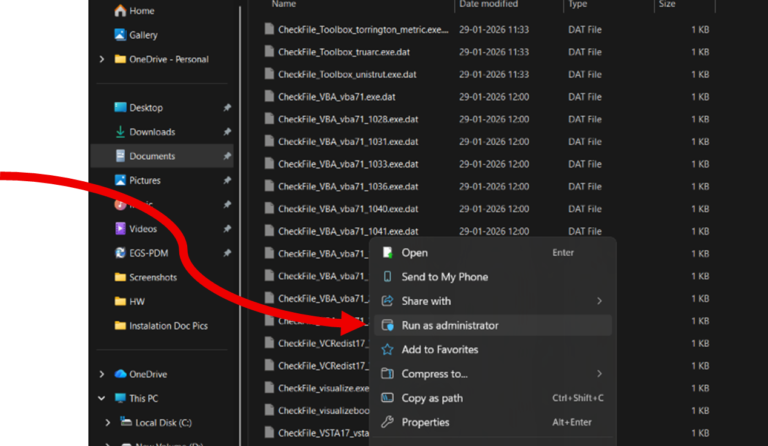
- Locate and open the “SOLIDWORKS 2025 SP0″ folder, and find ” setup.exe “.
2. Right click on the setup application and click ” Run as administrator ” and click Yes.
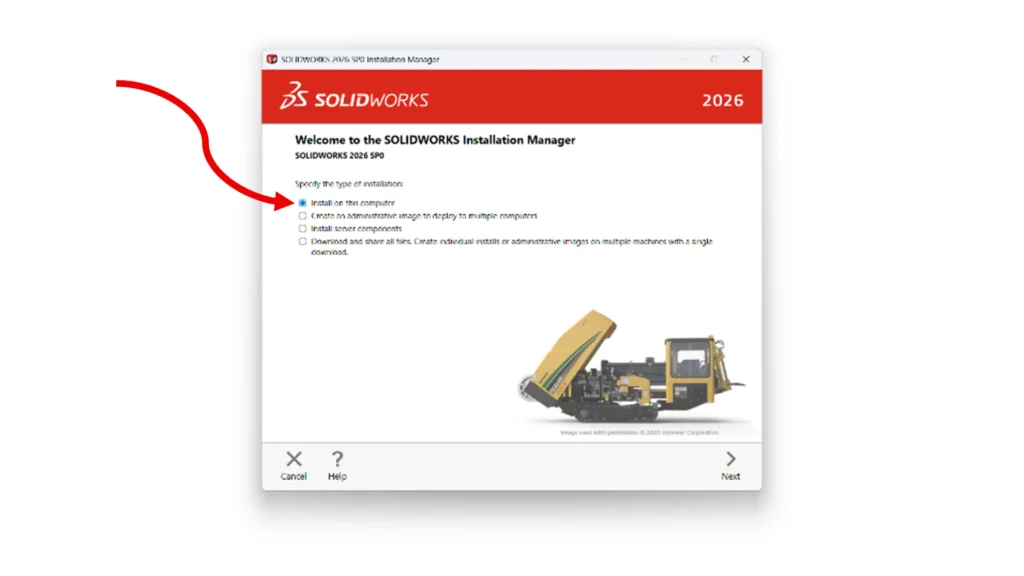
3. Specify the type of Installation as ” Install on this computer ” and click Next.
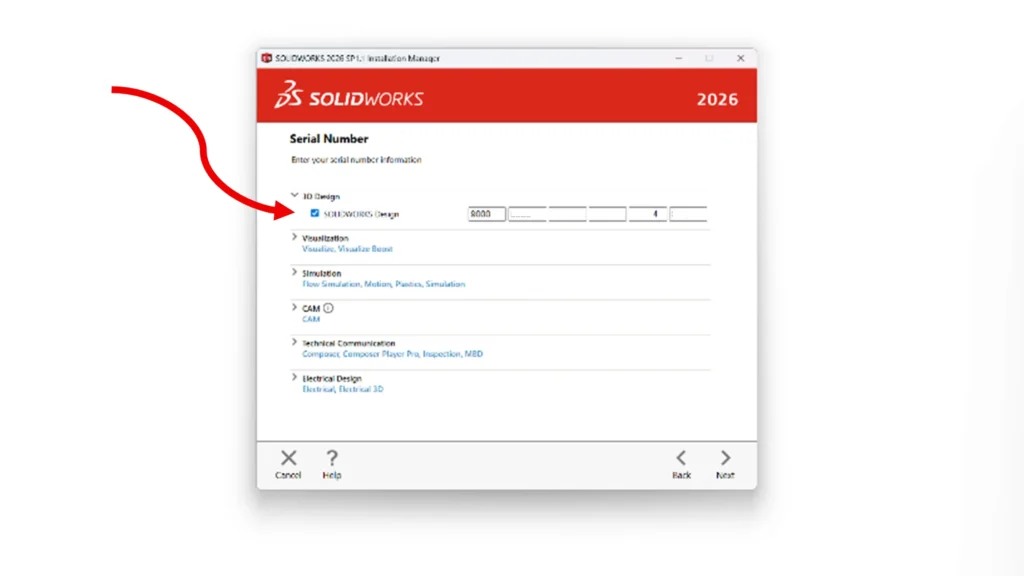
4. You are now prompted to enter the 24 Character Alpha-Numeric Serial Key for the respective products. Click next after filling the necessary boxes.
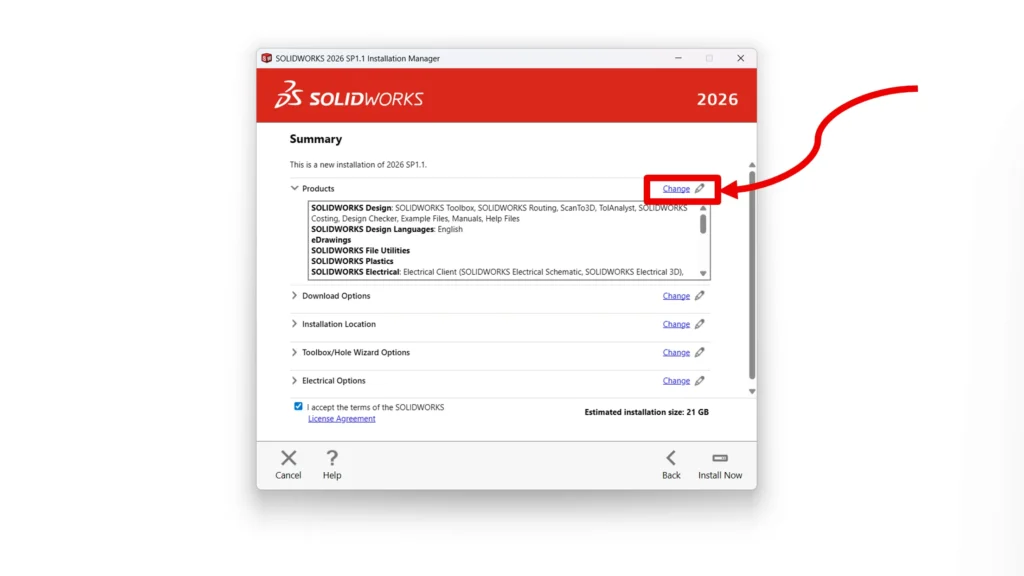
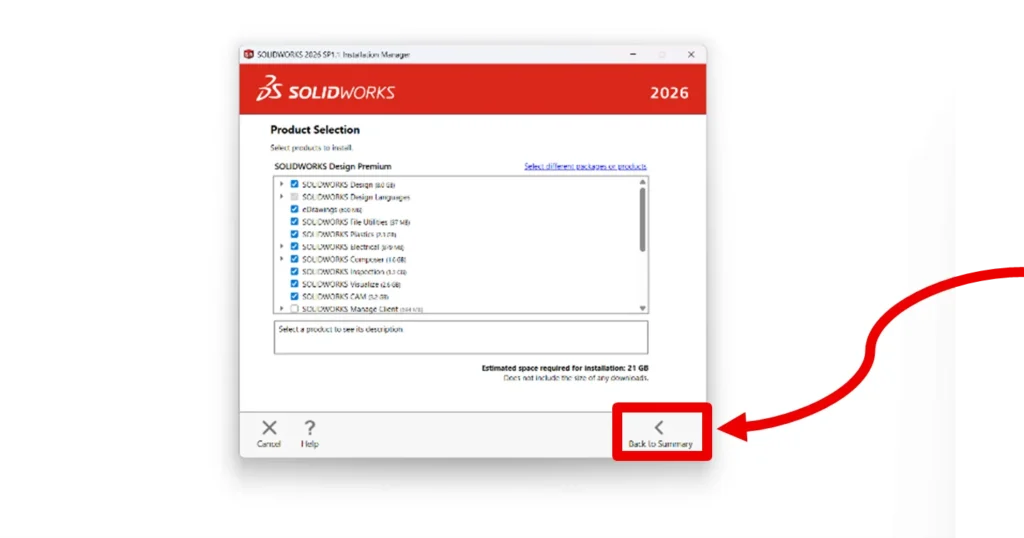
5. The Summary tab is open, under the products tab, click Change.
6. Check only the products needed and click back to summary.
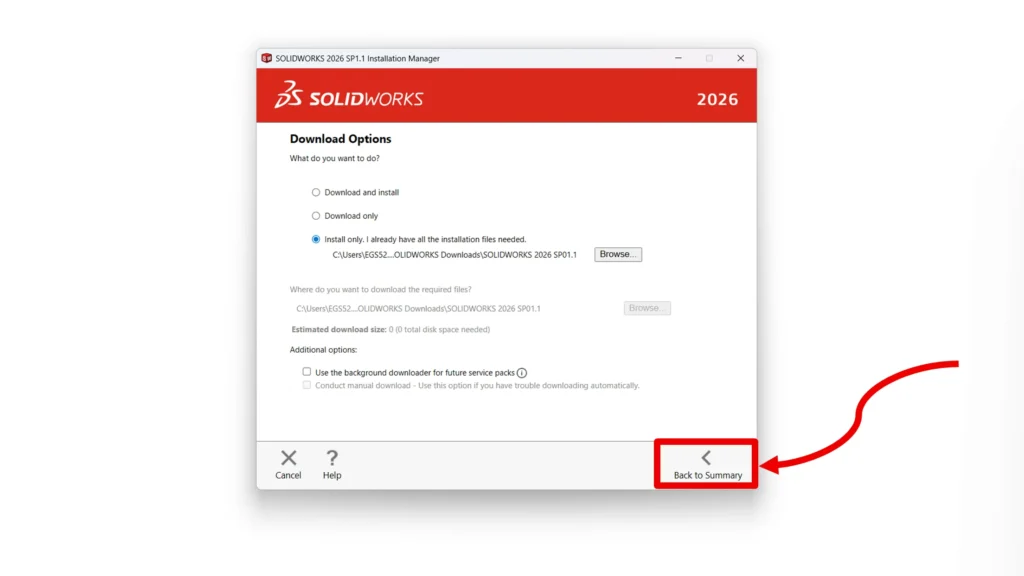
7. Click change on the Download options and clear the ” Use the background downloader for future service packs ” checklist and click back to summary.
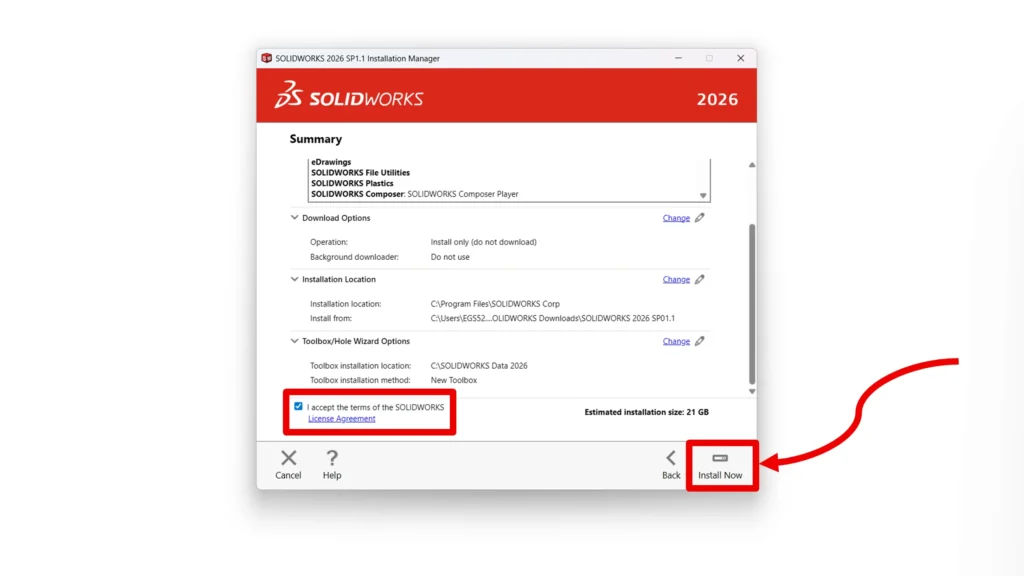
8. Make sure the installation location, and toolbox installation method are correct under the respective tabs.
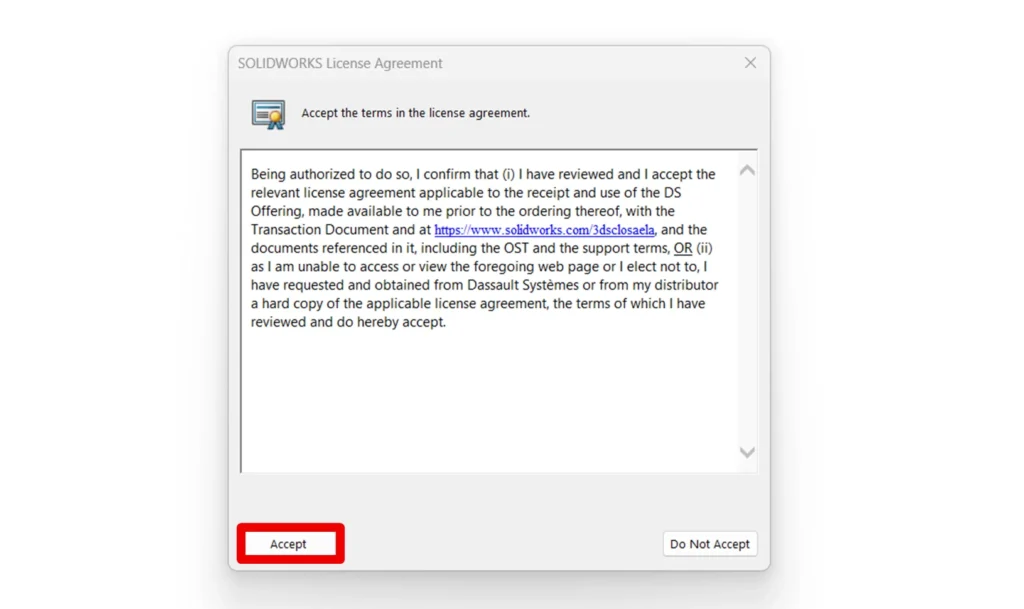
9. Accept the terms of the SOLIDWORKS License Agreement, and Click Install Now.
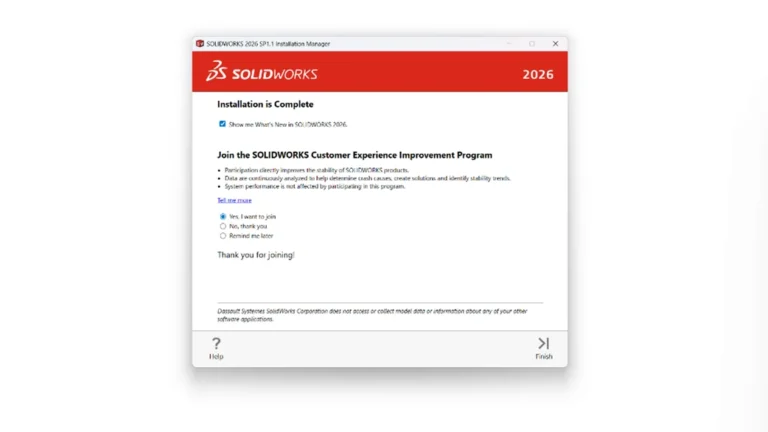
10. Once the installation is complete, a message pops up to inform the user. Click ” Yes, I want to join ” to be a part of the Customer Experience Improvement Program.
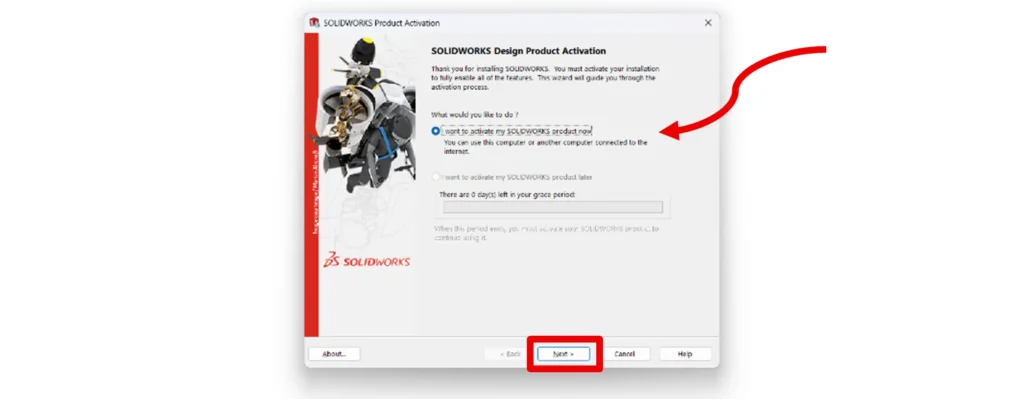
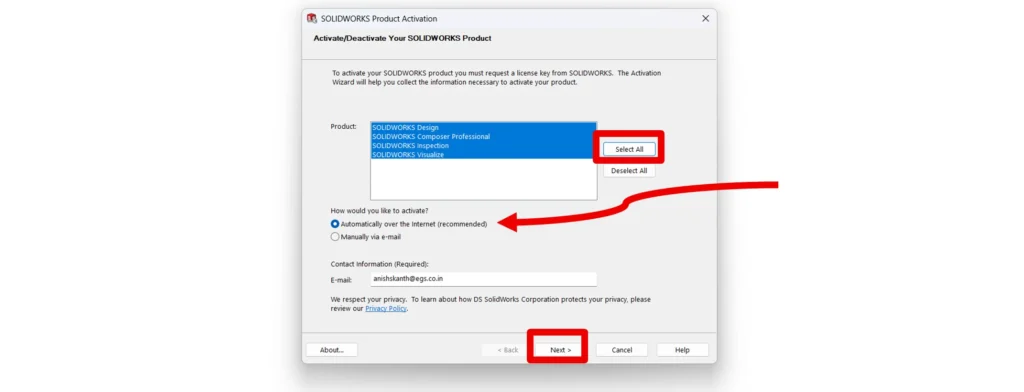
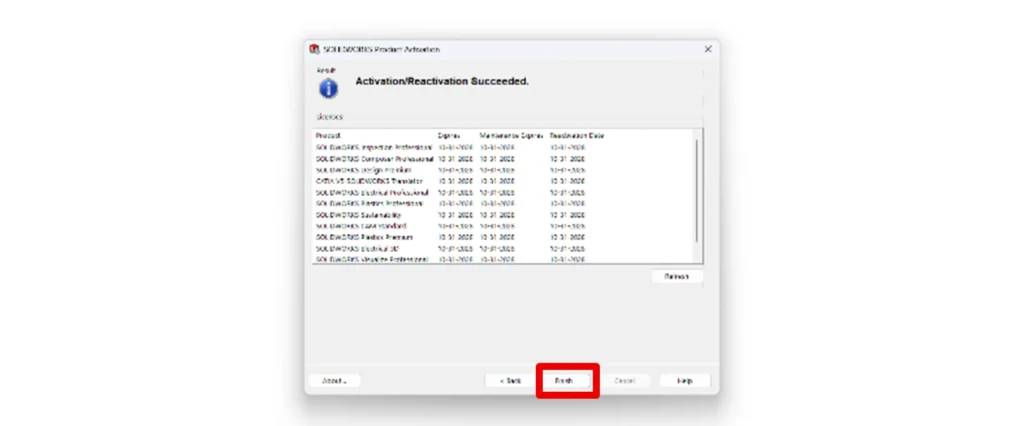
Activating the License
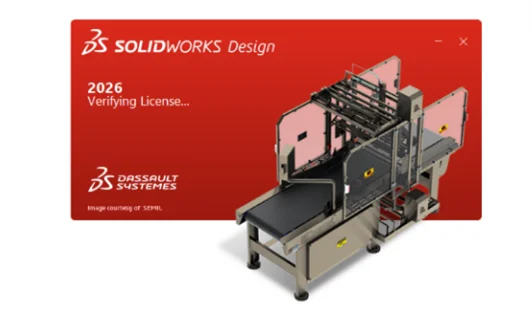
- SOLIDWORKS Shortcut would be added to the desktop, open SOLIDWORKS and the Splash Screen shows SOLIDWORKS opens.