

Collaborative Spaces are secure locations (often referred to as vaults) where files are stored, managed, and governed. More than just storage areas, they define how users interact with content, including access rights, visibility, and collaboration rules.
Every new 3DEXPERIENCE platform starts with a single Collaborative Space called the Common Space. This space is typically used to store templates, standards, and shared component libraries. Administrators can grant or restrict access based on organizational needs.
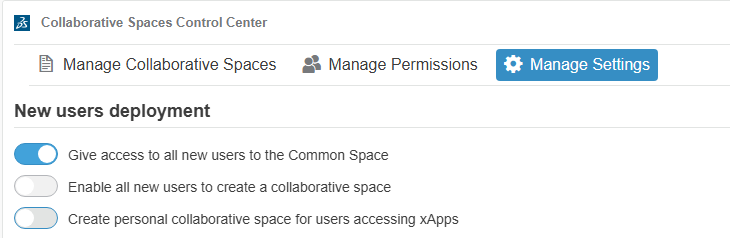
As your platform grows, you will likely create additional Collaborative Spaces. However, avoid treating them like folders. Collaborative Spaces are not meant for data organization-they are designed to control access, responsibility, and visibility.
For many organizations, just two spaces (Common Space and Design Space) are sufficient. If your company operates across multiple divisions or collaborates with external partners, additional spaces may be required.
Step 1: Create a New Collaborative Spaces
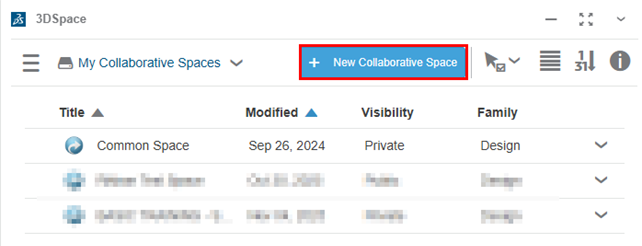
- Open 3DSpace > Click New Collaborative Space
Step 2:
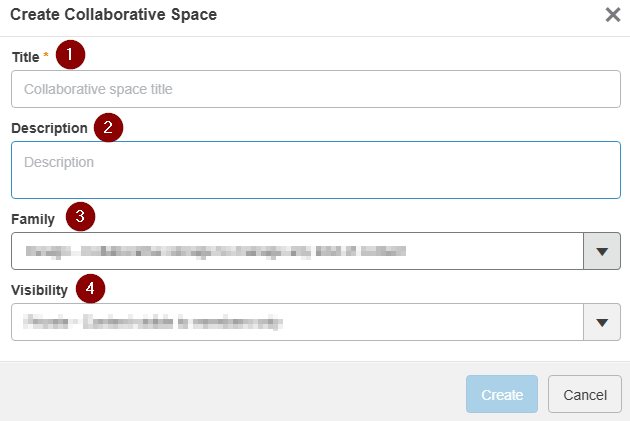
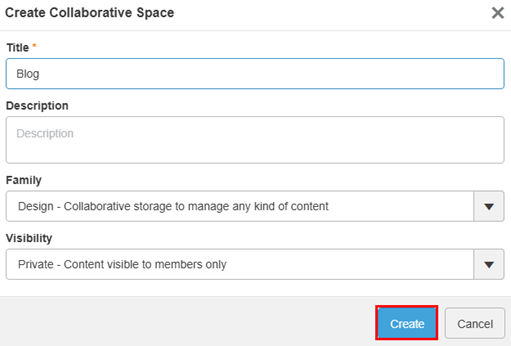
- Title: The title may contain alphanumeric characters, spaces, and the following special characters:
! & () + – = ^ _ ` {} ~
- Description: Provide a clear description that explains the purpose of the Collaborative Space.
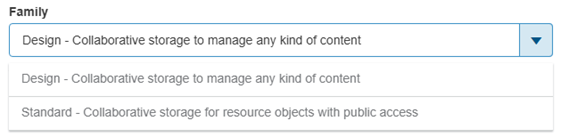
- Family: Choose the data storage family
- Standard
- Design
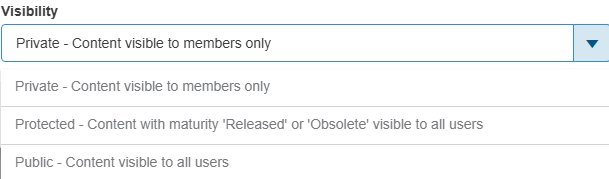
- Visibility: Visibility determines who can see and access the data:
- Private– Only invited members can access the data. Ideal for sensitive projects or restricted teams.
- Protected– Data stays private while it is being developed. Once it is released or becomes obsolete, it is automatically visible to all user.
- Public– Data is visible to everyone, both inside and outside the organization. Best suited for shared standards and libraries.
Step 2: Click the Create button
step 3: Member Permissions
After the Collaborative Space is created, define who can do what by assigning permission levels.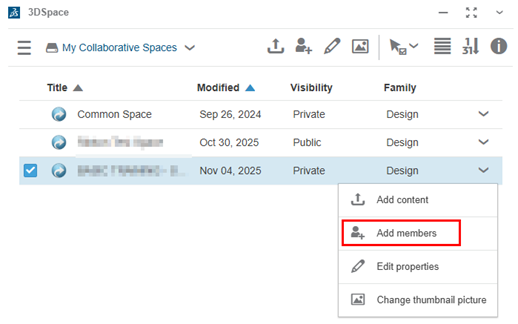
- Public Reader– Can only view shared public data. Suitable for suppliers or vendors.
- Reader– Can view data in public spaces and any private spaces they are invited to.
- Contributor– Can add supporting content such as comments and discussions, but cannot modify core files.
- Author– Can create and modify designs, but cannot release them.
- Leader– Has full control over content, including managing maturity states, templates, and team workflows.
- Owner– Has administrative authority, including managing members, permissions, and overall space configuration.
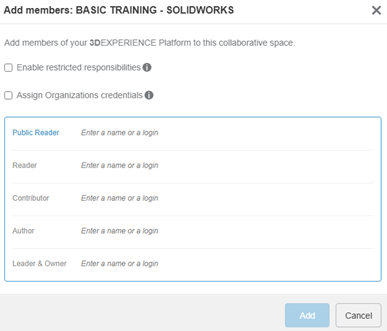
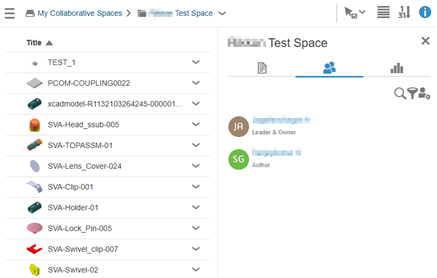
To view the existing members in the Collaborative Space:
- Open the 3DSpace App, Select the required Collaborative Space.
- Click the Information (i) icon, and then navigate to the Members tab.
***Thank you***

