
It is a special type of assembly component which can be used as a reference component. Envelope components are ignored in global assembly operations such as bills of materials and mass properties and excluded from Interference Detection. In Assembly, the mirror or pattern of an envelope component is also an envelope. You can identify the envelope components in the Feature Manager Design Tree by the following icons.
 Envelope Component
  Envelope Subassembly
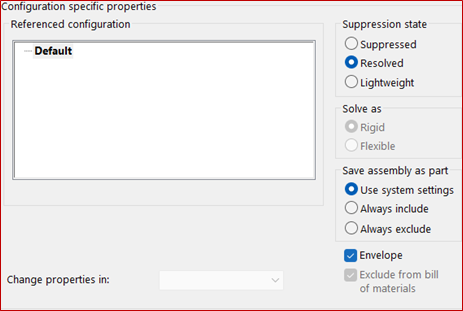
In an assembly, right click a component or subassembly in Feature Manager Design Tree and click Component Properties. In that tab, Select Envelope in the bottom right corner and it automatically selected Exclude form bill of materials which excludes the component or subassembly from BOM.

The primary function to use envelopes as reference components. We can add components as envelope, which are not belong to the assembly. It helps you to identify how to size and position the functional assembly components. Let’s see an example here.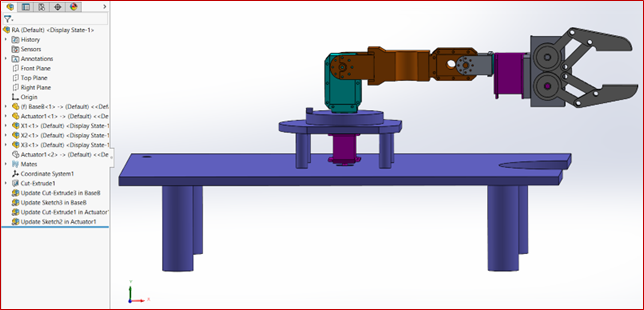
model with the base component as a reference. But the base part will load every time opening & saving the assembly and includes in geometry. So that, we could made the part as envelope component to not appear on the BOM & not used in mass property calculations.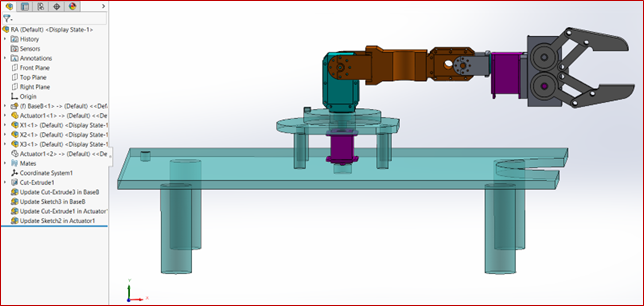
The appearance can be controlled in three categories
on the system options > Colors> Envelopes 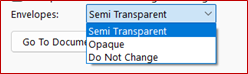
We can also improve the performance by
made the envelope components to load
“lightweight and read-only” while opening
the complex or large assembly in
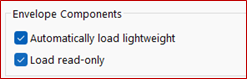
system options > Assemblies > Envelope Components.