How to perform effective Drafting using SOLIDWORKS in 10 Stages - Stage 4
This SOLIDWORKS Drafting blog series provides recommendations for both CAD Administrators and drafters related to organizing and managing the CAD Environment, SOLIDWORKS drawing tools, and drafting techniques for maximizing efficiency when working with SOLIDWORKS drawings.
The goal of this Blog Series is to help users to unlock the 40% gap in productivity.
In the previous blog of this series, we saw more about SOLIDWORKS Detailing Mode, Advantages of Detailing mode, Functionality Benefits and their use case.
Following to that, in this blog we will how to work with Drawing having Lightweight and/or Resolved Modes.
Stage 4 - Controlling Drawing Updates in Lightweight or Resolved Modes:
When a drawing opens in Lightweight or Resolved mode, the models referred by the drawing loaded into the RAM. When SOLIDWORKS recognizes that one of the models was modified, the program may perform an update of the drawing. This can be a time-consuming operation with drawings of complex models.
To maximize drafting efficiency, it is critical to control the updating of drawing views.
- Updates During the Drawing Load Phase
To avoid an automatic update when opening a drawing, clear the check box for the Allow auto-update when opening drawings option in System Options > Drawings > Performance.
Why do I need to open this drawing?
The answer to this question allows you to match any task with the most efficient mode of opening a drawing.
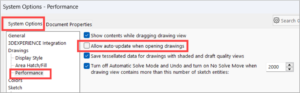
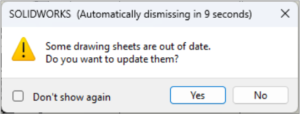
With this option inactive, if there is a modification to the model, you receive a warning. To postpone the update, click No.
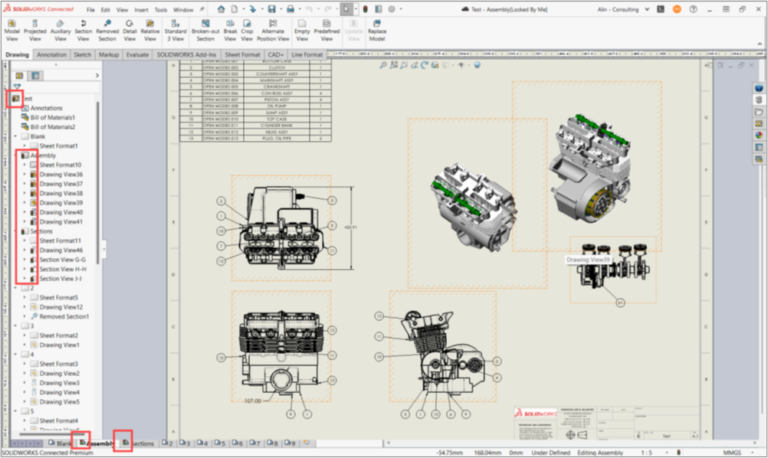
After the drawing loads, sheets and drawing views that are out-of-date are highlighted in the Feature Manager design tree, on the status bar and in the graphics area.
At this point, you can decide which drawing views or sheets require an immediate update.
- Updating all views from a sheet
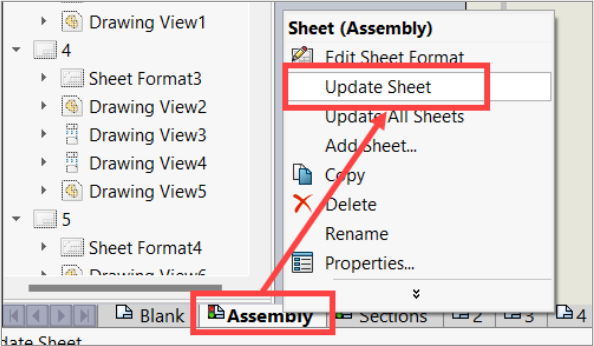
To update individual sheets, right-click the sheet and select Update Sheet.
In the above example, the user postponed the upgrade of the Sections sheet because of work being performed on the current sheet.
- Updating individual drawing views
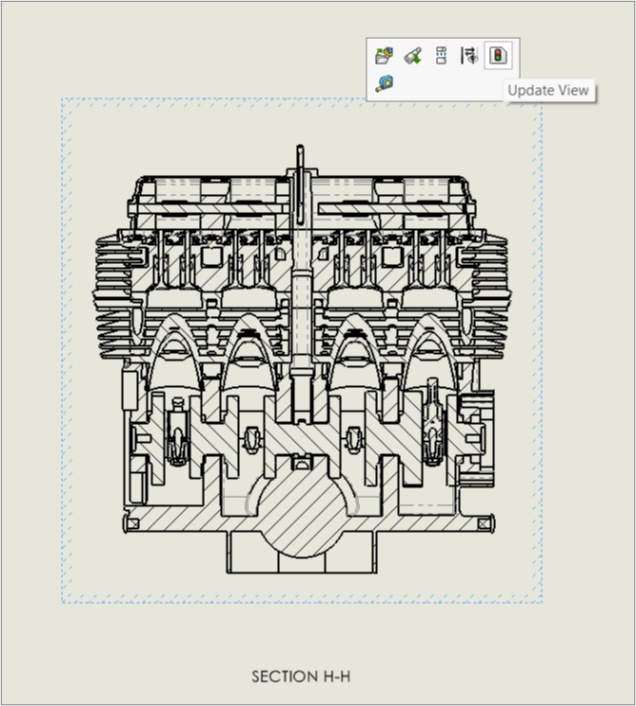
To update one or more drawing views, preselect the views and click the Update View command. In this way, you can postpone unnecessary updates and save time.
b) Updating individual drawing views
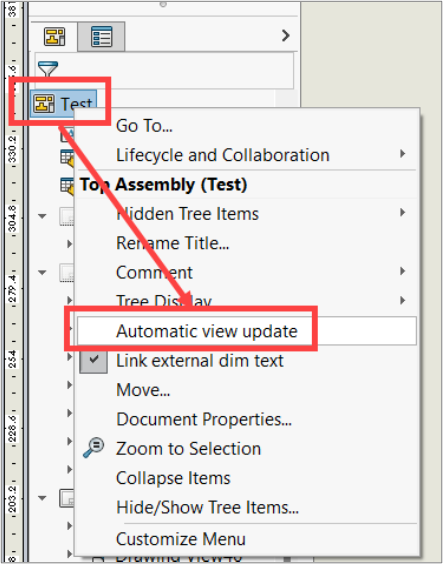
Sometimes, a simple roundtrip between the drawing view and the model can generate a drawing update. To prevent automatic updates from happening, turn off the Automatic view update option for the active document. While this option is a document setting, it appears in the Feature Manager design tree and not in the settings area. To turn this option off, clear the check box as shown in the below image.
c) Control Updates of Individual Views
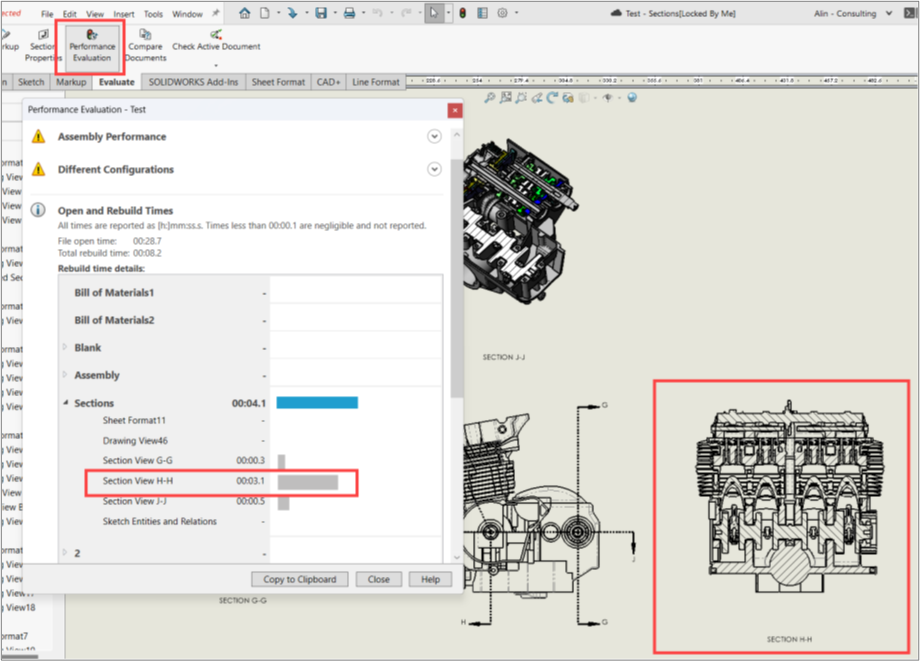
Some drawing views take more time to update than others. You can use the Performance Evaluation tool to generate a report that contains the rebuild times for both sheet and drawing view levels.
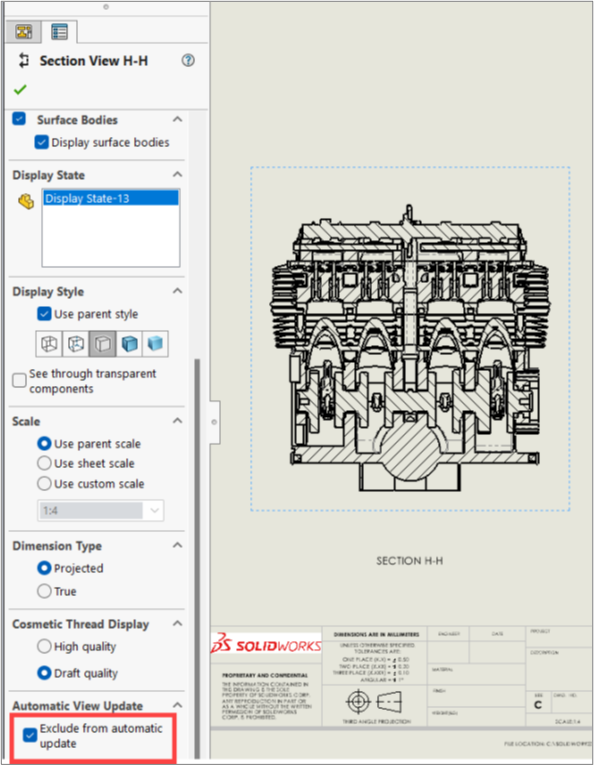
For example, in the above image, Section View H-H takes the most time to update. You can exclude this view from automatic updates by activating the Exclude from automatic update option in the Property Manager of the view.
Excluding complex views from automatic updates allows you to work efficiently when making frequent modifications to assemblies and drawings.
The good news is that saving the drawing triggers the update of all views. Therefore, the drawing is up to date after saving.
Thanks for reading!!
Stay tuned for Stage 5 of “How to perform effective Drafting using SOLIDWORKS”!!!
Author Details
Palaniyappan T, Elite Engineer & Certified SOLIDWORKS Expert with a background in Mechanical Engineering, specializing in SOLIDWORKS Customer Success. He serves as Assistant Manager – Technical and also a Customer Success AE, leveraging almost 10 years of experience with SOLIDWORKS CAD, SOLIDWORKS PDM and also with the 3DEXPERIENCE Design Ecosystem. His expertise has enabled him to successfully assist over 160+ customers in resolving technical challenges, improving their design workflows, and achieving their goals.