EGS INDIA

+91 9445431704

info@egs.co.in

Authorized SOLIDWORKS RESELLER in Chennai, Coimbatore, Trichy

EGS INDIA

+91 9445424704

info@egs.co.in

Authorized SOLIDWORKS RESELLER in Chennai, Coimbatore, Trichy

EGS INDIA

+91 9445424704

info@egs.co.in

Authorized SOLIDWORKS RESELLER in Chennai, Coimbatore, Trichy

Working Smarter with Imported CAD Data in SOLIDWORKS

Introduction

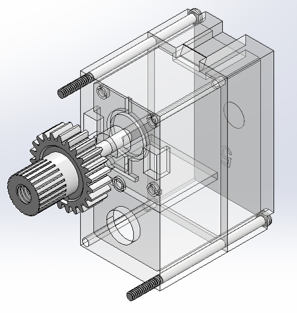
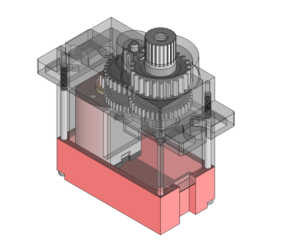
Imported CAD Data in SOLIDWORKS can quickly slow down your assembly when working with downloaded or supplier files. Every project has them — CAD files from suppliers, including motors, gearboxes, and cylinders, often delivered in STEP, IGES, or other CAD software formats. When you drop them into your assembly, performance can quickly suffer.

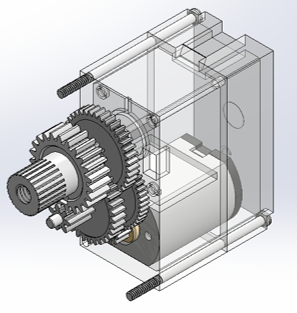
Supplier models are built to showcase the product in full detail, but for assembly work, you usually need only the outer shape for fit, clearance, and interference checks. A gearbox file, for example, might contain every internal gear, bearing, and fastener in full 3D. SOLIDWORKS then has to rebuild and display all that geometry every time you rotate or work with the assembly.
Imported CAD Data in SOLIDWORKS
Here is why that hurts

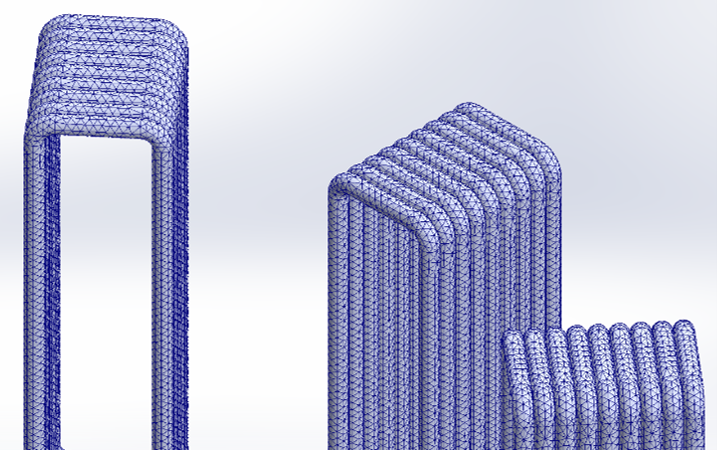
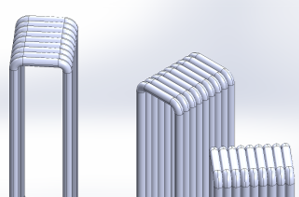
Every surface, fillet, and thread in a 3D model is rendered using tiny triangles called graphic triangles. Internal parts you cannot even see still contribute millions of these triangles to the display — and that is what makes large assemblies feel sluggish and unresponsive.

cad
3DInterconnect

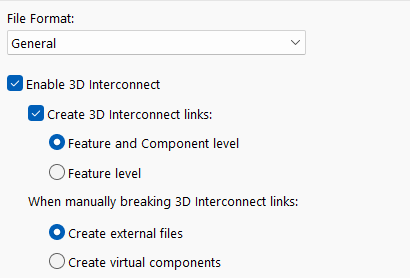
There is another problem. When SOLIDWORKS opens a foreign file, it uses a feature called 3DInterconnect — linking to the original file on your drive rather than making a proper native copy. Move that STEP file, rename the folder, or share the project with a colleague, and you get broken references. Add small geometry gaps from translation, and you have an assembly that is heavy, unstable, and slow.

3D

None of this needs a complicated repair. It needs a simple, repeatable cleanup. Here is the workflow.

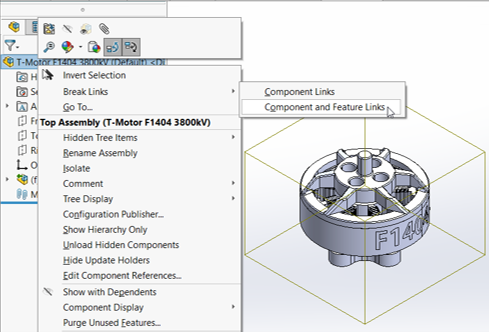
STEP 1 - Break the 3DInterconnect link — save as a native SOLIDWORKS file

3DInterconnect keeps a live dependency on the original imported file. For supplier components that are already finalised, this link offers no benefit — only risk. Break it, and save the part as a native *.sldprt. The model now stands on its own: no external dependencies, no broken references, full control. This one step alone makes supplier files significantly more stable to work with.

supplier components

STEP 2 - Remove internal components using Simplify and Defeature

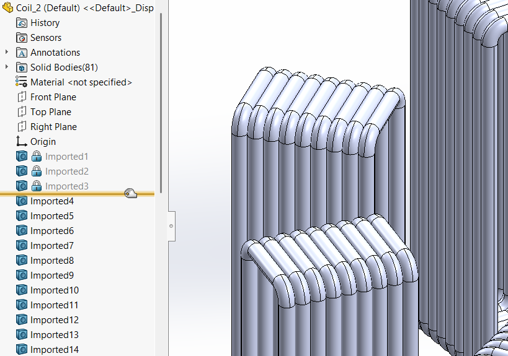
Internal parts — gears, bearings, coils, fasteners — are invisible in your assembly but still generating graphic triangles on every rebuild. Strip them out. The Simplify tool removes features or bodies below a size threshold, clearing small internal hardware in bulk.

Simplify
Defeature

The Defeature tool goes further: define which external faces to keep, and it removes everything else, replacing the internals with a clean solid shell. For a motor or gearbox, this single step can cut graphic triangle count by 70–80%.

STEP 3 - Clean up external detail using Configurations and basic features

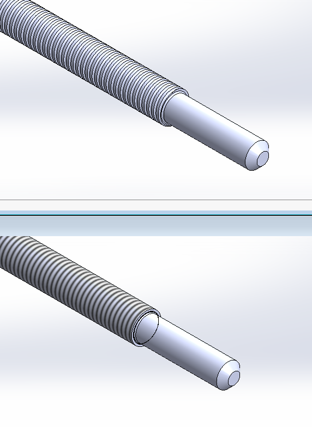
After removing internals, look at what remains on the outside. Logos, name stamps, decorative fillets, and — especially — modelled threads. A single threaded feature can add tens of thousands of graphic triangles to a model. For assembly use, replace modelled threads with cosmetic threads. They give you the visual representation you need in drawings, with none of the geometry cost.

screww

For other cosmetic clutter, use Configurations. Create a Simplified configuration alongside the original Detailed one. Suppress logos and decorative features in the simplified version — your assembly uses the lightweight one while the original is preserved. If small geometry gaps from translation need attention, a quick Extrude or Revolve over the problem area handles it as part of the same pass.

STEP 4 - Lock the geometry using the Freeze Bar

Once the geometry is clean, freeze it. The Freeze Bar marks a point in the feature tree below which nothing rebuilds. SOLIDWORKS treats everything above it as fixed geometry and skips it entirely on open and rebuild. For supplier components that will not change, this means consistent open times and no wasted rebuild cycles.

System Options

To enable: Tools > Options > System Options > General — tick the option to show the Freeze Bar, then drag it below the features you want to freeze

Imported supplier files do not need to be perfect. They need to be stable, light, and fit for assembly use. This four-step workflow — break the link, remove internals, clean the exterior, freeze the result — gives you exactly that – Faster Assembly Performance, Stable References and cleaner assemblies. Join the EGS Community to achieve more.

Scroll to Top