

First Wave of SOLIDWORKS AI- Fix your errors Intelligently
Is Your Engineering Team Losing Time to Repetitive Design Problems?
If you are currently evaluating CAD platforms — or you are on an older system and wondering whether it is time to move — there is one question that matters most: does your software work with you, or does it just execute what you tell it?
The gap between those two things has a real cost. Engineers spend hours diagnosing sketch errors, chasing rebuild failures, hunting for the right command, and manually verifying models before releasing drawings. None of that is design work. It is overhead — and it scales badly as your team and your product complexity grow.
SOLIDWORKS has always been a world-class design platform. With SOLIDWORKS 2026, it takes a significant step further: AI is now built directly into the software. Not as an add-on. Not a separate subscription. Built in.
For teams considering SOLIDWORKS for the first time, this is the right moment to look. The platform you adopt today now includes intelligent assistants that grow with your team.
What Is SOLIDWORKS AI?
SOLIDWORKS AI is a suite of intelligent assistants embedded inside SOLIDWORKS 2026, accessible through SOLIDWORKS Labs. These tools are aware of your open model, your feature tree, your sketches, and your assembly structure — and they use that context to guide you through complex tasks.
Two categories of tools are available today:
- Mechanical Designer — AI companions for engineering tasks: sketch diagnosis, assembly analysis, drawing creation, change impact evaluation, and more
- Efficiency Tools — AI-powered utilities that remove repetitive friction: converting images to sketches, predicting your next command based on workflow patterns
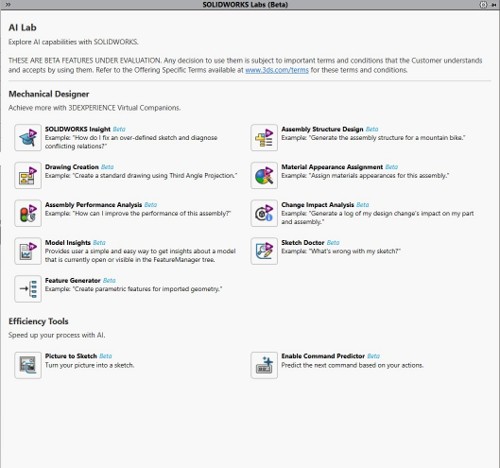
SOLIDWORKS Labs (Beta) — The AI Lab as it appears in SOLIDWORKS 2026 SP02, showing all available AI Capabilities
Seeing It in Action: Fixing a Model Before Drawing Generation
The Real-World Problem
One of the most common and most costly bottlenecks in engineering workflows is this: a model carries an unresolved error into the drawing stage. Views fail. Dimensions break. The drawing cannot be released. The engineer goes back to the model, diagnoses the error manually, fixes it, regenerates views, and loses hours.
This happens in every CAD environment where the engineer works alone against the software. SOLIDWORKS AI changes that dynamic. Here is how.
Step 1 — SOLIDWORKS Flags the Error
When a feature fails to rebuild in this case, an over-defined sketchSOLIDWORKS highlights it with a warning icon and opens the What’s Wrong dialog. The dialog identifies the failing feature and the nature of the problem. This is the entry point.
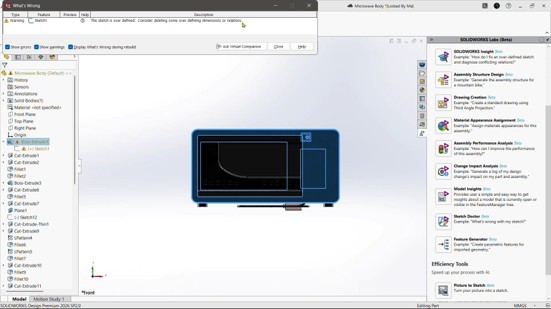
The ‘What’s Wrong’ dialog showing Sketch1 as over-defined. An over-defined sketch means conflicting dimensions or relations are preventing a clean rebuild — a common issue when design intent has evolved through multiple iterations.
Step 2 — One Click to the AI Companion
Rather than navigating to documentation, opening a support ticket, or spending time manually tracing relations in the sketch, the engineer clicks Ask Virtual Companion directly from the What’s Wrong dialog. SOLIDWORKS passes the error context automatically. The AI companion opens already knowing the problem.
There is no prompt engineering required. No copying error messages. The AI reads the model state and responds with a fix plan specific to your geometry.
Step 3 — Precise, Numbered Fix Instructions
The AI companion provides a clear, numbered set of instructions to resolve the specific error in the specific sketch. For this over-defined sketch scenario:
- Right-click on Sketch1 in the FeatureManager design tree and select Edit Sketch
- In the sketch environment, locate redundant dimensions or relations — these are highlighted in red or yellow by SOLIDWORKS
- Delete the redundant dimensions or relations one by one, starting with the least critical. Use the Overdefined Sketch warning to guide you through the sequence
- Confirm the sketch is fully defined all geometry turns black with no remaining warnings, then exit the sketch
- There is no prompt engineering required. No copying error messages. The AI reads the model state and responds with a fix plan specific to your geometry.
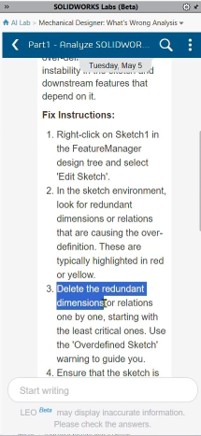
The AI panel delivers step-by-step Fix Instructions directly mapped to the failing sketch. The guidance is model-specific — not generic documentation.
Step 4 — Validate the Full Assembly
After the sketch is resolved, the assembly is rebuilt and the AI confirms the analysis is complete. All components appear clean in the Feature Manager tree. The model is now in a valid state — ready for drawing generation without the risk of view failures or missing geometry.
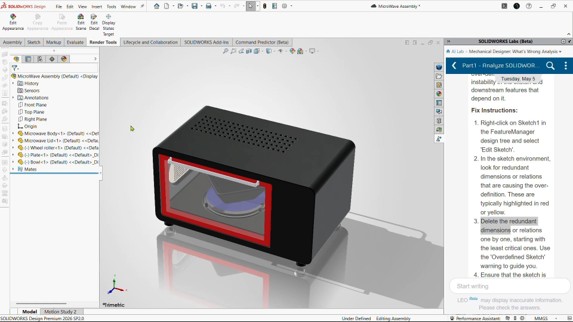
With the sketch error resolved, the Microwave Assembly rebuilds cleanly across all components. The AI panel on the right confirms the What’s Wrong Analysis is complete — the model is validated and ready for drawing release.
What took an experienced engineer potentially 30 to 60 minutes of manual investigation has been reduced to a guided, step-by-step process. For a newer team member or someone less familiar with constraint logic, the difference is even more significant.

Author:
Nandhakumaran Jayaram is an Application Engineer with hands-on experience in CAD and PLM solutions, specializing in tools like SOLIDWORKS and 3DEXPERIENCE. Passionate about engineering innovation and continuous learning, he enjoys sharing insights on technology, design, and professional growth.

