In eDrawings, you can view and animate models and drawings and create documents convenient for sending to others. eDrawings Viewer installs automatically with the SOLIDWORKS software.
With eDrawings Viewer, you can measure and mark-up files.
eDrawings Export Options
You can set the export options when you export SOLIDWORKS documents as eDrawings files. Once you have all the files necessary prepared, you are ready to work offline.
To set the eDrawings export options:
In a SOLIDWORKS document, click Save As (Standard toolbar) or File > Save As.
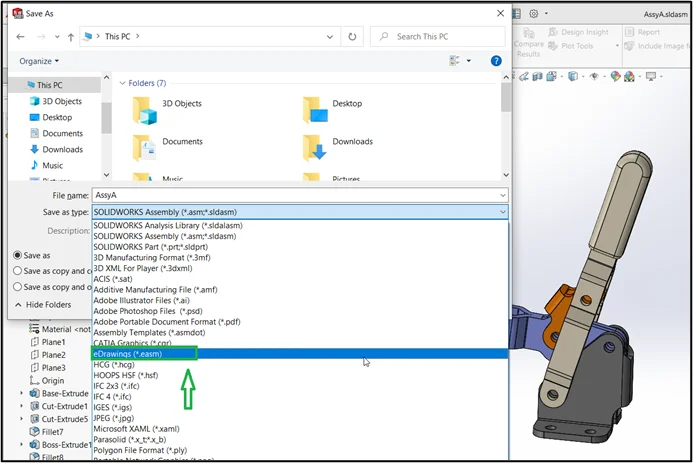
In the Save As dialog box, in Save as type, select the corresponding eDrawings file type:
Part document (*.sldprt). eDrawings (*.eprt)
Assembly document (*.sldasm). eDrawings (*.easm)
Drawing document (*.slddrw). eDrawings (*.edrw)
Click Save.
In the Save Configurations to eDrawings file dialog box (or Save Sheets to eDrawings file dialog box), click Options.
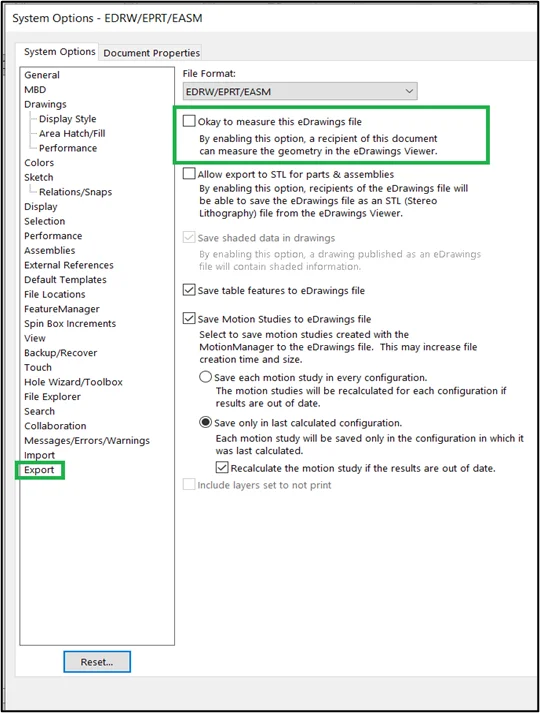
In the System Options – EDRW/EPRT/EASM dialog box, select from the options described below, then click OK.
Option
Description
Okay to measure this eDrawings file
Recipients can measure the geometry in the eDrawings Viewer.
Click OK to save the document.
eDrawings Password
Add password protection to eDrawings files during export.
To add a password to an eDrawings file:
In a SOLIDWORKS document, click Save As (Standard toolbar) or File > Save As.
In the Save As dialog box, select eDrawings (*.eprt, *.easm, or *.edrw) for Save as type.
Click Save.
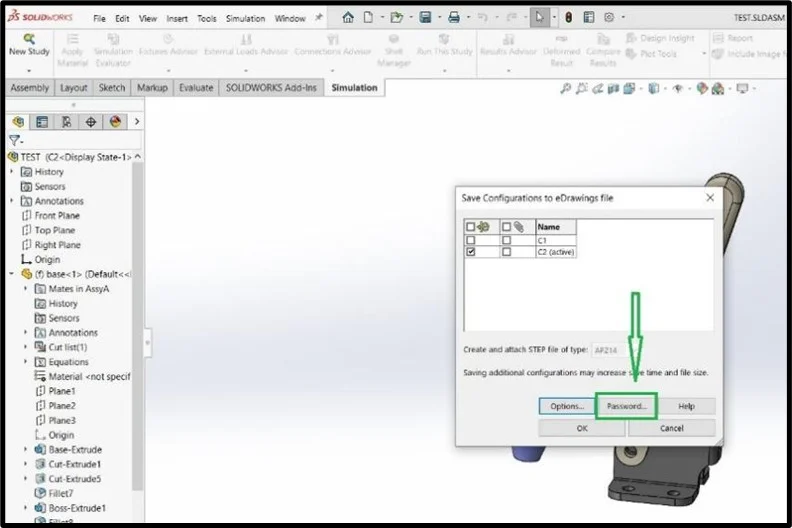
In the Save Configurations to eDrawings file dialog box (or Save Sheets to eDrawings file dialog box), click Password.
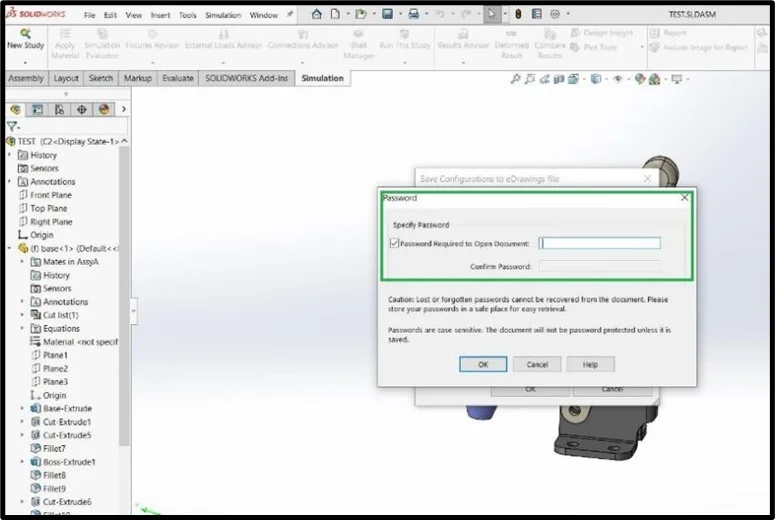
In the Password dialog box, select Password Required to Open Document, then type a password.
Type the same password for Confirm Password, then click OK.
In the Save Configurations to eDrawings file dialog box (or Save Sheets to eDrawings file dialog box), click OK.
Measure Tool Lock
The second factor that can still prevent a user from being able to measure an eDrawings file is that the user who publishes the eDrawings file has the ability to lock the measure tool protecting their design data.
This is controlled within SOLIDWORKS by going to File > Save As, selecting eDrawings as the “Save as type”, and clicking the Options button.
Save the eDrawings file
In a SOLIDWORKS document, click Save As (Standard toolbar) or File > Save As.
In the Save As dialog box, in Save as type, select the corresponding eDrawings file type:
Part document (*.sldprt). eDrawings (*.eprt)
Assembly document (*.sldasm). eDrawings (*.easm)
Drawing document (*.slddrw). eDrawings (*.edrw)
Click Save.
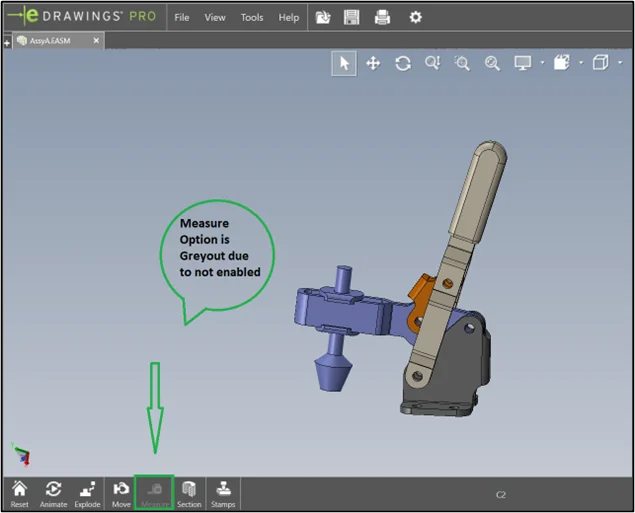
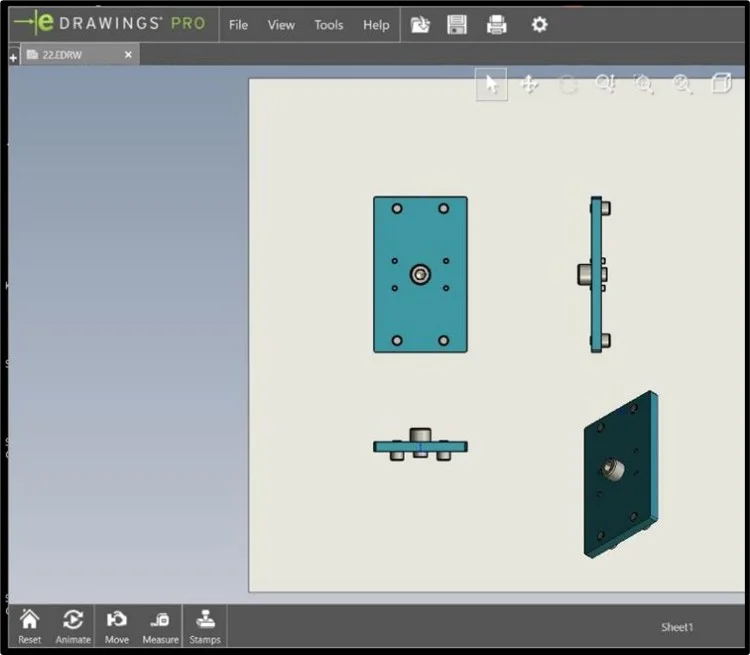
Open file in eDrawings (Measure tool not enabled)
After Save As eDrawing file, then open in eDrawing software you can able to view and not able to measure it.
To share eDrawings files, use:
The Send tool to send files via email as eDrawings, Zip, HTML, or executable files.
Your email program and attach an eDrawings file to an email.
eDrawings to save an eDrawings file as a Zip, HTML, or executable file, then attach the file to an email.
In eDrawings, click Open .
In the Open dialog box, select eDrawings Files (*.easm) and click Open.
Click File >Send .
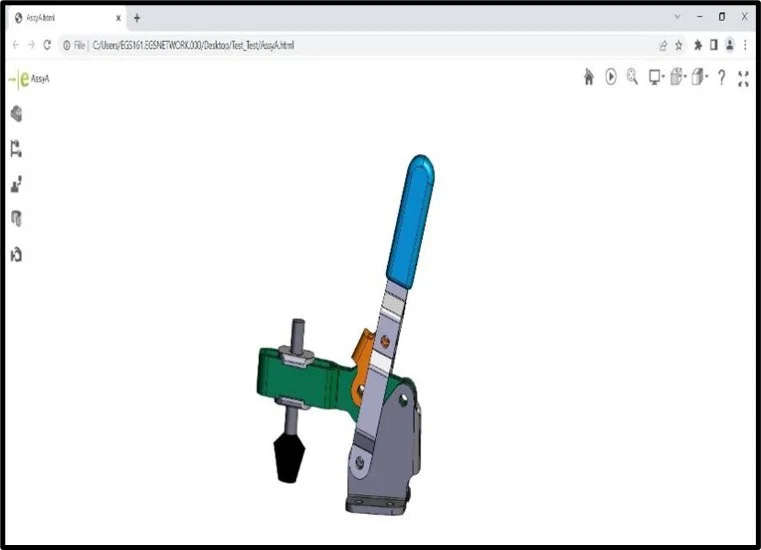
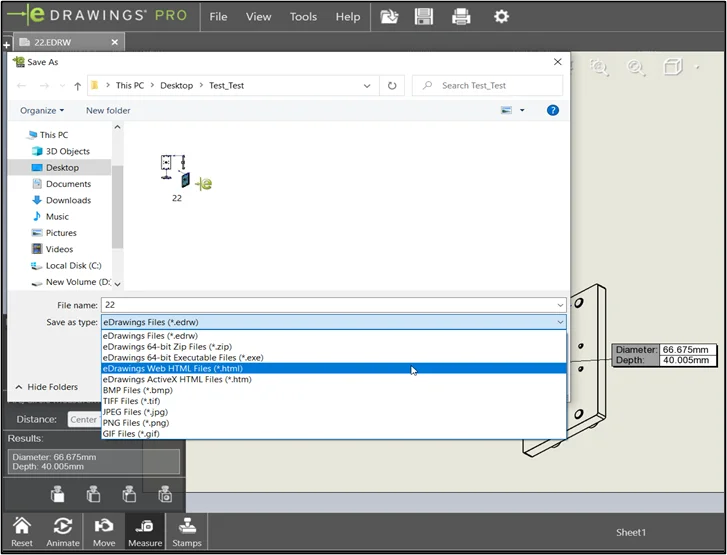
In the Send As dialog box, select HTML page (.htm).
Click OK.
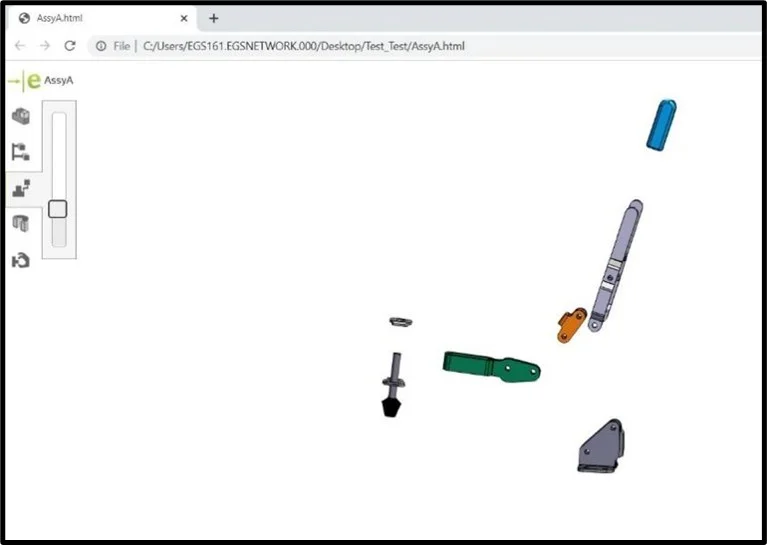
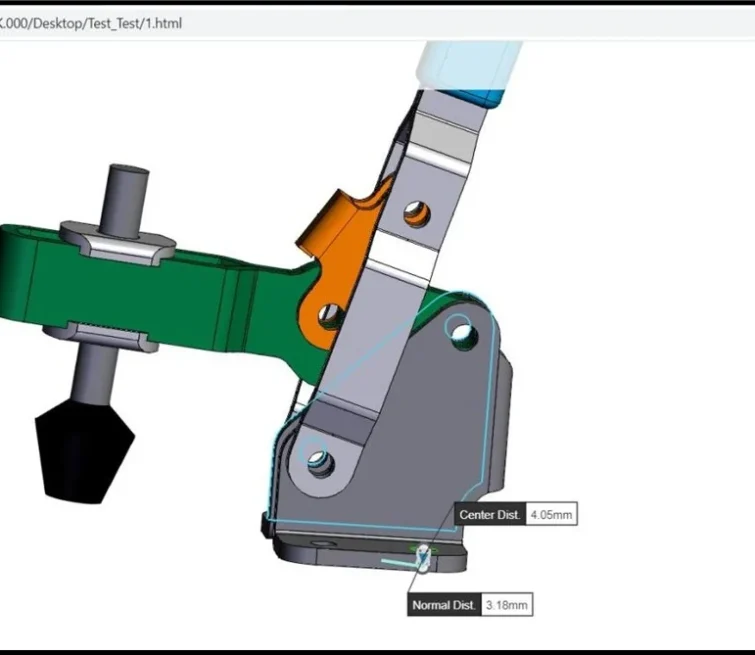
You can save eDrawings file in eDrawings web HTML files (*.HTML) refer above images.
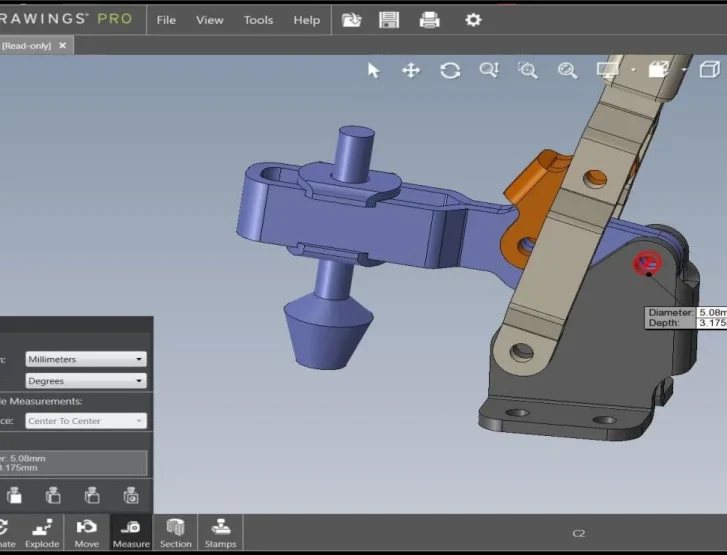
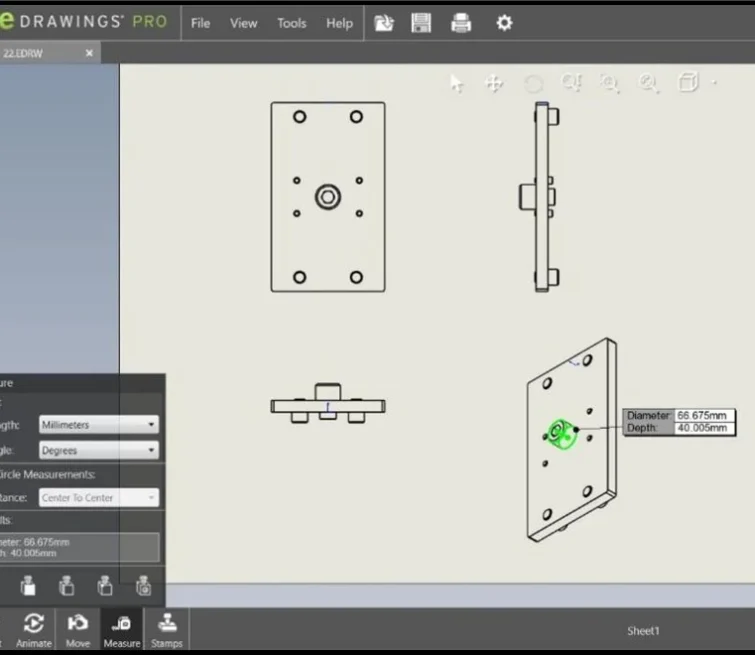
Open file in eDrawings (Measure tool is enabled)
After Save As eDrawing file, then open in eDrawing software you can able to view and measure it.
Marking Up Files
You can markup files with tools from the Markup pane.
Markup entities in the graphics area can be text, clouds, geometric elements (such as lines and circles), and dimensions.
Markup entities are associated with comments.
*** Thank You ***
Authur
Sakthivel A
Sakthivel A is a Team Leader-Technical Support at EGS Computers India Pvt Ltd, specializing in supporting and delivering value-added services to a diverse range of SOLIDWORKS customers for the past 4 years. He excels in understanding customer requirements and providing customized solutions to meet their needs effectively.