SOLIDWORKS Resource Monitor Warnings & Performance Guide
Why SOLIDWORKS Resource Monitor!
The SOLIDWORKS Resource Monitor, monitors the resources that the SOLIDWORKS software or your system is using (it tracks the usage of Physical Memory, Virtual Memory, User Objects and GDI Objects). With this information from the SOLIDWORKS Resource Monitor, it provides messages that help you take action to avoid a system failure or a loss of data. When running low on resources or having graphics card issues, we can quickly see what the issue is and resolve it.
The SOLIDWORKS Resource Monitor automatically runs along with SOLIDWORKS. SOLIDWORKS Resource Monitor application can be killed manually from Task Manager, before killing this application, let us know why it is important to run this application.
The SOLIDWORKS Resource Monitor, monitors these resources:
- System memory – The combined total of physical RAM and page file size.
- GDI handles – A finite resource used to draw user interface items on the screen.
Importance of SOLIDWORKS Resource Monitor
The SOLIDWORKS Resource Monitor’s icon in the notification area is color-coded to indicate the availability of resources:
 | Green | Sufficient resources of all types are available. | System is working fine within safe limits. |
 | Yellow | One or more resources are running low. You should take action to free resources. | System is facing low on resources, even though it’s low we can work with the necessary actions. Identify the issue in the message and act accordingly or inform us. |
 | Red | One or more resources are almost completely consumed. If you continue to work you are likely to experience a system failure or loss of data, so you must take action to free resources. | Almost all the resources are been utilized, and the system needs more resources, this usage can cause damage to the system and also slow down the system performance and make it difficult to use. Over the time the system will end up in data loss and system failure. |
Understanding SOLIDWORKS Resource Monitor Warning Messages
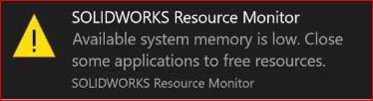
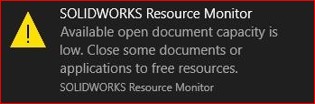
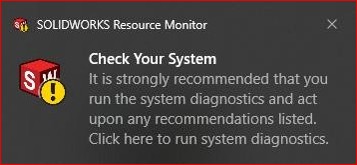
SOLIDWORKS Resource Monitor shows different warning messages to the users. Mainly on “Available system memory is low”, “Available open document capacity is low” or “Check your System”.
SOLIDWORKS Resource Monitor Warnings: Available system memory is low. A major cause for insufficient system memory could be due to virtual memory of Windows.
Virtual memory, also known as Page File is a memory combination of RAM and a portion of your hard drive disk. Whenever your system runs out of physical RAM, Windows will make use of the Page File to temporarily store files and swap back to the physical RAM when it is freed.
By default, virtual memory (page file) is managed by windows. Custom Size option allows us to set the size of the page file. As a general guide, the maximum size of the paging file should be 2 times the amount of physical RAM installed on the machine.
SOLIDWORKS Resource Monitor Warnings: Available system memory is low
How to set custom sized virtual memory:
- System > Advanced System Settings > Advanced (Tab) > Settings.
- Advanced (Tab) > Change.
- Un-tick ‘automatically manage paging file size for all drives.
- Choose the Drive you would like to utilize Virtual Memory on.
- Choose Custom size option
- Enter the Initial size value of 2 times the amount of physical RAM installed in your system (e.g. If you have 32GB, Calculation will be 32 x 2 x1024, which will be 65536MB.)
- Enter Maximum size value same as the initial size.
- Press ‘Set’
- Restart your workstation.
SOLIDWORKS Resource Monitor Warnings: Available open document capacity is low
GDI Objects (Graphics Device Interface) is a core windows component responsible for representing graphical objects and outputting them to devices such as printers or monitors.
For every window or application that is open, it uses up GDI Objects. The problem arises when there are too many objects are in use and causes unresponsive program behavior. This is also what may trigger the lack of system resources. For Windows 8 and later, the system wide GDI Objects are limited to max out at 65,536; and the maximum single process is 16,384.
The default limit set by Windows for any single process is 10,000 GDI objects. If your application GDI Objects exceeds this amount, that process is likely to crash.
SOLIDWORKS should not require more than the default limit of 10,000. If you observe over 10,000 GDI objects after following the below steps to monitor GDI usage, contact us for troubleshooting this.
SOLIDWORKS Resource Monitor Warnings: Available open document capacity is low
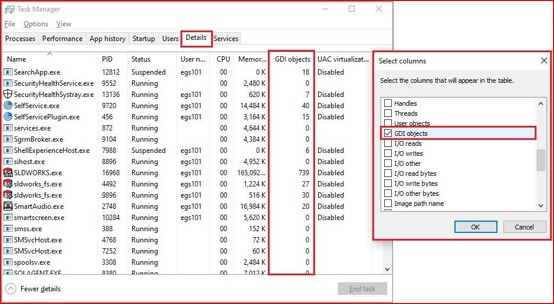
1. You can monitor this through the Task Manager
2. Open Task Manager (right click on start bar > Task Manager OR through CTRL+SHIFT+ESC)
3. Click on ‘Details’ Tab
4. Right click on one of the columns and click on ‘Select Columns’
5. Tick the GDI objects.
SOLIDWORKS Resource Monitor Warnings: Check your System
When installing SOLIDWORKS onto a new system, that you can find the message” Check Your System” warning will appear whenever you launch SOLIDWORKS.
The purpose of this warning is to state that the new installation of SOLIDWORKS has not been tested within the SOLIDWORKS Rx tool, which can check your systems information to verify it is properly setup and optimized.
It can also appear if you are running low on Windows resources. Despite running a system check and increasing the resources the warning can still appear after Windows updates due to the Rx tool wanting a new diagnostic.
If you find that the warning appears frequently you can disable within the Windows settings.
SOLIDWORKS Resource Monitor Warnings: Check your System
For Disabling the Notifications of the SOLIDWORKS Resource Monitor, please check the SOLIDWORKS Tech Tips from E G S Computers India Pvt Ltd on the topic “Procedure for Disabling SOLIDWORKS Resource Monitor Notifications”.