SOLIDWORKS Composer - Installation Guide
SOLIDWORKS Composeris installed as a standalone application. It requires a separate serial number other than your SOLIDWORKS serial number. This allows SOLIDWORKS Composer to be installed on a separate computer than your SOLIDWORKS.
Setup file of each SOLIDWORKS products can be found within the same SOLIDWORKS Setup downloaded from SOLIDWORKS Download.
Installation Procedure:
- To install SOLIDWORKS Composer, Run exe
- A windows reboot popup comes asking whether to continue the installation. select “OK”
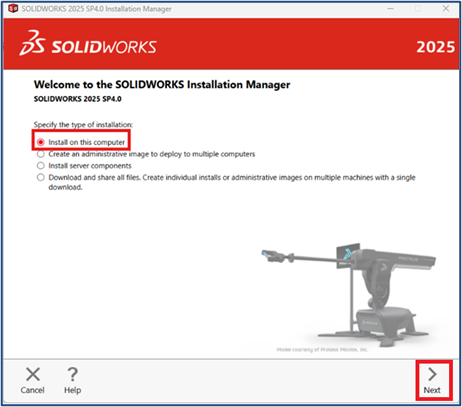
- In Welcome page, select “Install on this computer” and “Next”
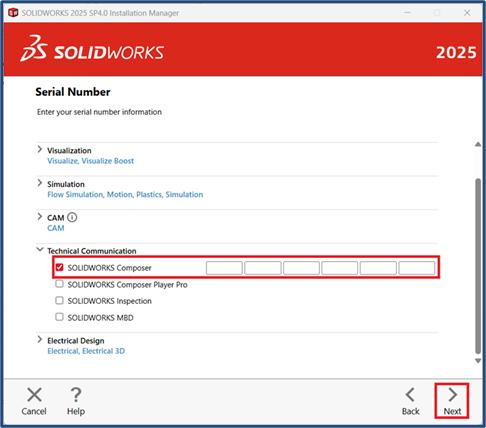
4. In the next page, select SOLIDWORKS Composer from “Technical Communication” field and enter the serial key. Then select “Next”
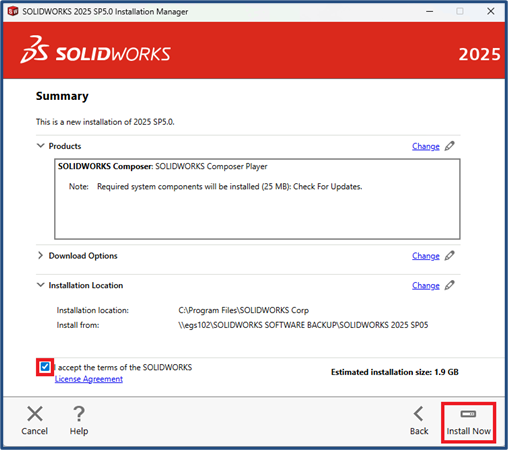
5. In the summary page, Accept the terms of the SOLIDWORKS and select “Install Now”
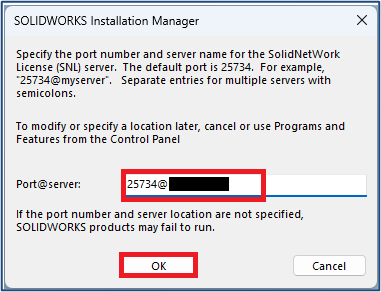
6. In-case of network license you’ll be asked to enter the server details, in the format “25734@server machine name or Ip address” and select “OK”.
7. SOLIDWORKS Composer installation is completed now.