

Installing 3DEXPERIENCE SIMULIA roles
The 3DEXPERIENCE platform cloud roles allow engineers to access powerful simulation tools without complex local installations.
Roles such as Durability & Mechanics Engineer, Fluid Dynamics Engineer, and Plastic Injection Engineer are delivered through a secure cloud environment, significantly simplifying deployment and maintenance.
This blog outlines how one will be able to start program, log in, access the roles, and complete the Installation.
Understanding Cloud Role Installation
3DEXPERIENCE cloud roles are delivered entirely through a secure cloud environment which means:
- No heavy software installation
- No license server configuration
- Automatic updates
- Access from anywhere with an internet connection
All computing and licensing are managed for you in the cloud.
Access the 3DEXPERIENCE Platform
- Open your web browser
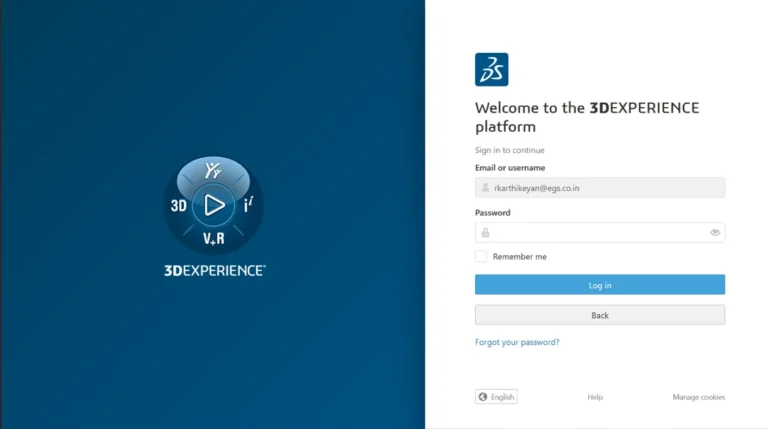
- Go to your company’s 3DEXPERIENCE cloud URL (Tenant ID)
- Sign in using the credentials provided by your administrator
- Access the Platform.
That’s it—no downloads required at this stage.
Confirm Your Assigned Roles
After logging in to the platform check the followings
- Open the Compass
- Navigate to My Roles
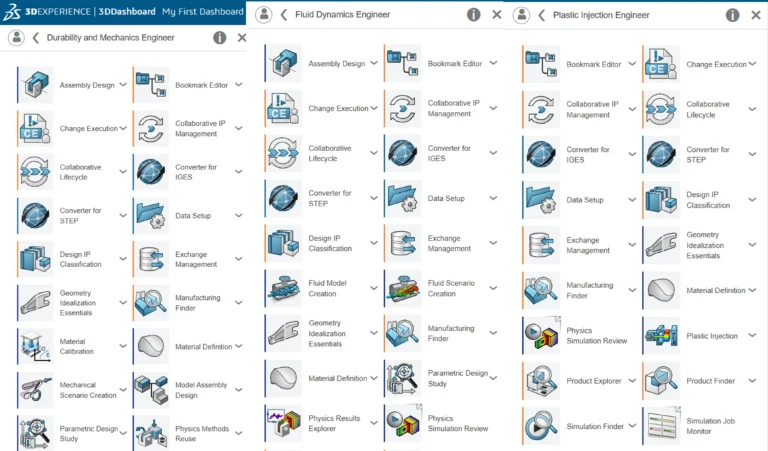
- Confirm access to the following Roles &
- Durability & Mechanics Engineer
- Fluid Dynamics Engineer
- Plastic Injection Engineer
- Apps associated with roles.
If a role is missing, contact your platform administrator.
Installation of allotted roles The installation of the roles starts by clicking on the assigned roles and its apps. For example, while selecting the Durability Mechanics Engineer role and then the Mechanical Scenario Creation app, a pop-up appears requesting that the user install 3DEXPERIENCE Launcher for the first time.
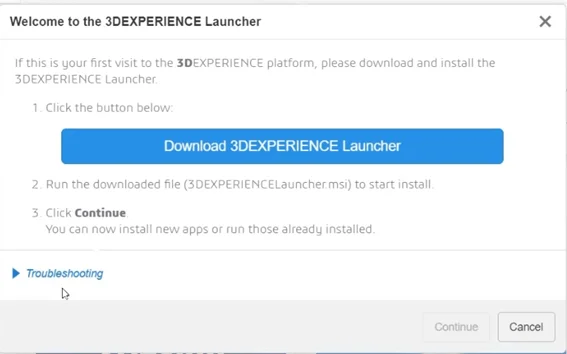
After downloading the 3DEXPERIENCE launcher,Installation begins. Then Mechanical Scenario creation app installation begins with a popup, which shows (i) install all granted roles (or) (ii) Install all role contains the Scenario creation appselect one & proceed with the Installation.
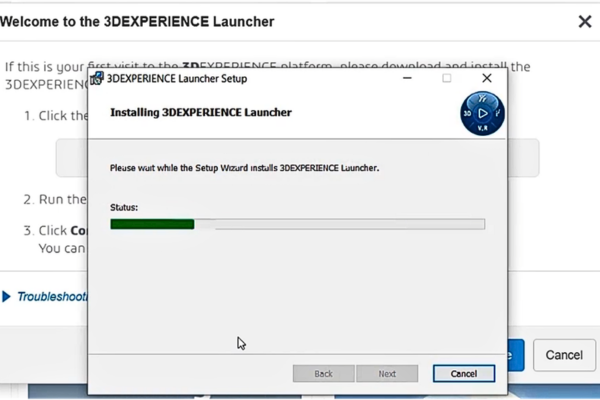
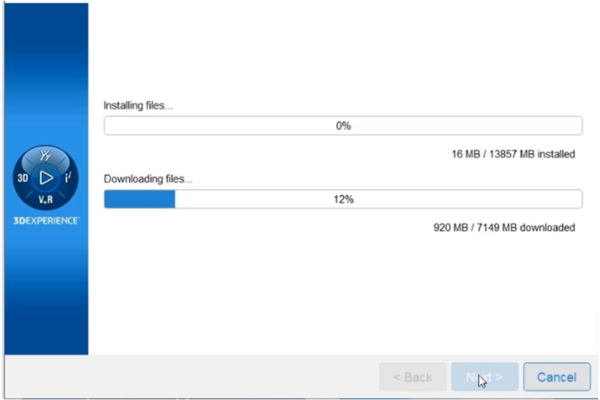
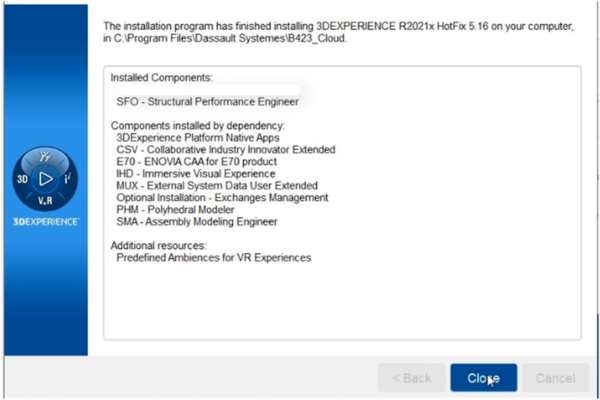
Depending on the number of roles & internet speed it may take few minutes to complete the process and at the end one can see the list of roles & dependent components installed.
About Authour:
Karthikeyan R is a Team Leader – Technical, Elite AE with an under graduation degree in Mechanical Engineering (B.E), specialization in Product Design & Manufacturing (MTech). He serves as a Technical Support Engineer – CAE Applications, with 5 year of Academic experience &3.5 years of experience over SIMULIA, SOLIDWORKS SIMULATION and also with the 3DEXPERIENCE Ecosystem. His expertise has enabled him to successfully assist over 80 customers in resolving technical challenges, improving their Product development, and achieving their goals.