
SOLIDWORKS FILE PREPARATION ASSISTANCE
There are two ways to store data on the 3DEXPERIENCE Platform:
- Save from SOLIDWORKS – Open the file in SOLIDWORKS and use Save from the 3DEXPERIENCE Task Pane under My Session.
- Batch Save to 3DEXPERIENCE – Upload multiple files at once without opening them. This converts the Windows folder structure into a Bookmark hierarchy and supports bulk uploads.
Before uploading, ensure data compatibility. The File Preparation Assistant helps analyse existing data and identify issues that may affect upload to the 3DEXPERIENCE Platform.
The File Preparation Assistant is included with all SOLIDWORKS Design, Collaborative Designer for SOLIDWORKS. It is available starting from SOLIDWORKS Desktop 2022.
Where to Find:
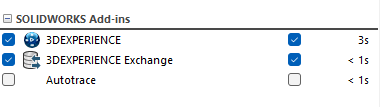
For computers with Collaborative Designer for SOLIDWORKS installed, ensure that the 3DEXPERIENCE add-in is enabled under SOLIDWORKS > Add-Ins
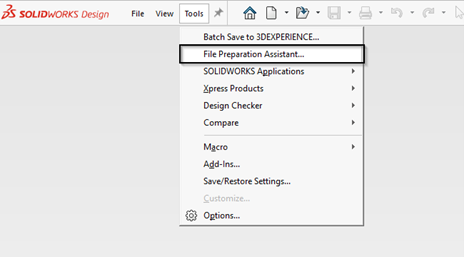
Open SOLIDWORKS> Tools > File Preparation Assistance
User Interface:
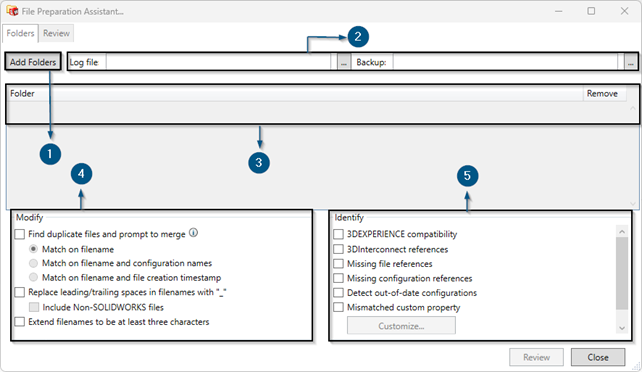
1- Add Folders
Add a folder to check the file compatibility of 3DEXPERIENCE.
2- Log file / Backup
In the Backup and Logs section, specify the backup folder (Backup) for creating backups of the data to be checked, and the folder (Log Files) where the operation log files will be stored
3- Folders
Added folder listed in the folder area
4- Modify
- Find duplicate files and prompt to merge.
By default, the 3DEXPERIENCE Platform not allows files with the same name to be saved.
Therefore, it is important to identify duplicate files and decide on the appropriate action before registration.
This option detects duplicate files and allows you to:
Keep both files by renaming one to avoid duplication, or
Merge duplicate files by deleting one file and automatically updating all references to the remaining file.
Duplicate matching options:
Match on filename – Checks only for identical file names.
Match on filename and configuration names – Checks for identical file names, configuration names, and configuration numbers.
Match on filename and file creation timestamp – Checks for identical file names and the original file creation date on disk.
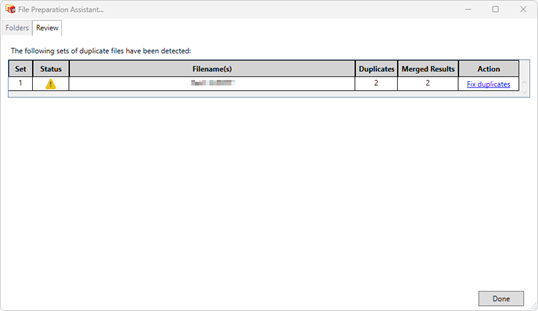
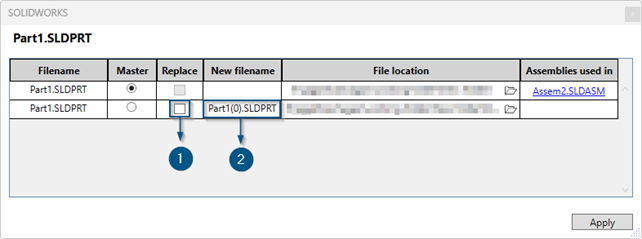
When replace checked – Merges the master file with the selected file and deletes the duplicate from the disk.
When replace Un-checked –A new name is defined for the duplicate file and kept as a unique file.
- Replace leading/trailing spaces in filenames with “_”
This command removes spaces at the beginning and end of file names and replaces them with underscores to meet 3DEXPERIENCE naming requirements. We can include non-cad files also like word, PDF etc.
- Extend filenames to be at least three characters
This command extends file names to a minimum of three characters, as required for effective searching on the 3DEXPERIENCE Platform.
5- Identify
- 3DEXPERIENCE compatibility
Runs a compatibility check on the selected files to confirm whether they have been updated to the latest 3DEXPERIENCE Configuration Manager.
- 3DInterconnect references
This option finds files that use 3D Interconnect references and allows you to keep or detach those references
- Missing File references
It is recommended to correct or remove any missing file references before uploading files to the 3DEXPERIENCE Platform.
Although files with missing references can be saved to the platform, it will not allow you to resave them until those missing references are resolved.
- Missing configuration references
This option finds missing configuration references in your data and highlights them for review along with missing file references.
- Detect out-of-date configuration
This option shows outdated configurations caused by deleting configurations without rebuilding the model. Rebuild the model before saving it to the 3DEXPERIENCE Platform.
- Mismatched custom property
Identifies files in which attribute mapping may fail due to incompatible data types.
To add a custom property check:
Select Check custom property values.
Click Custom Property Checks.
In the dialog box, enter the SOLIDWORKS custom property name in SOLIDWORKS Custom Property Name.
Choose the appropriate option for Mapped Attribute Data Type.
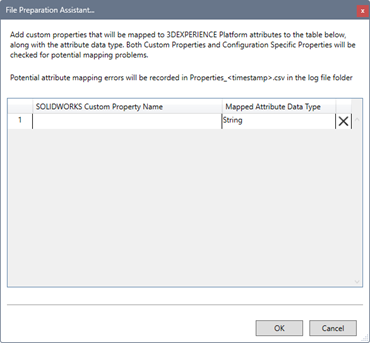
Then, File Preparation Assistance checks the listed files and open the html file in the log file location.
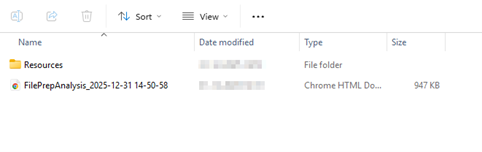
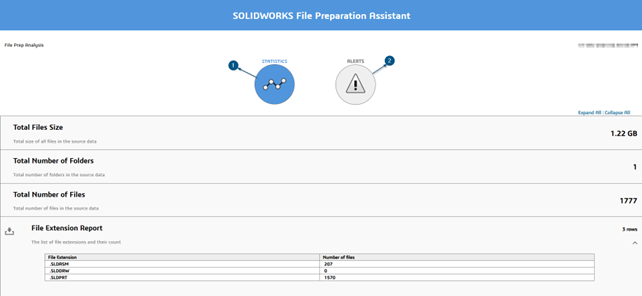
- Statistics
Statistics shows the file size, total number of files, added folder number and file extension report.
- Alerts
Alerts included three stages
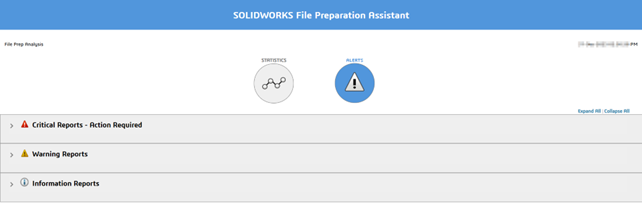
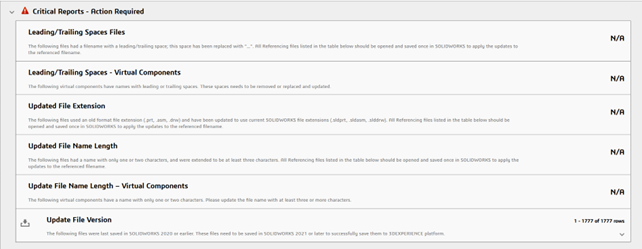
- Critical Report – Action required
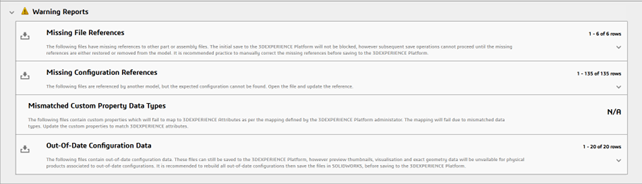
2. Warning Reports
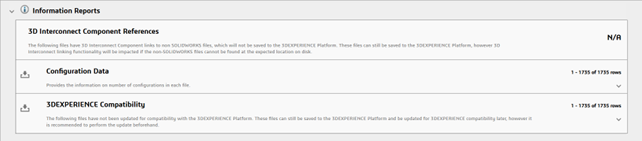
3. Information Reports