How to Disable SOLIDWORKS Resource Monitor Notifications?
Introduction
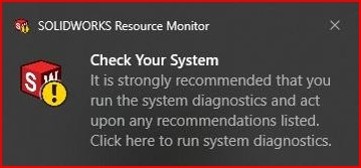
When working with SOLIDWORKS, especially on large assemblies or complex models, your Windows system may display frequent SOLIDWORKS Resource Monitor Notifications when system resources such as physical memory or virtual memory run low. These repeated pop-ups and alert sounds can interrupt your workflow and, in some cases, make it difficult to continue working efficiently. If you’re looking to Disable SOLIDWORKS Resource Monitor Notifications, this guide will walk you through the simple steps to turn off or customize these alerts in Windows while helping you maintain a distraction-free SOLIDWORKS experience.
Access the Windows Notifications Settings
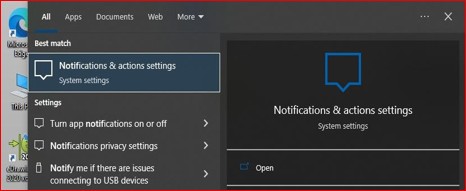
- Type ‘Notification’ into the Windows search box.
- Then select Notifications & action settings from best match list.
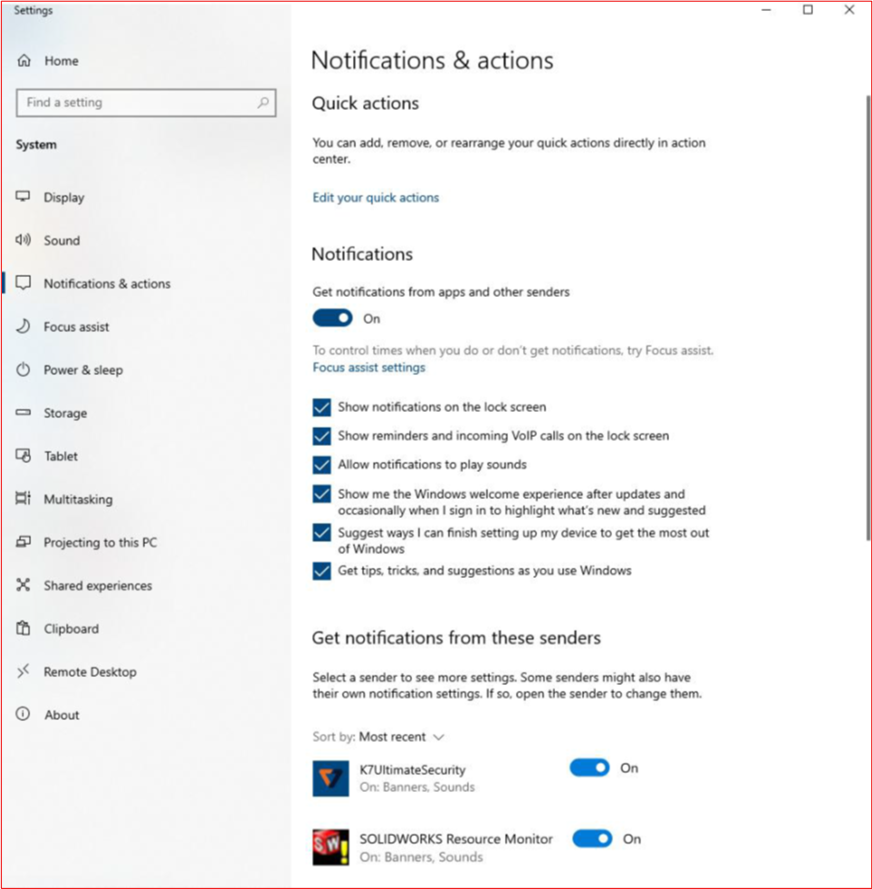
- In Notifications & Actions, under Get notifications from these senders.
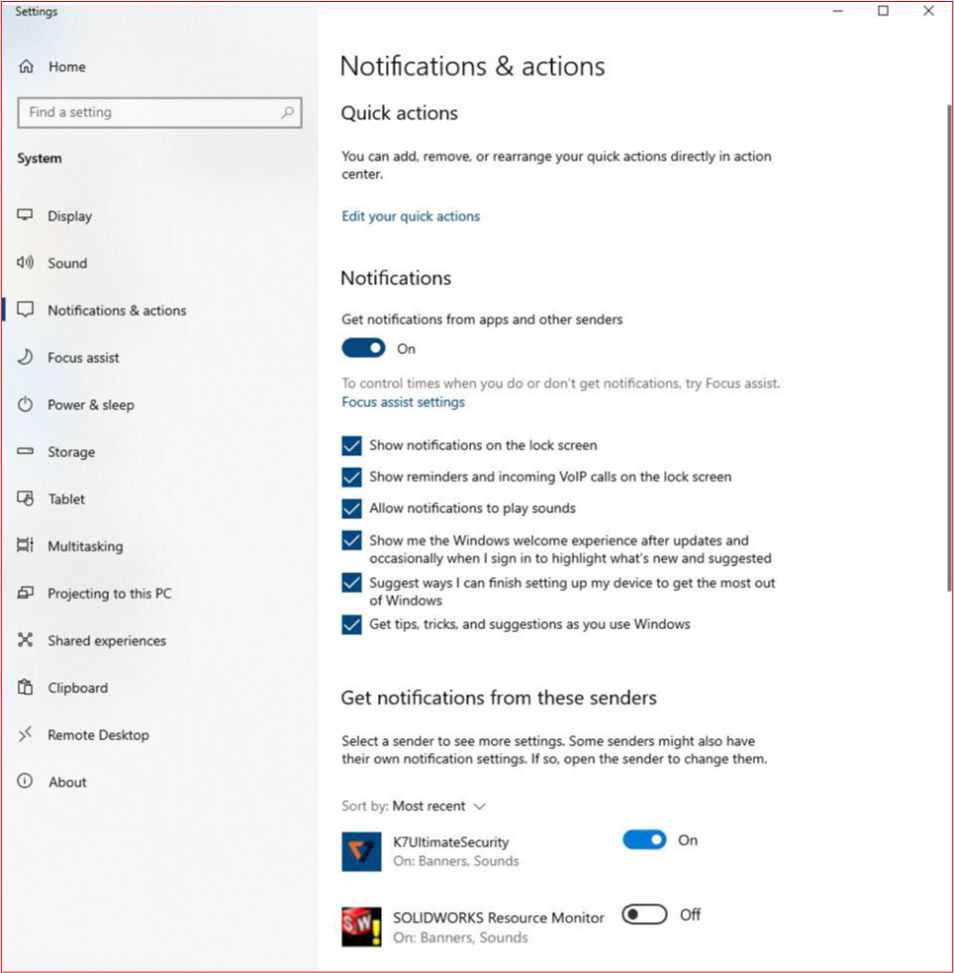
In the notifications and actions dialog scroll in the list until you find the SOLIDWORKS Resource Monitor (if it’s not listed then you likely do not have SOLIDWORKS running, just start the application and it should appear). Pick on the item to access its settings — or you can just turn them all off by moving the slider to off.
Procedure for Disabling SOLIDWORKS Resource Monitor Notifications