To restore a file in SOLIDWORKS PDM by finding its physical location using the SQL database, you need to first identify the file’s unique Document ID and then convert it to hexadecimal format to locate the corresponding archive folder.
Part 1: Find the File's Document ID using SQL
Part 1: Find the File’s Document ID using SQL
- Open Microsoft SQL Server Management Studio (SSMS)and connect to your SQL Server instance.
- Expand the Databases nodeand select the specific vault database that contains the file you want to restore.
- Click New Queryin the top toolbar.
- Type the following queryinto the query pane, replacing ‘filename.ext’ with the exact name and extension of your file (wildcards % can also be used):
sql:
select * from documents where filename like ‘filename. Ext’
- Click Execute.
- Record the Document IDfrom the results in the Results tab. This is a crucial identifier.
Part 2: Locate the Physical Archive Folder
1.Convert the Document ID to hexadecimal format using a standard scientific calculator or an online tool.
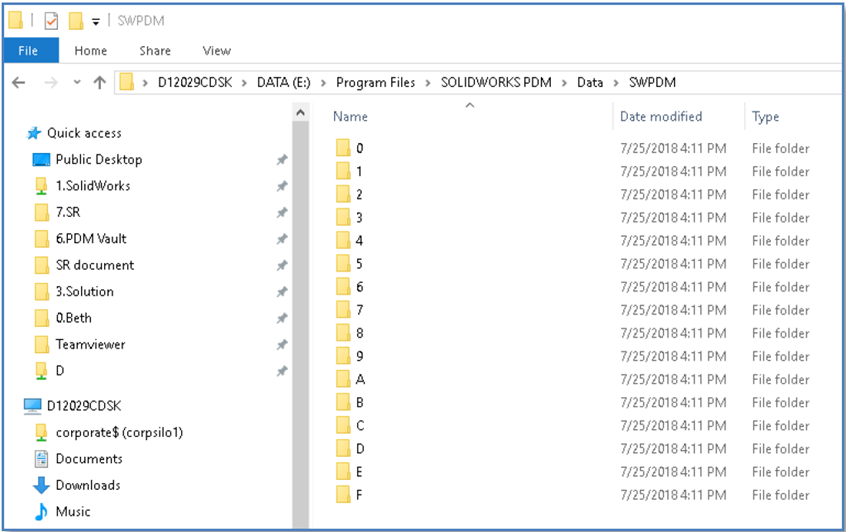
2.Navigate to the root archive folder of your vault in Windows Explorer. The default location is typically C:\Program Files\SOLIDWORKS Corp\SOLIDWORKS PDM\Data\<vault_name>. The exact location can also be verified in the Windows Registry under HKEY_LOCAL_MACHINE\SOFTWARE\SolidWorks\Applications\PDMWorks Enterprise\ArchiveServer\Vaults\<vaultname>\ArchiveTable.
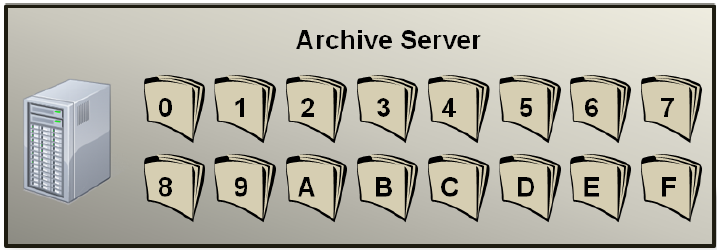
3.Identify the first-level archive folder: The root archive contains 16 subfolders named 0 through 9 and a through f. Expand the folder that matches the last digit of your hexadecimal Document ID.
4.Identify the second-level archive folder: Inside the first-level folder, you will find other folders. Expand the folder that matches the full hexadecimal Document ID.
Part 3: Restore the File
The identified folder contains all versions of your file as .file or similarly named files (e.g., 00000001.file, 00000002.file). The specific version you need to restore will have a bak_ prefix or you will have a separate backup file.
- Identify the correct file versionyou wish to restore.
- Rename or move the current, incorrect file(e.g., rename 00000002.file to 00000002.backup).
- Rename the appropriate backup file(e.g., rename bak_0_00000002.file or your specific backup file name) back to the original format (e.g., 00000002.file).
- Verify the restorationby checking the file within the SOLIDWORKS PDM local vault view.
Note: This process involves direct manipulation of the PDM archive and should be performed with caution, ideally on a test environment first, and with full backups of both the database and archives available.