

Optimize SOLIDWORKS Network Licensing with Options File Setup
In a typical SOLIDWORKS network license setup, all licenses are stored in a central server, and multiple users access them from their individual systems. When a user opens SOLIDWORKS, a license is taken from the server, and once the application is closed, it is returned back.
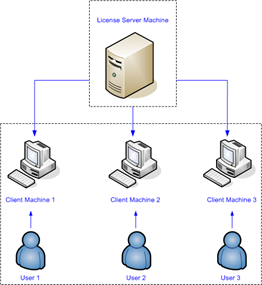
This system works efficiently for sharing licenses across users, especially in smaller teams. However, as organizations grow and multiple departments start working together, everyone depends on the same license pool.
Without proper control, one team may end up using more licenses than required, while others are left waiting, and in some cases, licenses may remain occupied even when not actively used. This creates delays, inefficiencies, and unnecessary frustration in daily work. This is where the Options File comes into play.
An Options File is a simple text-based configuration file used in the SOLIDWORKS Network License Manager. It allows administrators to control how licenses are distributed and used across different users and teams.
Instead of leaving license usage completely open, the Options File introduces structure.
It helps define who can use certain licenses, how many licenses a team can use at a time, and how long a license can remain idle before it is returned to the server.
In short, it transforms license usage from an uncontrolled system into a well-managed one.
How to Write the Options File
Let’s consider a practical scenario where two teams are working within the same organization.
The Design Team (Team A) requires access to SOLIDWORKS for modeling work, while the Analysis Team (Team B) requires access to both SOLIDWORKS and Simulation tools.
- Team A ( 15Users ):
- 6 SOLIDWORKS Standard licenses
- 4 SOLIDWORKS Premium licenses
- Team B ( 8Users ):
- 5 SOLIDWORKS Standard licenses
- 3 Simulation Premium licenses
The goal is not just to provide access, but to ensure that each team uses only the number of licenses allocated to them, while also making sure that unused licenses are automatically returned to the system.
To achieve this, we will create an Options File with three main objectives.
- First, we will define groups to represent each team with the help of system name.
- Next, we will assign limits to control how many licenses each group can use.
- Finally, we will configure a timeout so that idle licenses are automatically released.
Step 1: Define Groups (Teams)
Syntax : GROUP [Group_Name] [User1 User2 User3 …]
This command is used to create a group. The group name represents a team, and the users listed after it are the members of that team. Each client system name is separated by a space. So in our case, two groups with 15 and 8 users respectively. Therefore,
GROUP TeamA userA1 userA2 userA3 userA4 userA5 userA6 …. [ so on]
GROUP TeamB userB1 userB2 userB3 userB4 userB5….. [so on]
Step 2: Assign License Limits
Syntax : MAX [Number] [Feature_Name] GROUP [Group_Name]
This command limits the number of licenses that a group can use at any given time. The number represents the maximum allowed usage, and the feature name refers to the type of license.
MAX 6 solidworks GROUP TeamA
MAX 4 swofficepremium GROUP TeamA
MAX 5 solidworks GROUP TeamB
MAX 3 cae_cwstd GROUP TeamB
Step 3: Set Timeout (Auto Return Licenses)
Syntax : TIMEOUT [Feature_Name] [Time_in_Seconds]
This command defines how long a license can remain idle before it is automatically returned to the server.
TIMEOUT solidworks 1800
TIMEOUT swofficepremium 1800
TIMEOUT cae_cwstd 1800
Putting it all together, the Options file looks like this,
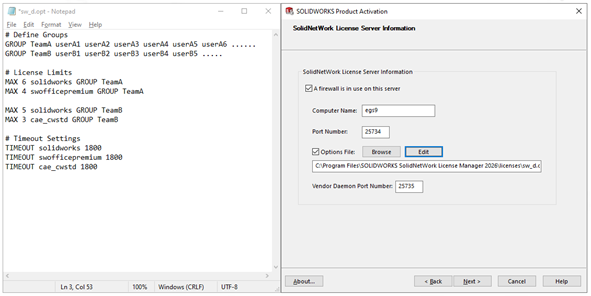
The Options File can be set up directly from the SOLIDWORKS Network License Manager on the server machine.
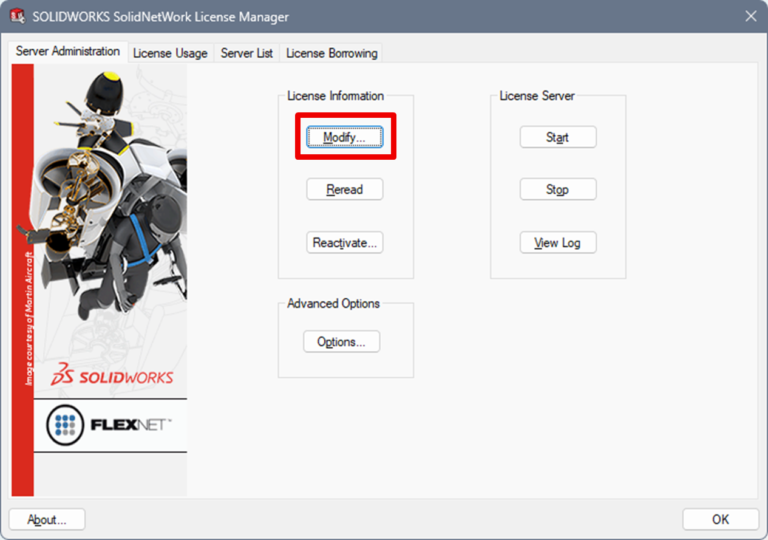
Within the License Manager, you can navigate to the Options File option, enable the use of an options file, and either create a new file or point to an existing one.
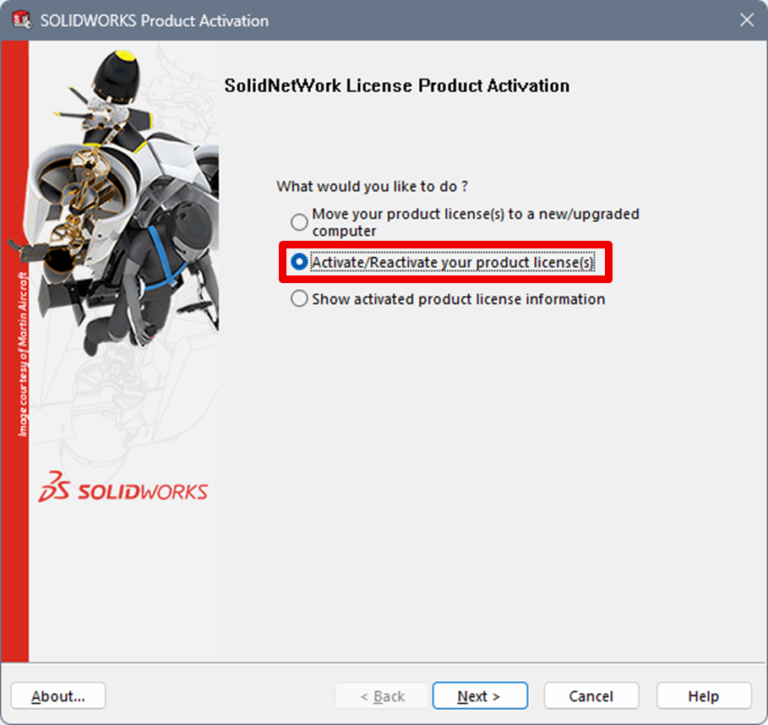
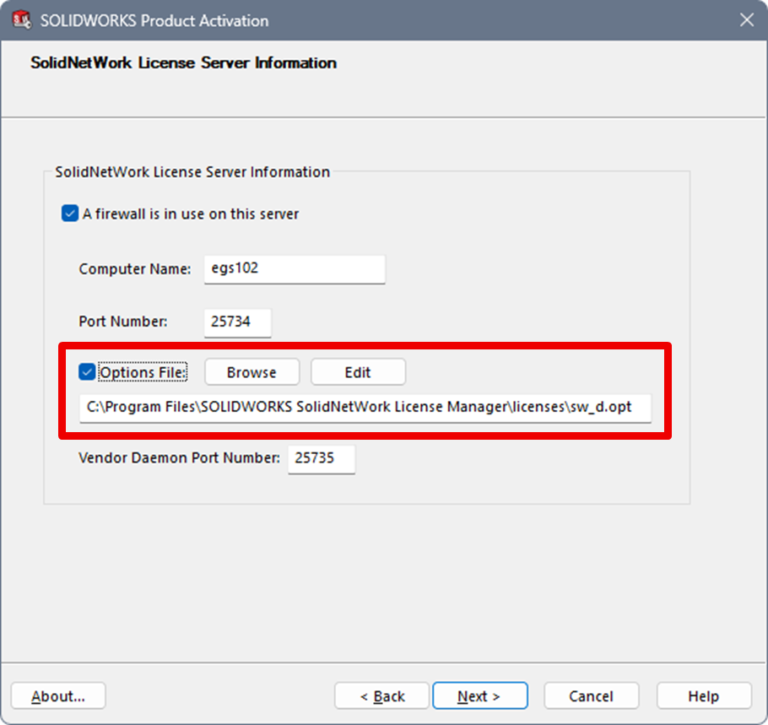
You can choose a custom location or simply place the file in the default directory where the license file is stored. Once the file is created, it can be browsed through the license manager server
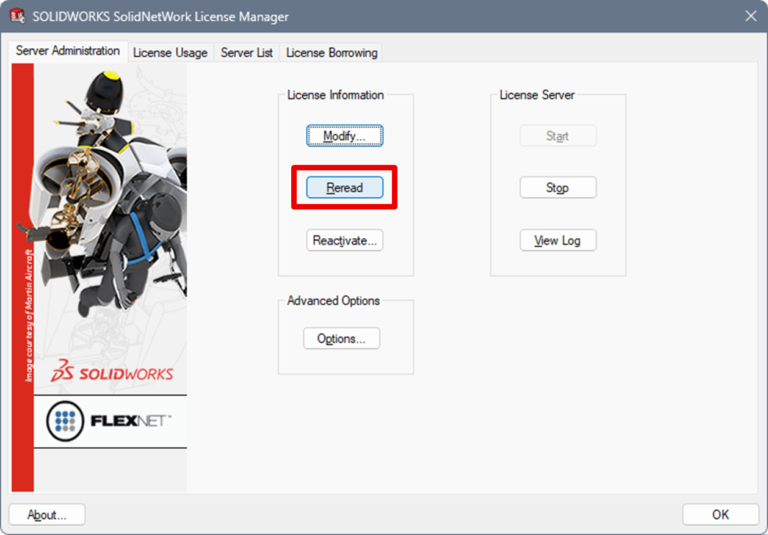
After saving the changes, the license manager needs to be reread for the settings to take effect.
With this setup, license usage becomes structured and predictable. Each team gets access to the licenses they need without interfering with others. At the same time, unused licenses are automatically returned, ensuring that valuable resources are not locked unnecessarily.
Beyond this setup, the Options File can also be used to reserve licenses for critical users, restrict access when required, and monitor usage patterns. This makes it a powerful tool for organizations that are scaling and need better control over their software environment.
If your organization is expanding and you are facing challenges in managing SOLIDWORKS licenses, this is the right time to take control. Reach out to us today and take the first step towards smarter license management.

Authur:
Anishskanth K is a CAD professional specializing in product design and digital engineering workflows, with hands-on experience in SOLIDWORKS and the 3DEXPERIENCE Platform. He focuses on simplifying complex concepts, helping users improve productivity, optimize design processes, and adopt efficient, practical solutions in their everyday engineering tasks.

