

Optimizing System Graphics Settings for SOLIDWORKS
Introduction
When working with complex models in SOLIDWORKS, performance is not determined only by the settings inside the software. System-level factors such as the operating system, GPU drivers, and graphics control panel settings also affect how smoothly the software runs.
Optimizing these external graphics settings can improve viewport performance, stability, and over all CAD efficiency. This blog explains a few key adjustments outside SOLIDWORKS that can help achieve better performance.
Install Certified Graphics Drivers:
The first step to improving SOLIDWORKS performance is to use certified graphics drivers recommended by Dassault Systèmes. These drivers are tested for CAD applications and help prevent common issues such as:
- Graphics glitches
- Software crashes
- Display problems
Always download drivers from the official GPU vendor:
- NVIDIA
- AMD
Note: Using outdated or gaming-optimized drivers can reduce stability in professional CAD environments.
Configure GPU Settings in NVIDIA Control Panel:
If your system uses an NVIDIA GPU, adjusting settings in the NVIDIA Control Panel can improve performance in SOLIDWORKS. These settings help the graphics card run the software more smoothly and efficiently.
Steps:
- Right-click on the desktop
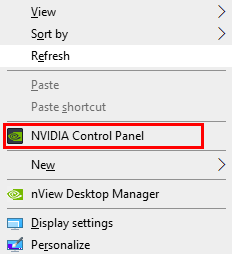
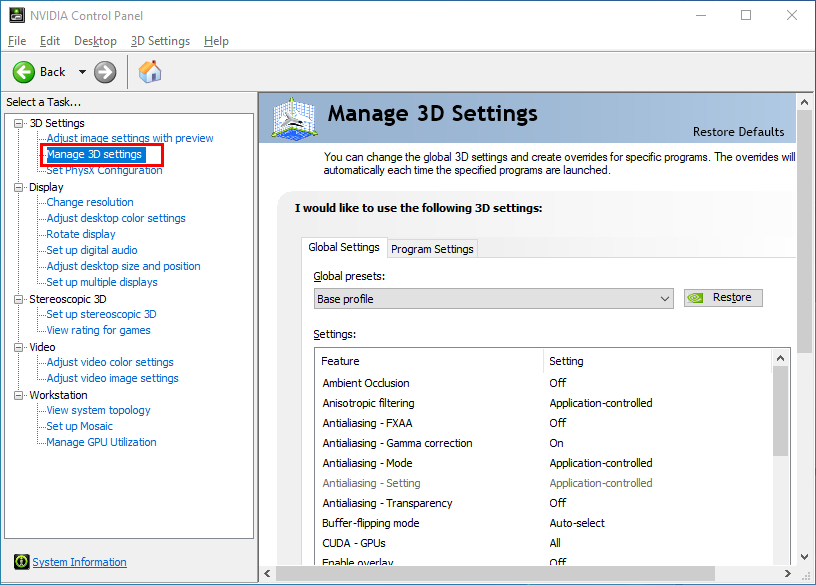
- Open NVIDIA Control Panel and Go to Manage 3D Settings
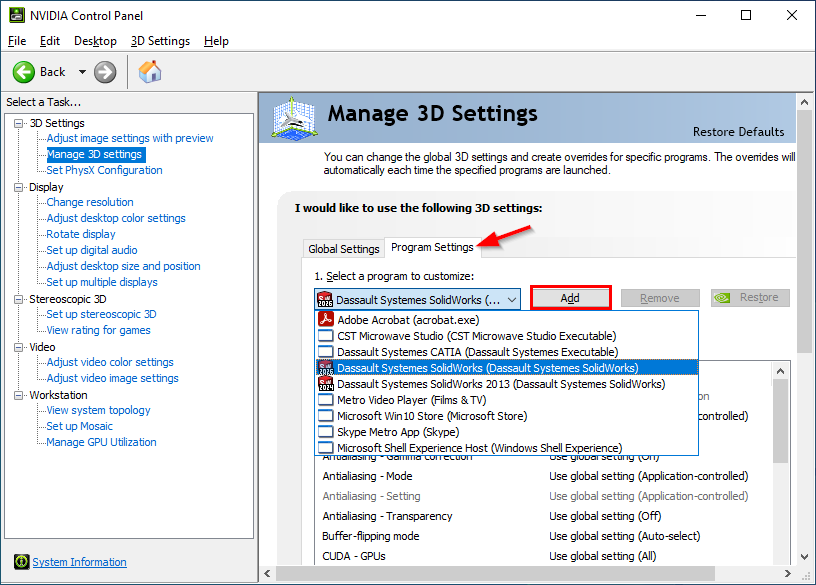
Select Program Settings and Add SOLIDWORKS
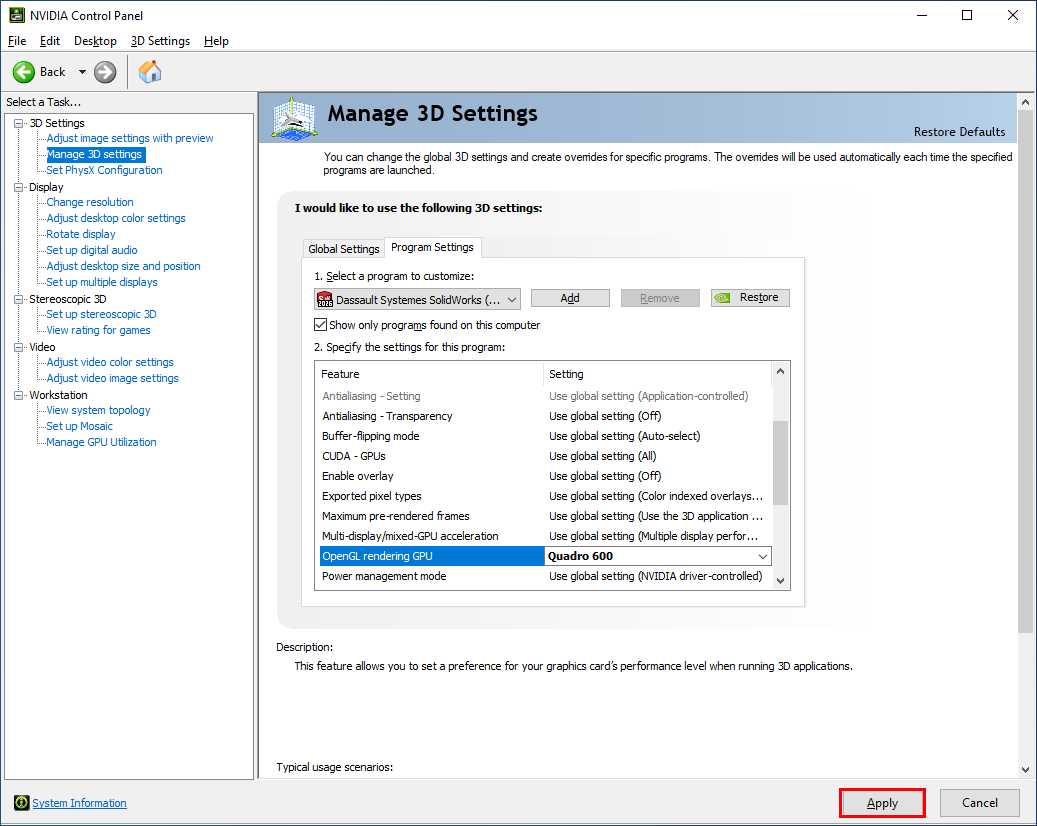
Feature
Setting
Power Management Mode
Prefer Maximum Performance
Threaded Optimization
On
Vertical Sync
Off
OpenGL Rendering GPU
Select your dedicated GPU
CUPA-GPUs
Select your dedicated GPU
Configure Windows Graphics Settings:
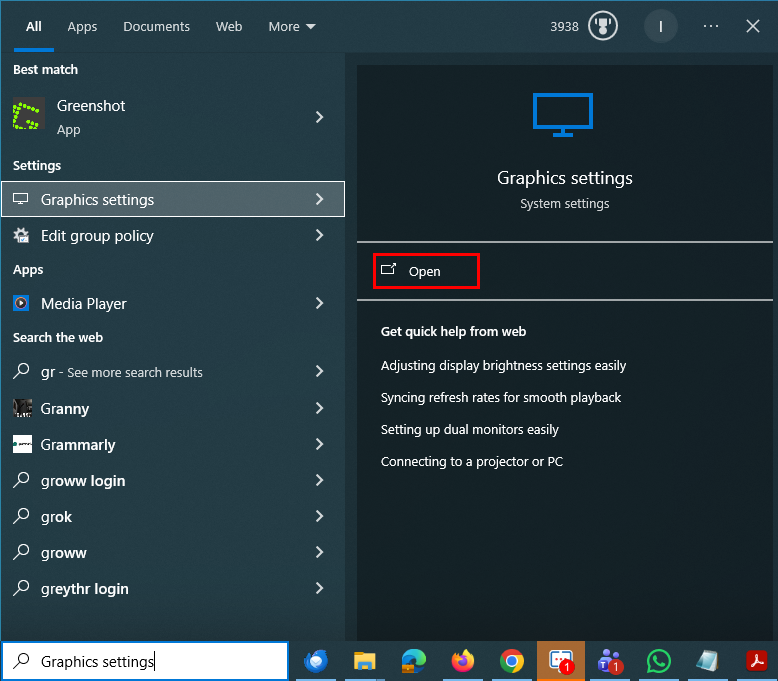
- In the Windows search bar at the bottom of the screen, type Graphics Settings and select the Graphics Settings option.
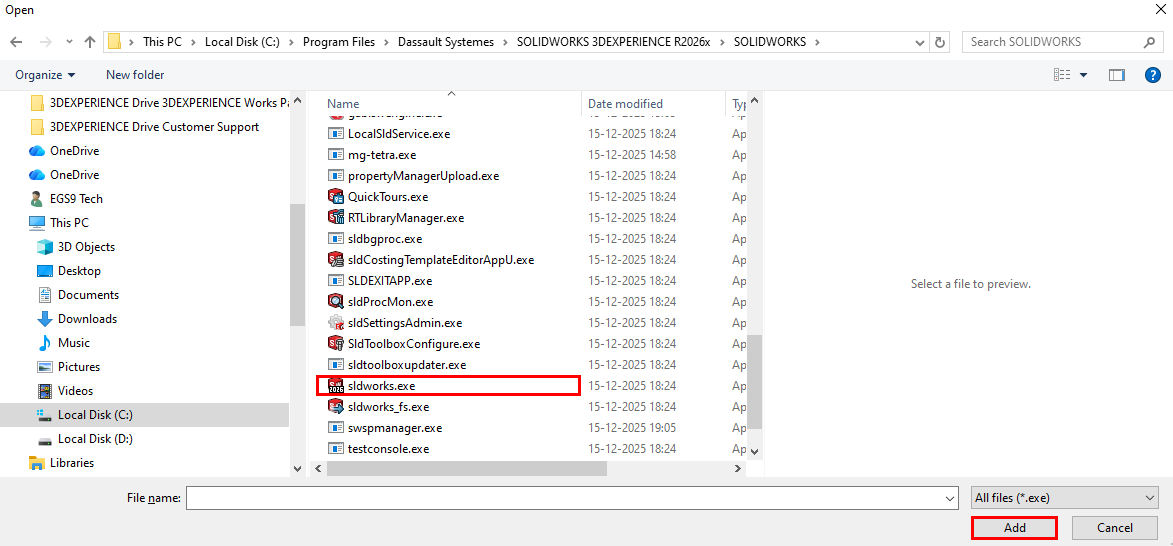
- Click Add desktop app and locate the SOLIDWORKS application
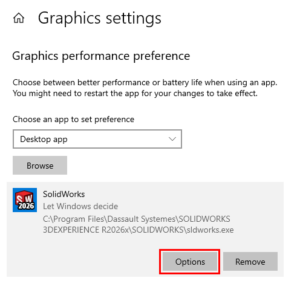
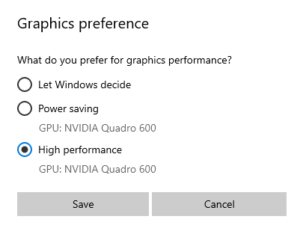
- Click Options and set it to High Performance.
After updating the graphics settings, restart your system to ensure the changes take effect.***Thank You****

