EGS INDIA

+91 9445431704

info@egs.co.in

Authorized SOLIDWORKS RESELLER in Chennai, Coimbatore, Trichy

EGS INDIA

+91 9445424704

info@egs.co.in

Authorized SOLIDWORKS RESELLER in Chennai, Coimbatore, Trichy

EGS INDIA

+91 9445424704

info@egs.co.in

Authorized SOLIDWORKS RESELLER in Chennai, Coimbatore, Trichy

How to Perform SOLIDWORKS PDM SQL Server Migration?

Introduction

SOLIDWORKS PDM SQL Server Migration is the process of transferring SOLIDWORKS PDM vault databases from one SQL Server instance to another while ensuring data integrity, security, and optimal system performance. SOLIDWORKS PDM operates on a client-server architecture that relies on a SQL Server (PDM Database Server) and a PDM Archive Server. This guide explains how to back up your vault databases, restore them to a new SQL Server instance, update the Archive Server configuration, and validate the migration for a successful deployment.

Backup the Database from old SSMS

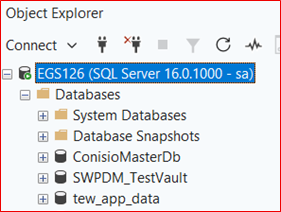
Open your SSMS (SQL Server Management Studio) and connect the SQL server using the user credentials and expand the databases.

Now, you can find the list of your vault databases in the Databases folder.Here, as an example we are going to backup the database “ConsioMasterDb” and “SWPDM_TestVault”. The database “ConsioMasterDb” is the central “brain” database for SOLIDWORKS PDM in SQL Server and functions as a global directory, tracking the names, types, and server locations of all file vaults hosted within the SQL Server instance.

The database “SWPDM_TestVault” here is an actual PDM vault database.

Similarly, the number of vault database occurs based on your PDM vaults.
SOLIDWORKS PDM SQL Server Migration

Before starting the backup process, make aware of the SOLIDWORKS PDM users to stop using the SOLIDWORKS PDM and stop all the services necessary to work with SOLIDWORKS PDM.

Windows Services for reference

Eg: Windows Services for reference

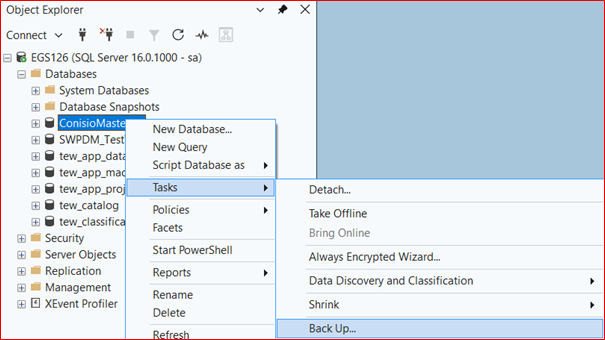
Now, right click the “ConsioMasterDb” and select Tasks > Backup.

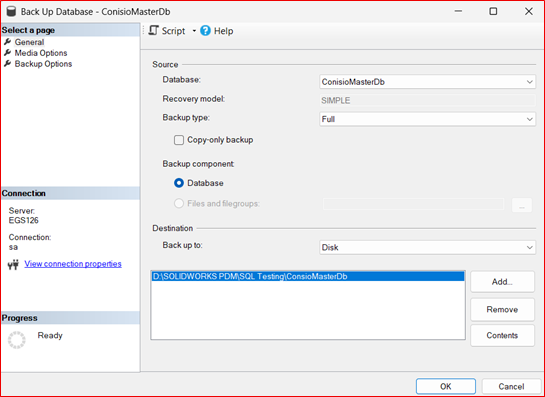
Now, the backup database tab appears and select the options as mentioned below.

Database: ConsioMasterDb (Database need to backup)

Backup type: Full (For complete database backup)

Backup component: Database

Backup to: Disk (Destination for a database backup)

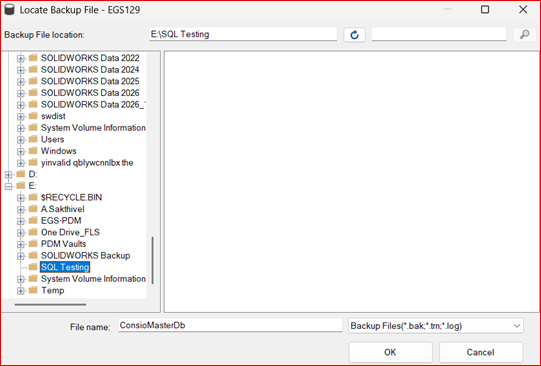
By default, the location is added in the destination folder.

If the location is too complex or if there is no location, click “Add” and map the location on the disk for backup destination.

To remove the existing location, select it and click “Remove”.

Click “OK” to complete the backup process.

ConsioMasterDb completes

Now, the backup of ConsioMasterDb completes and the message appears as per below image.

Restore the Database to the New SQL Server

The same database backup process needs to repeat for the PDM vault database “SWPDM_TestVault” and copy all the database backups and copy to the new SQL server system.

Note: Check your new SQL Server meets the system requirements as per SOLIDWORKS recommendation.

Now, open the SSMS (SQL Server Management Studio) in the new SQL server system.

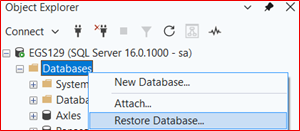
Right click the Databases folder & select

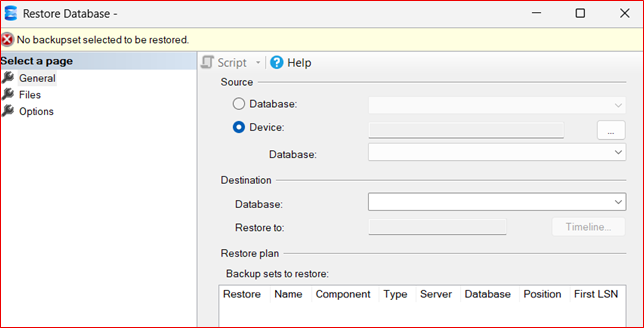
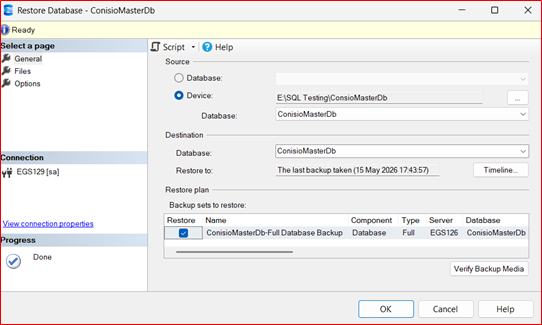
“Restore Database” and the tab appears.

database

After that, select the Database from the drop-down list and verify that the database is ready to restore.

Click “Ok” to complete the process.

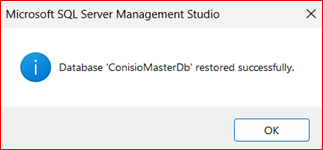
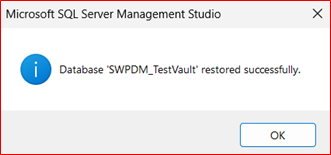
And you can see the that the database restored successfully

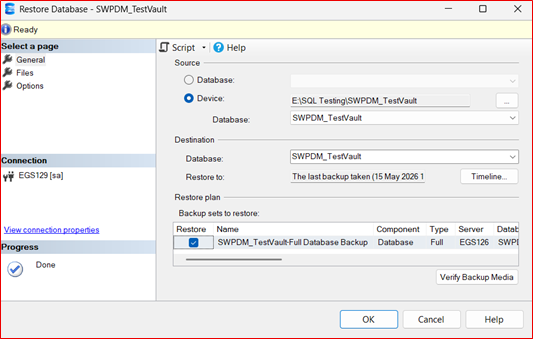
Now, repeat the same process for other databases to restore and here as an example “SWPDM_TestVault” was restored.

After completing the SQL database (PDM Database) backup and restore, now you can change the SQL server for PDM in PDM Archive Server.

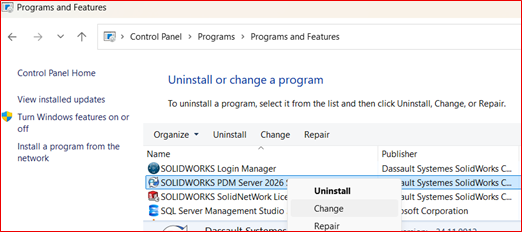
Open “Control Panel > Programs and Features > SOLIDWORKS PDM Server 20xx” in a SOLIDWORKS PDM Archive Server system.

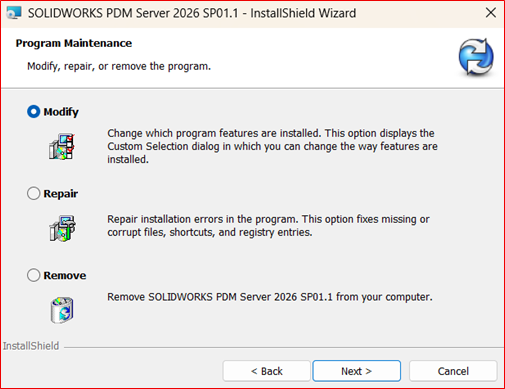
Right click the program and select “Change” to “Modify” the installation.

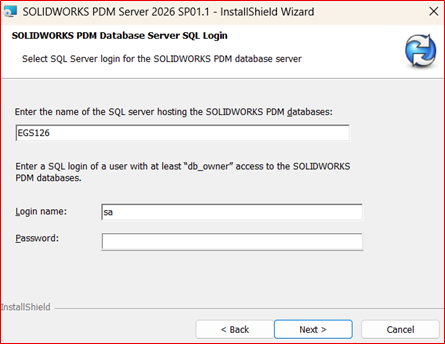
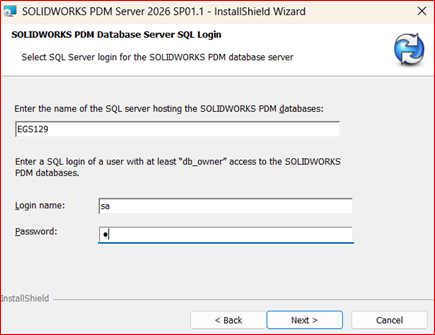
Click “Next” on each tab until you reach the page SOLIDWORKS PDM Database Server SQL Login.

Change the name of the new SQL Server and add its login credentials.

Eg: Here we changed the SQL Server from EGS126 to EGS129

Continue clicking “Next” and complete the Installation by clicking “Finish”.

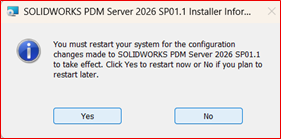
Now, the warning appears to restart your PDM Archive Server System to

update the modification of SQL Server.

Close all tabs and click “Yes” to restart the system and start all the necessary services for SOLIDWORKS PDM.

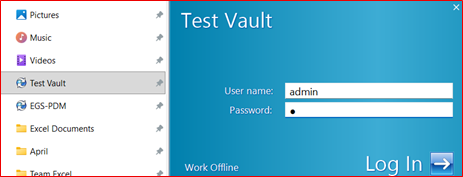
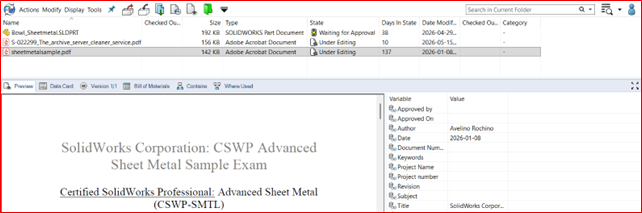
Now, login your PDM vault with the admin/user credentials and you can see that the files are able to access from the vault.

Conclusion

Finally, the SQL Server migration was completed successfully through systematic planning, validation, and transfer of database components while ensuring data integrity, security, and minimal downtime throughout the process.
Now, perform post-migration verification and performance testing to confirm that the new SQL Server environment is stable, fully functional, and ready for production use.

Viknesh C

An Elite Application Engineer for SOLIDWORKS, specializing in supporting 3DEXPERIENCE SOLIDWORKS solutions. With extensive hands-on experience in delivering value-added services and guiding customers to effectively use and apply SOLIDWORKS tools over the years. Deep knowledge of these solutions enables users to optimize their experience and fully leverage the SOLIDWORKS powerful capabilities.

Author
viknesh
Scroll to Top